
Collect and choose keywords from MiriCanvas
Keyword Picker
Gather keywords from your MiriCanvas searches, choose the ones you need and copy them together.
Quick start
- Run it in MiriCanvas
- Search Elements or Backgrounds
- Choose and copy
This device looks like a computer.This device looks like Android.This device looks like an iPhone or iPad. The computer guide is open below.The Android guide is open below.The iPhone & iPad guide is open below. Choose another device
Set it up once: install an extension in Chrome, Edge, or Firefox on a PC; use the extension in Firefox or Edge Canary on Android; or add a shortcut on iPhone.
The Keyword Picker extension is installed. Press Open MiriCanvas.
On a PC, Keyword Picker works in Chrome, Edge and Firefox. Open this page in one of them.
First, add the Keyword Picker extension to this browser.
In MiriCanvas, turn on the Keyword Picker panel, then search Elements or Backgrounds. On iPhone, tap Menu (≡) → Share → Keyword Picker first.
How to use it on your device
Choose your device.
Chrome & Edge
- In Chrome or Edge, add the Keyword Picker extension with the button below.
- Press Open MiriCanvas: MiriCanvas opens with the panel already showing.
Keyword Picker is not on the Chrome Web Store yet. For now, please use Edge or Firefox.
Other Chromium browsers such as Whale and Brave can add it from the Chrome Web Store.
Firefox
- Install Firefox. Firefox for PC
- Open this page in Firefox and add the Keyword Picker add-on.
- Press Open MiriCanvas: MiriCanvas opens with the panel already showing.
The store listing is being prepared. Once it is published, you can add it here.
On Android, Keyword Picker runs as an extension in Firefox or Edge Canary (pick one). Open in Firefox opens this page in Firefox, or the Play Store if Firefox isn't installed.
Picked Edge Canary? Go to “Using it on Android with Edge Canary” below
Using it on Android
On Android, choose either Firefox or Edge Canary. Regular browsers such as Chrome can’t install Keyword Picker, so use one of those two. You don’t need both. The Firefox method is simpler to set up and appears first; the Edge Canary method is below.
Using it on Android with Firefox
On an Android phone, use Keyword Picker in Firefox. Install Firefox and add Keyword Picker once. After that, open MiriCanvas with a single button.
Setup takes three steps. After that, use only Step 4 each time. Unlike Edge Canary, Firefox doesn’t require developer mode or an ID.
The screenshots show the Korean interface. Each name comes first in English, with the Korean label from the screenshots in parentheses.
Step 1. Install Firefox
Search for Firefox in the Play Store.
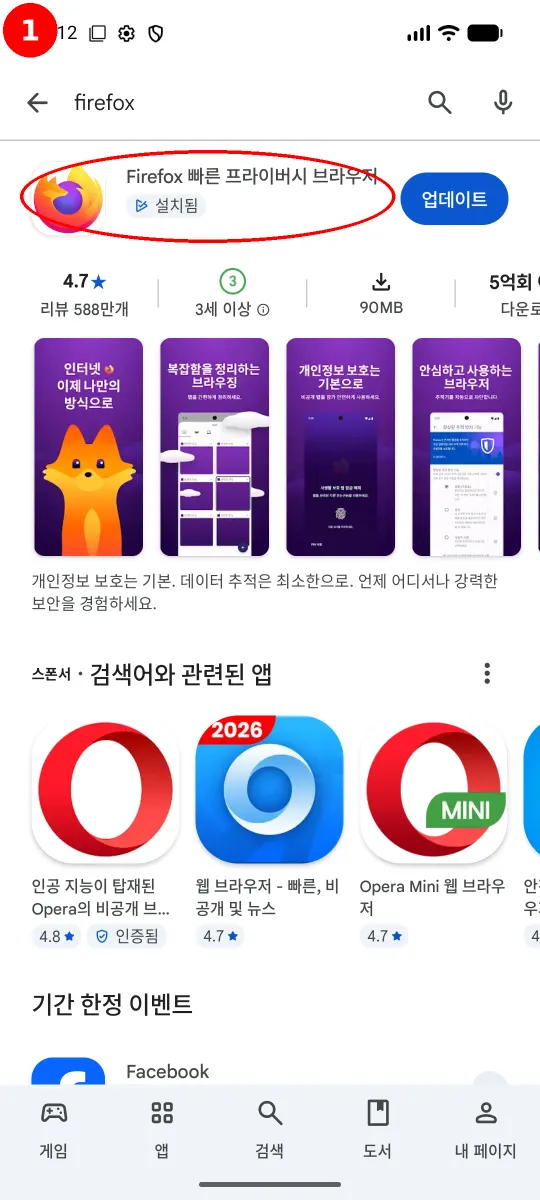
Tap Firefox Fast & Private Browser (Firefox 빠른 프라이버시 브라우저, by Mozilla).
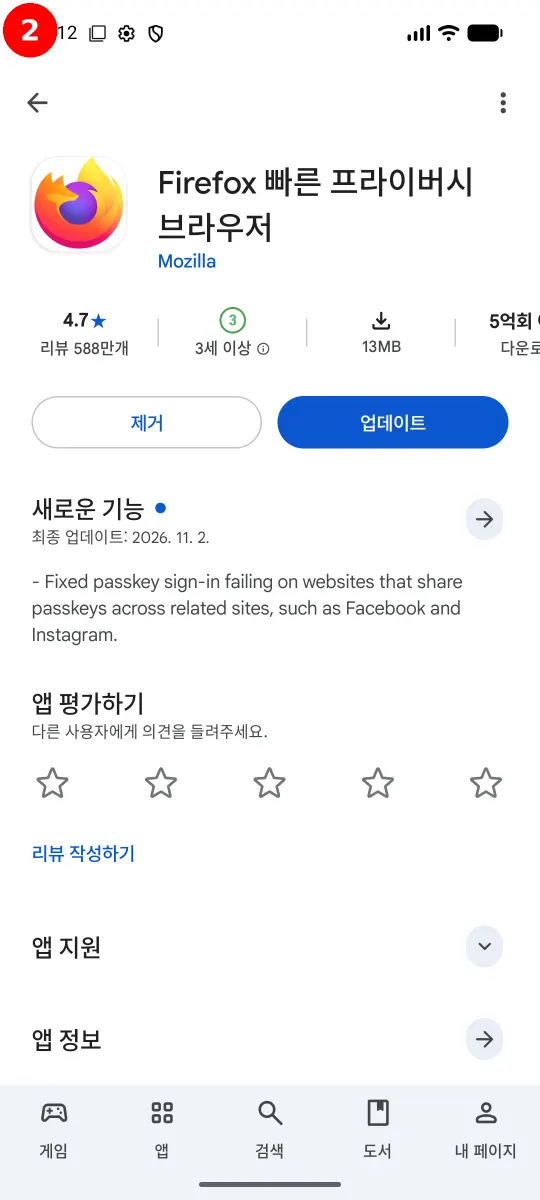
Tap Install (설치). If it's already installed, you'll see an Update (업데이트) button.
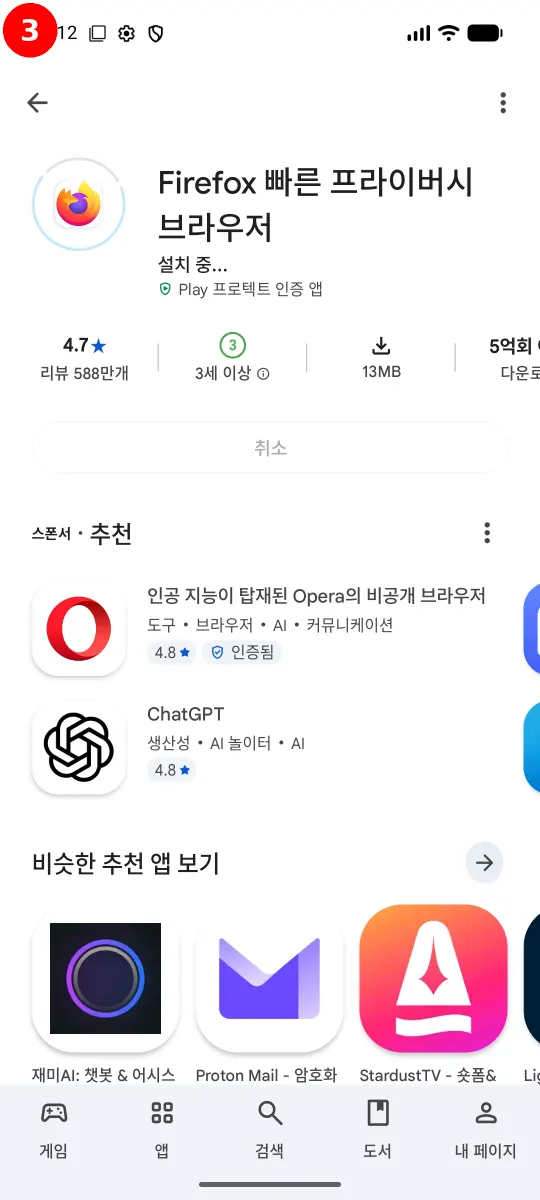
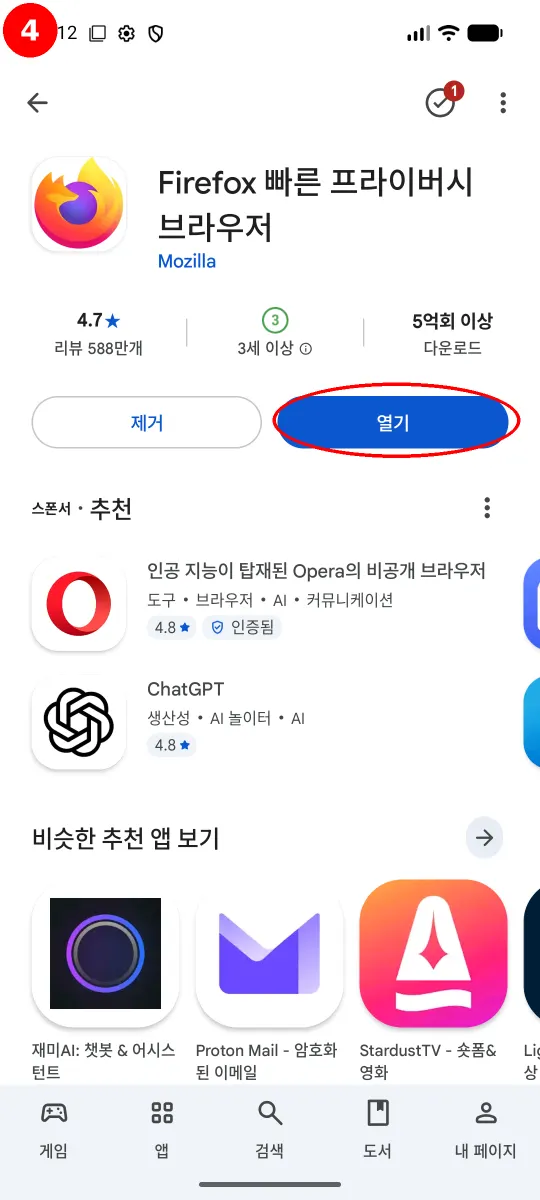
When it's done, an Open (열기) button appears.
Step 2. Open this page in Firefox
If you're viewing this page in another browser, tap the Open in Firefox button at the top. If Firefox isn't installed, the Play Store opens.
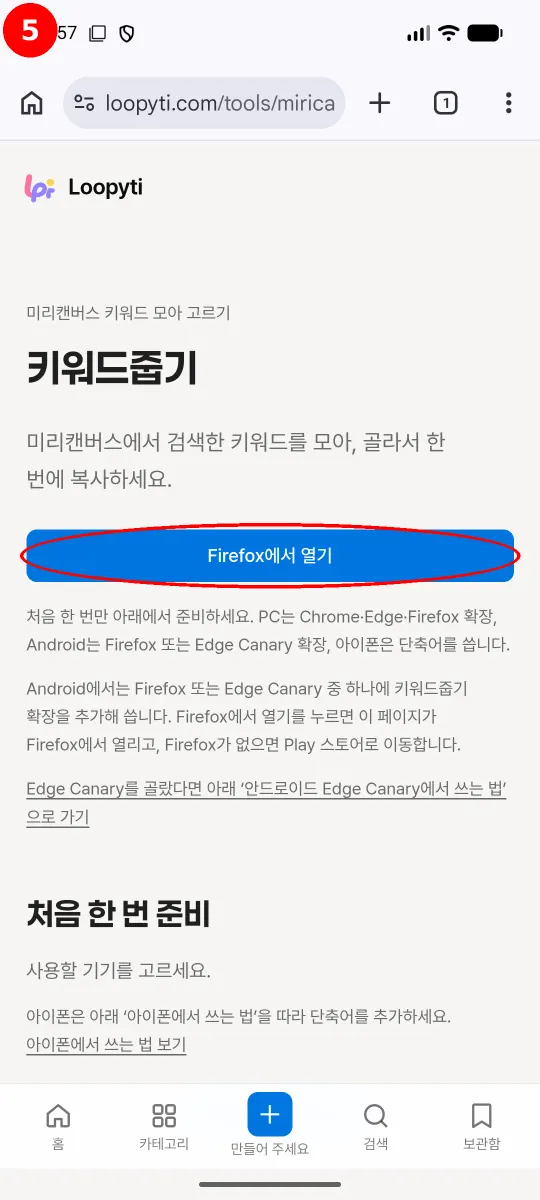
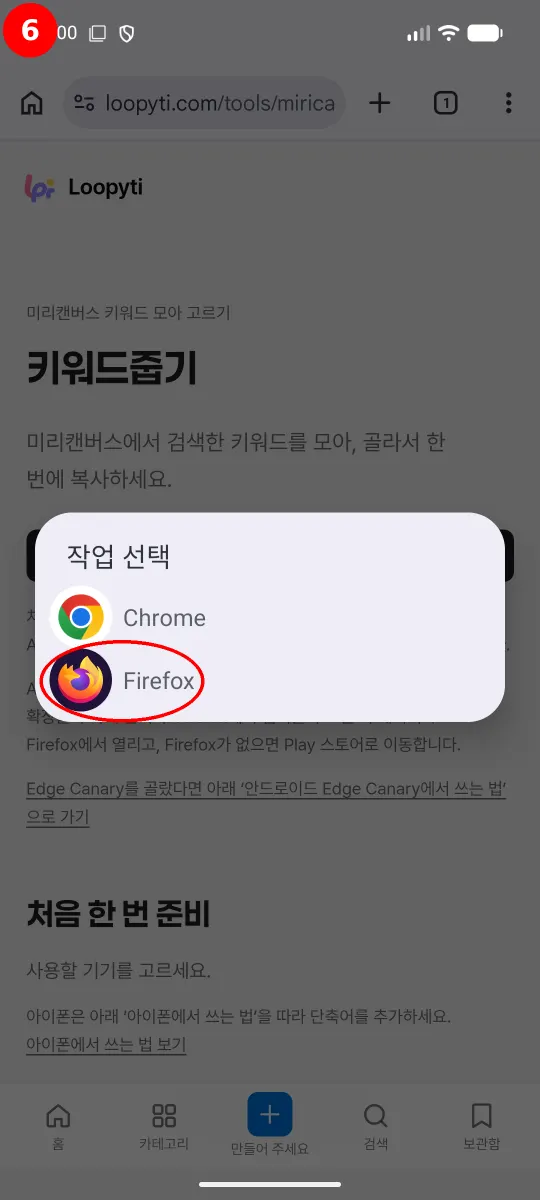
If your phone asks which app to use, choose Firefox. On some phones, it opens directly without this prompt.
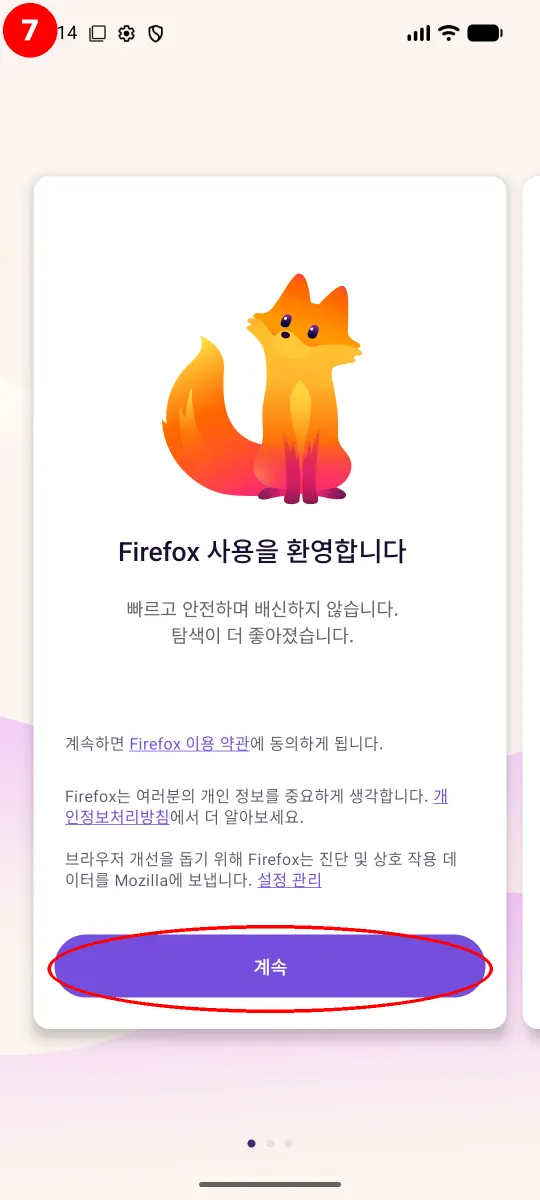
The first time you open Firefox, a welcome screen appears. Tap Continue (계속). You don't need to sign in.
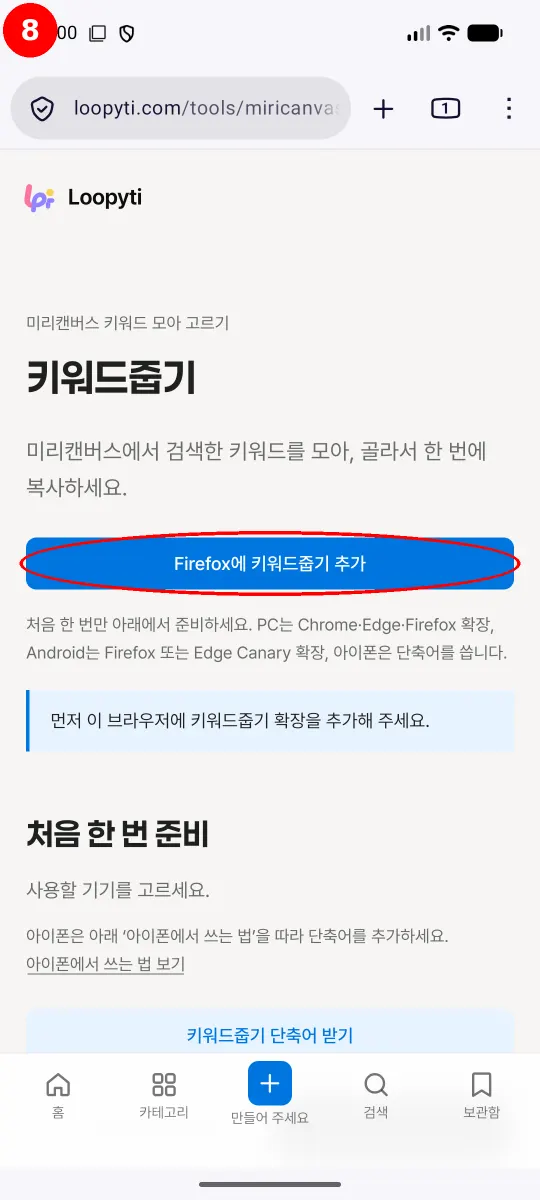
Once the page opens in Firefox, the top button changes to Add Keyword Picker to Firefox.
The same steps are also listed in the Firefox (PC & Android) tab under One-time setup on this page.
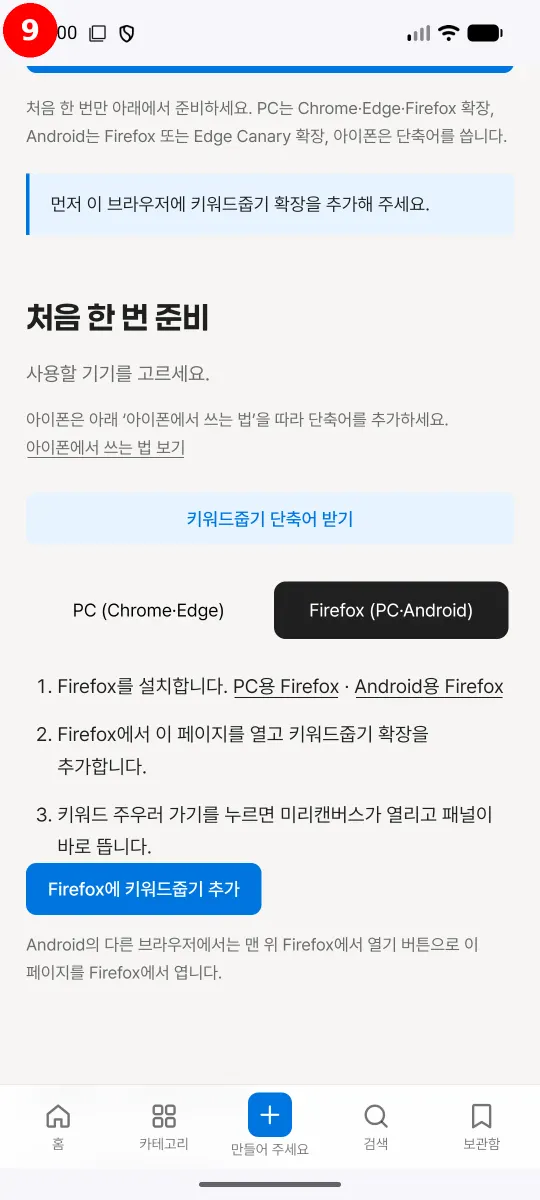
Step 3. Add Keyword Picker
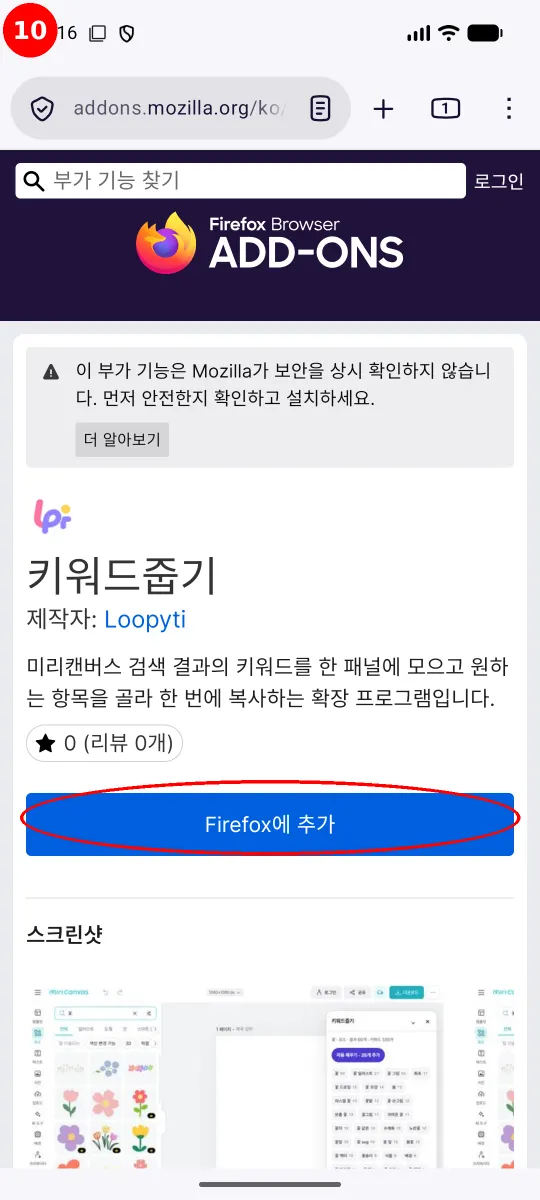
Tap Add Keyword Picker to Firefox to open the add-ons page. Tap Add to Firefox (Firefox에 추가).
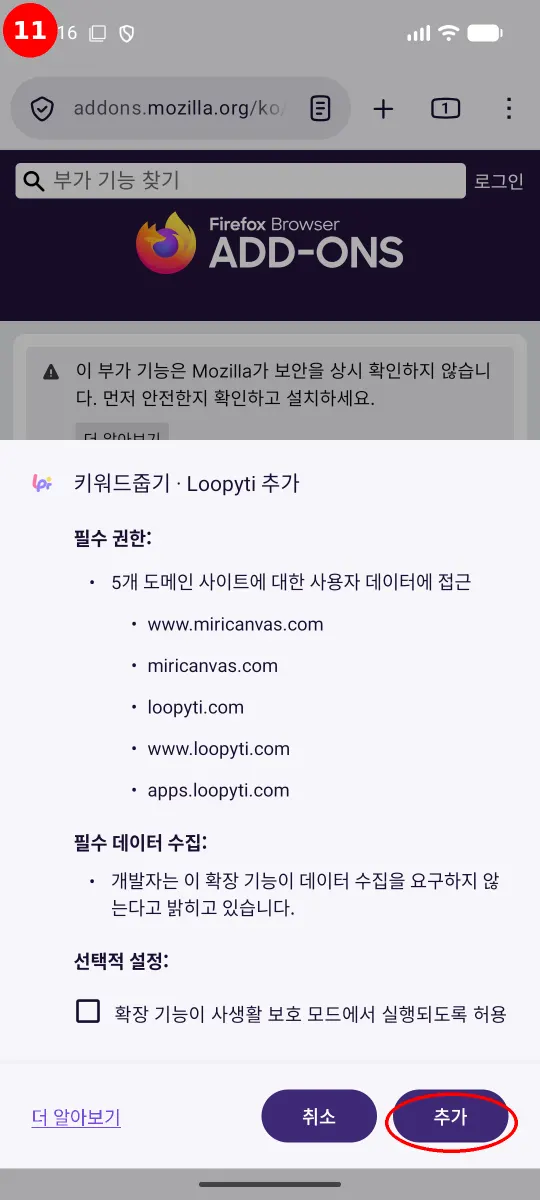
When a window asks for permissions, tap Add (추가).
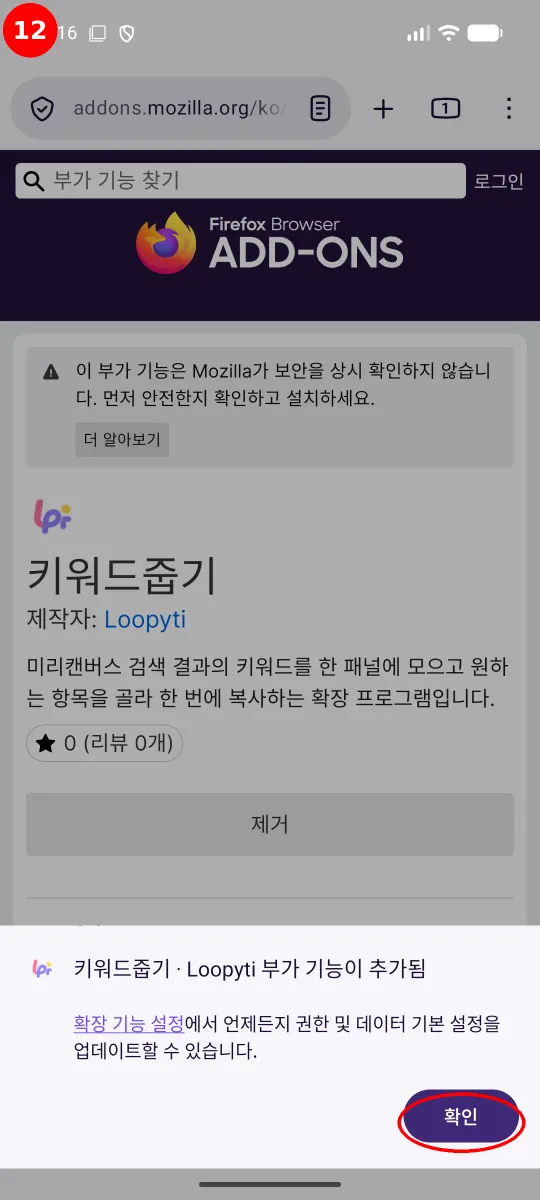
When the notice says the add-on was added (부가 기능이 추가됨), you're done. Tap OK (확인).
Step 4. Pick keywords in MiriCanvas
The top button on this page changes to Open MiriCanvas. Tap it.
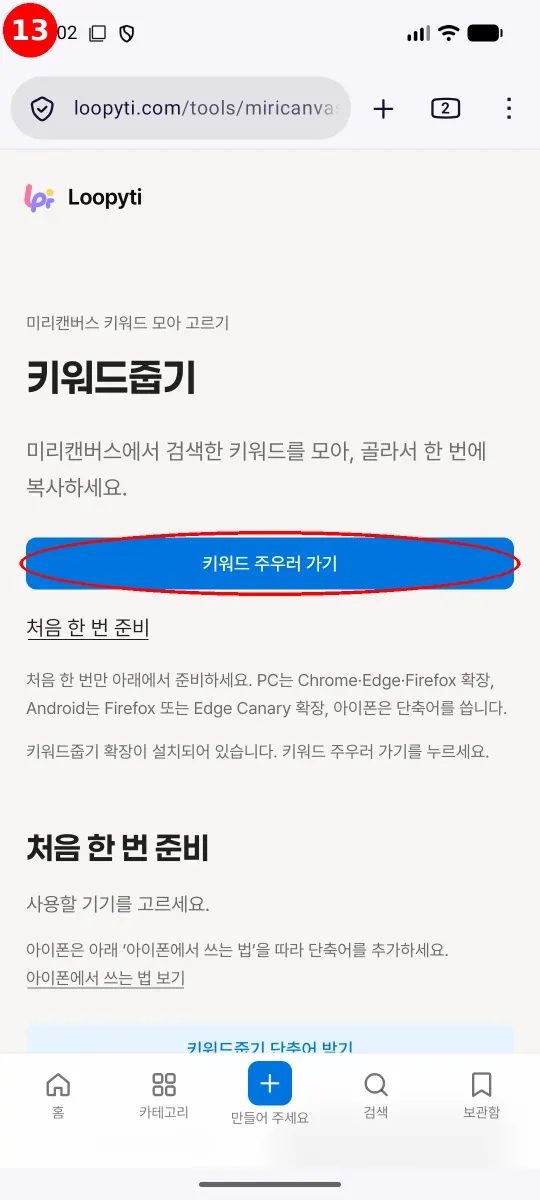
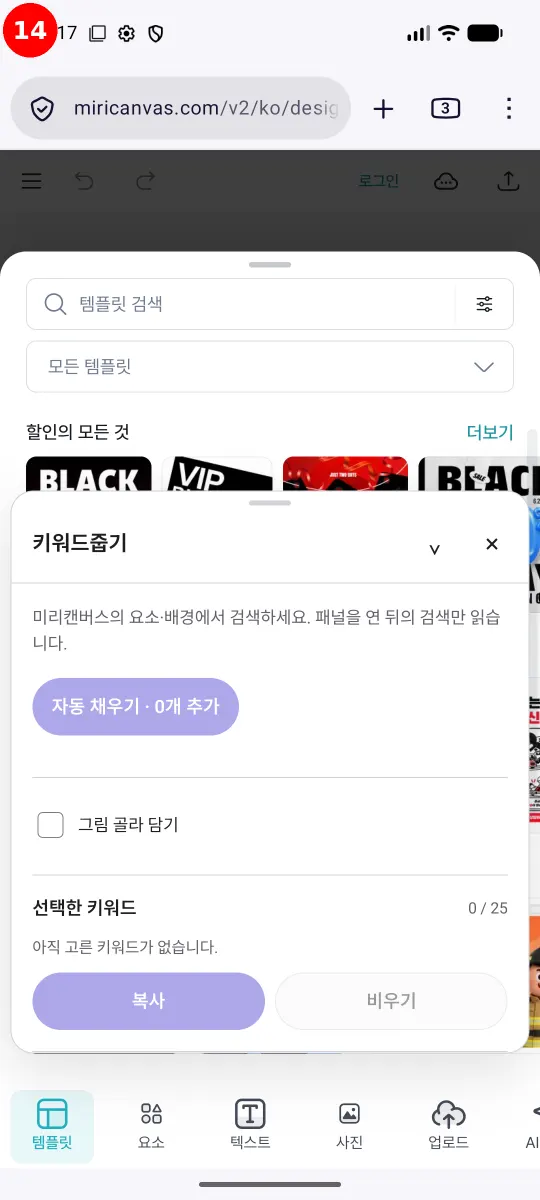
The MiriCanvas editor opens and the Keyword Picker panel appears right away.
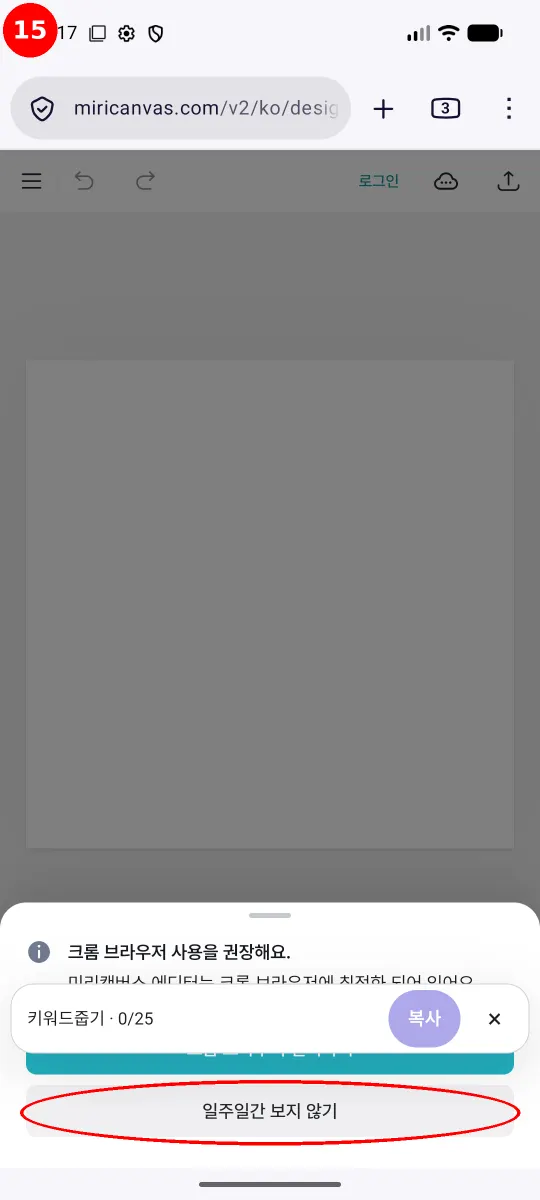
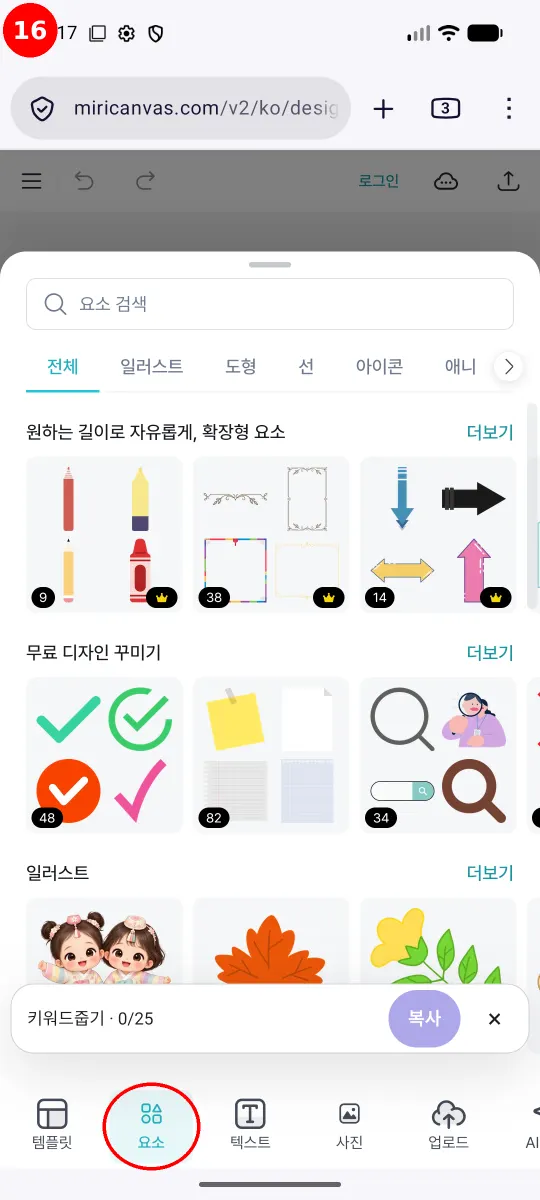
Tap the Elements (요소) tab at the bottom of the screen.
Type what you're looking for in the Elements search box. This example searches for 가을 (autumn).
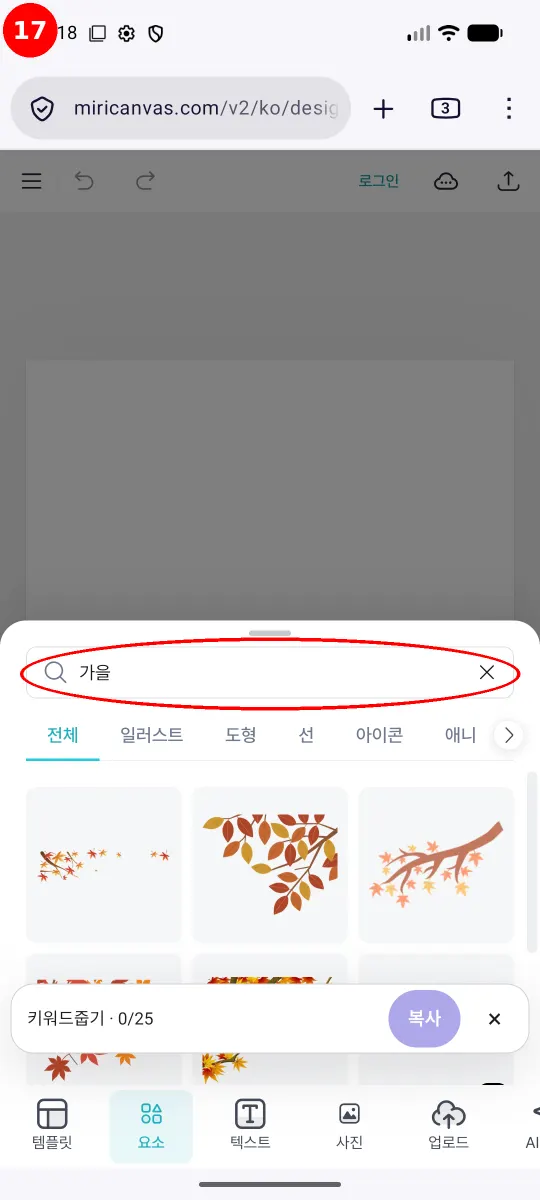
Expand the panel at the bottom and you'll find the keywords from that search gathered there. The autumn search collected 355 keywords from 60 results.
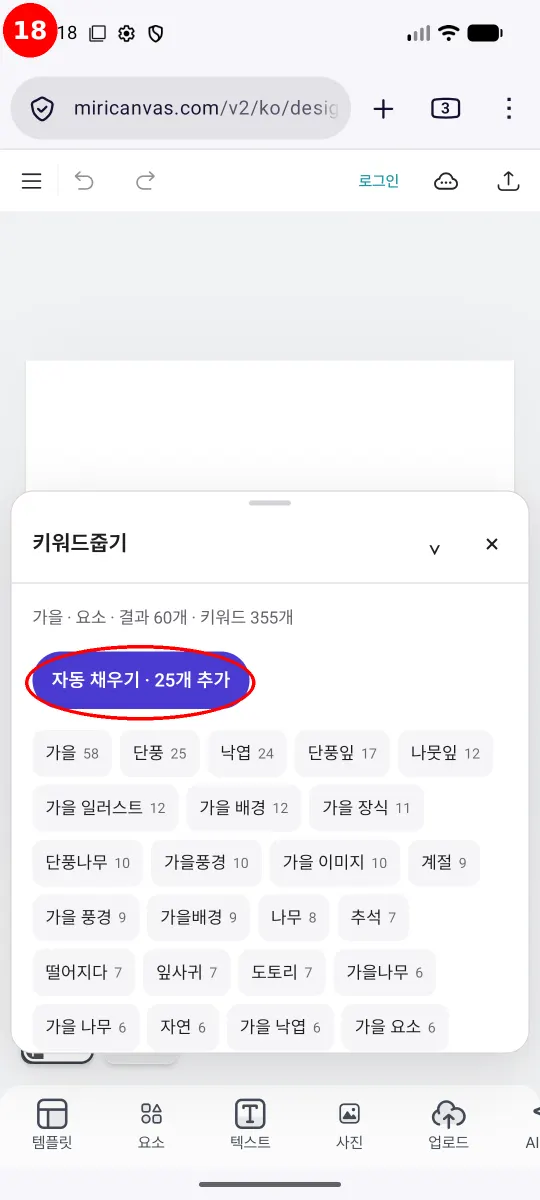
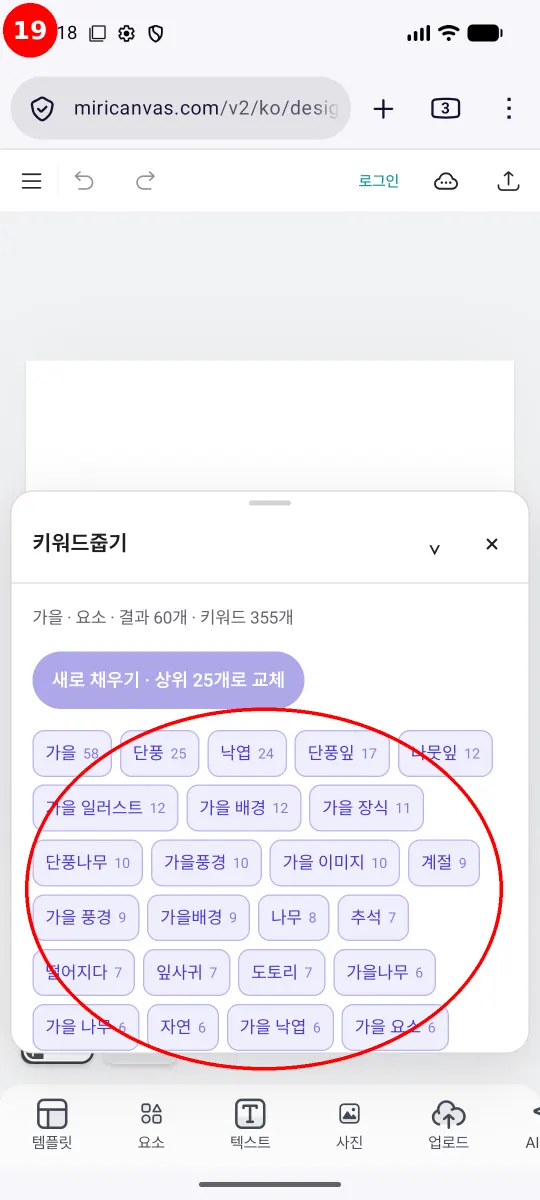
Tap Auto-fill · add 25 (자동 채우기 · 25개 추가) to pick the 25 most-used keywords at once.
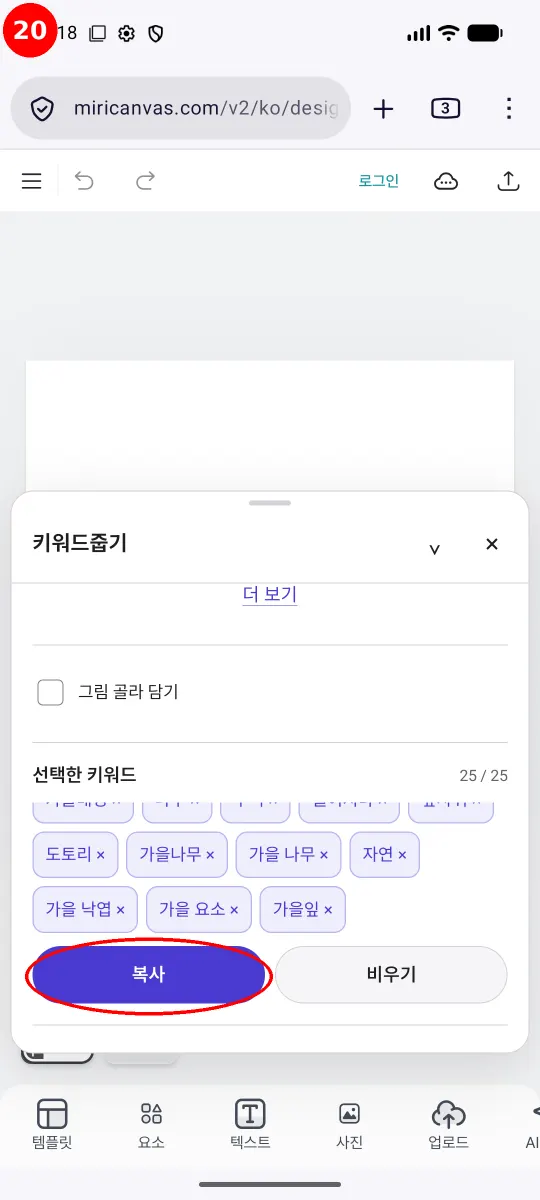
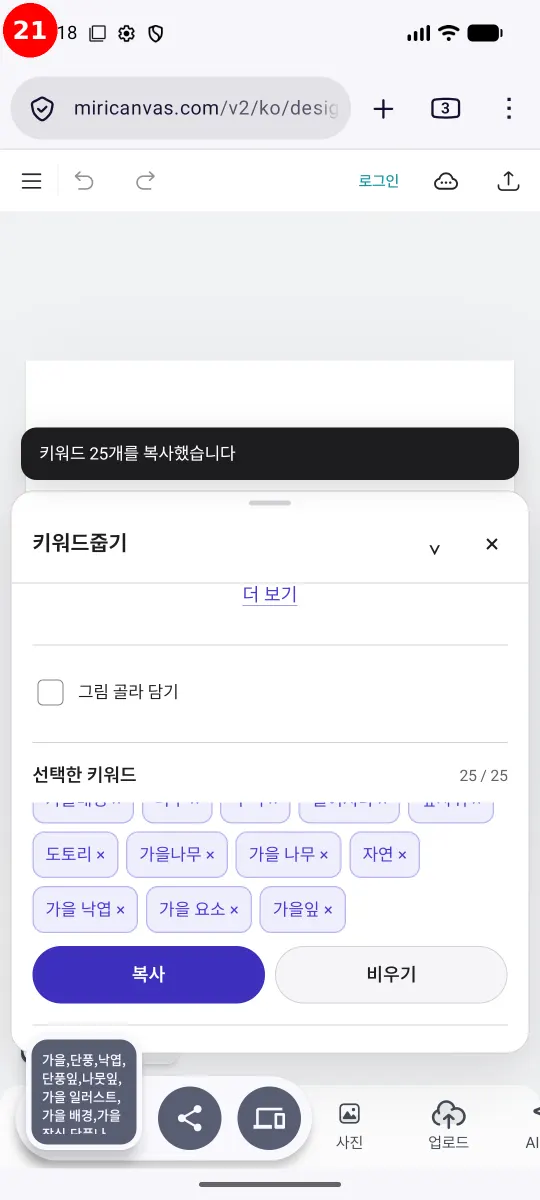
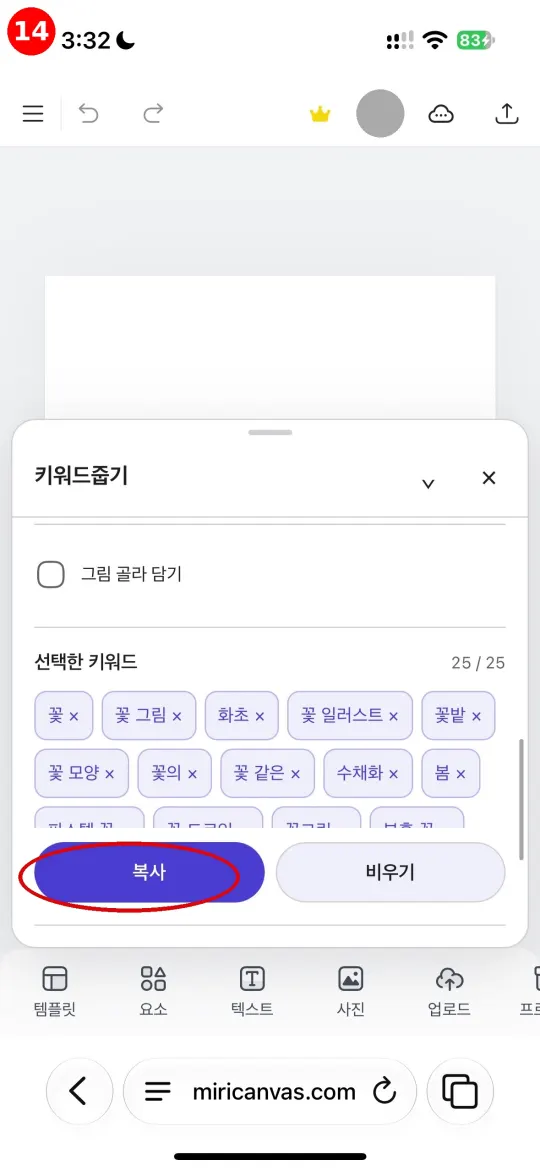
Scroll down the panel, check Selected keywords 25/25 (선택한 키워드 25/25), and tap Copy (복사).
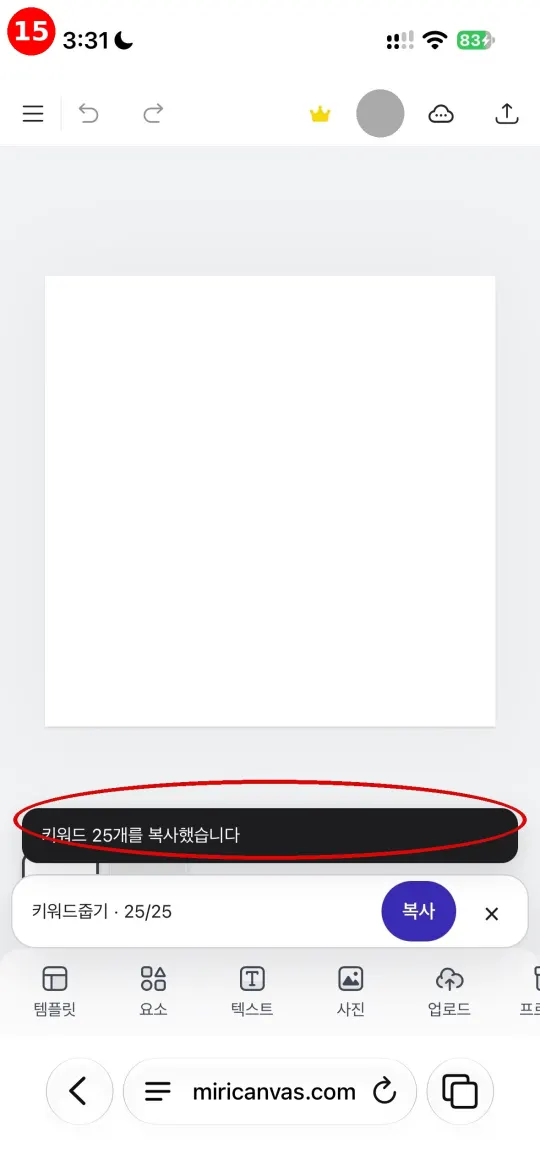
When "Copied 25 keywords" (키워드 25개를 복사했습니다) appears, you're done. Paste the copied keywords when you enter tags.
Using it on Android with Edge Canary
You can also use Keyword Picker in Microsoft Edge Canary instead of Firefox. Regular browsers such as Chrome can’t install it, so choose Firefox or Edge Canary. If you already completed Firefox setup above, skip this section. Set up Edge Canary once, then use it whenever you open MiriCanvas.
Setup takes three steps. After that, use only Step 4 each time.
The screenshots show Korean menus; Edge Canary’s menu names are shown in English. Keyword Picker follows your browser’s language, while MiriCanvas may appear in Korean. In button names, the English label comes first, followed by the Korean label from the screenshots in parentheses.
Step 1. Install Edge Canary
Search for Edge Canary in the Play Store.
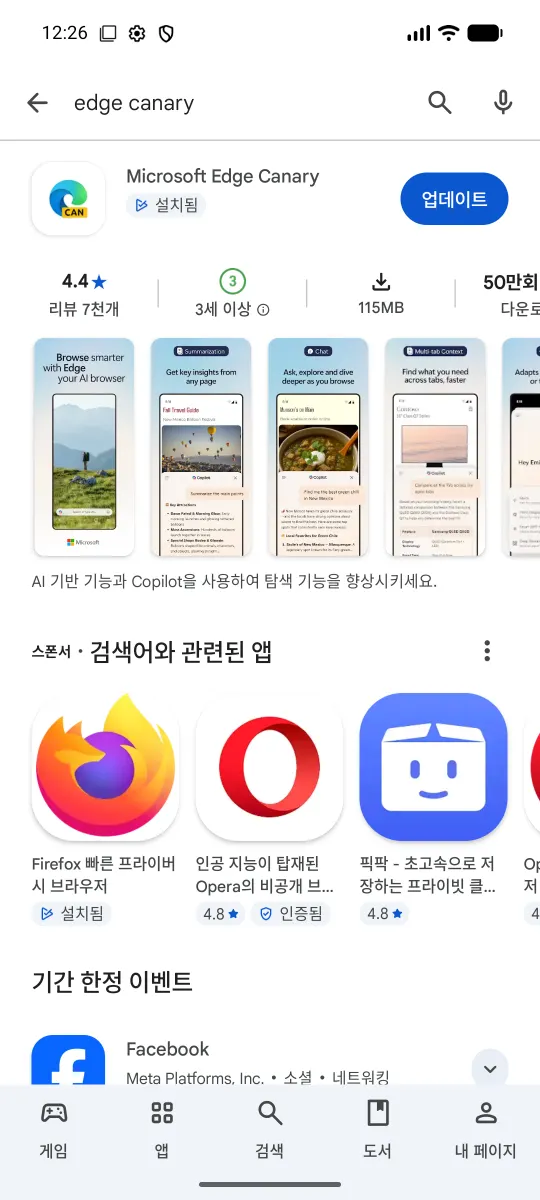
Tap Microsoft Edge Canary in the results. If it's already installed, you'll see Update and Open instead of Install, so go on to Step 2.
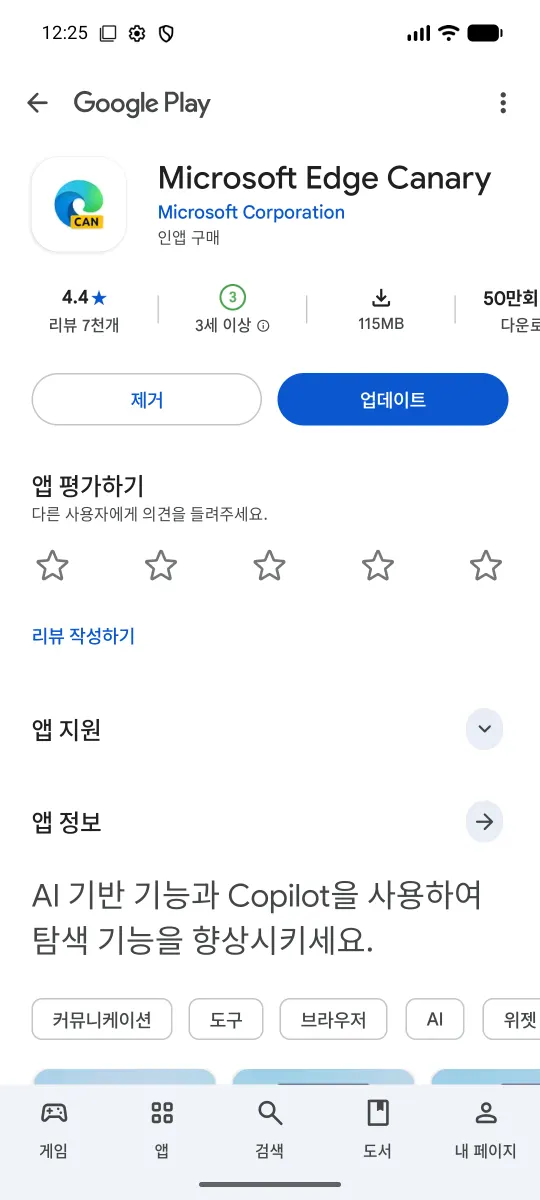
Tap Install and the download starts.
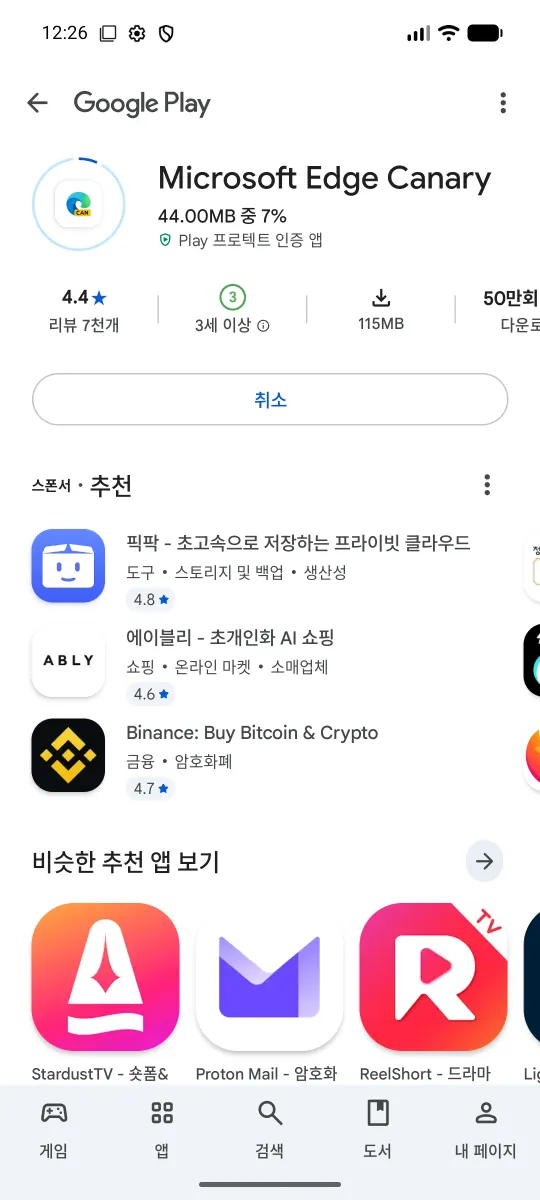
When it's done, an Open button appears. Tap it to open the browser.

Step 2. Turn on developer mode
To add Keyword Picker, turn on the browser’s developer mode once. Tap the ≡ menu at the bottom of the Edge Canary screen, then go to Settings.
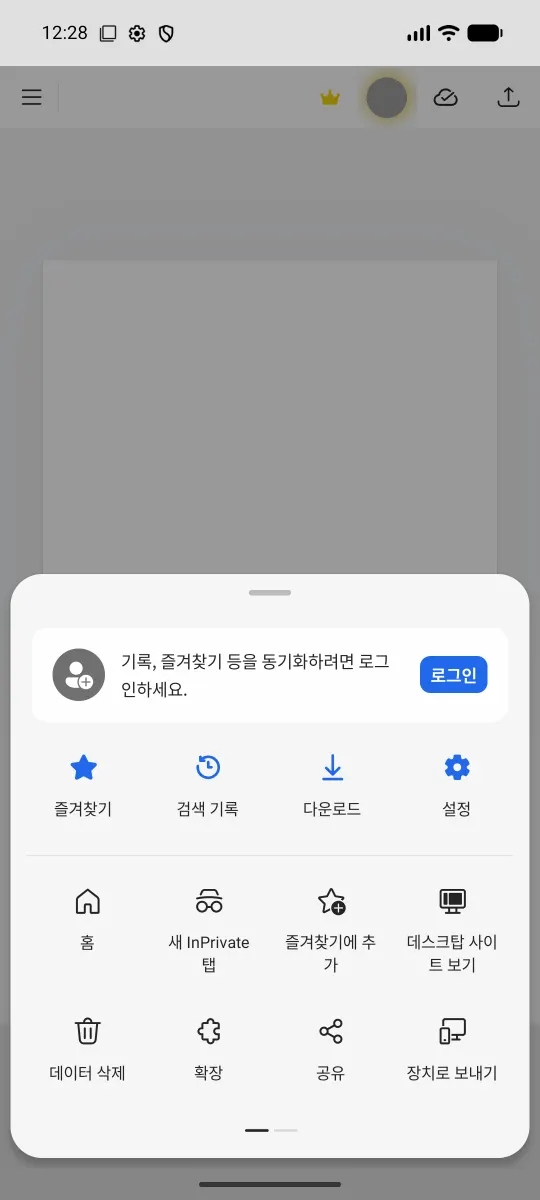
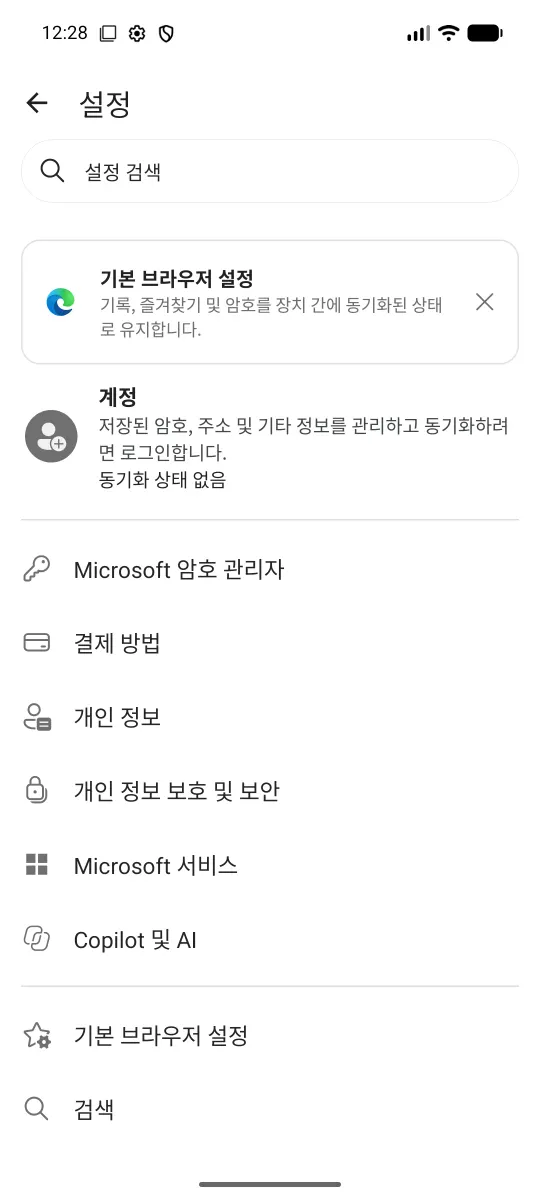
Scroll to the bottom of Settings and tap About Microsoft Edge.
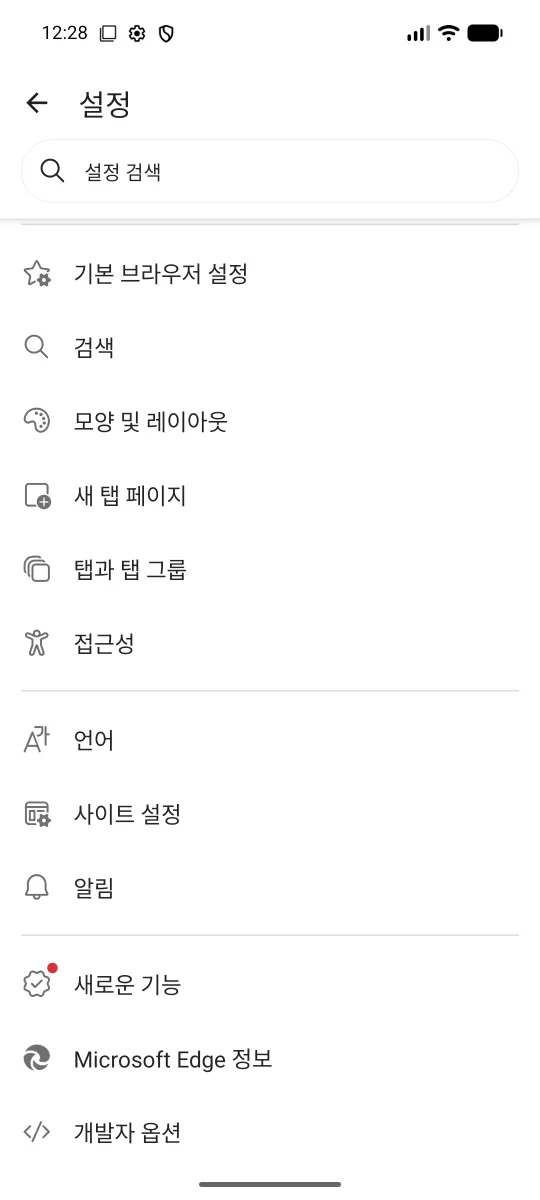
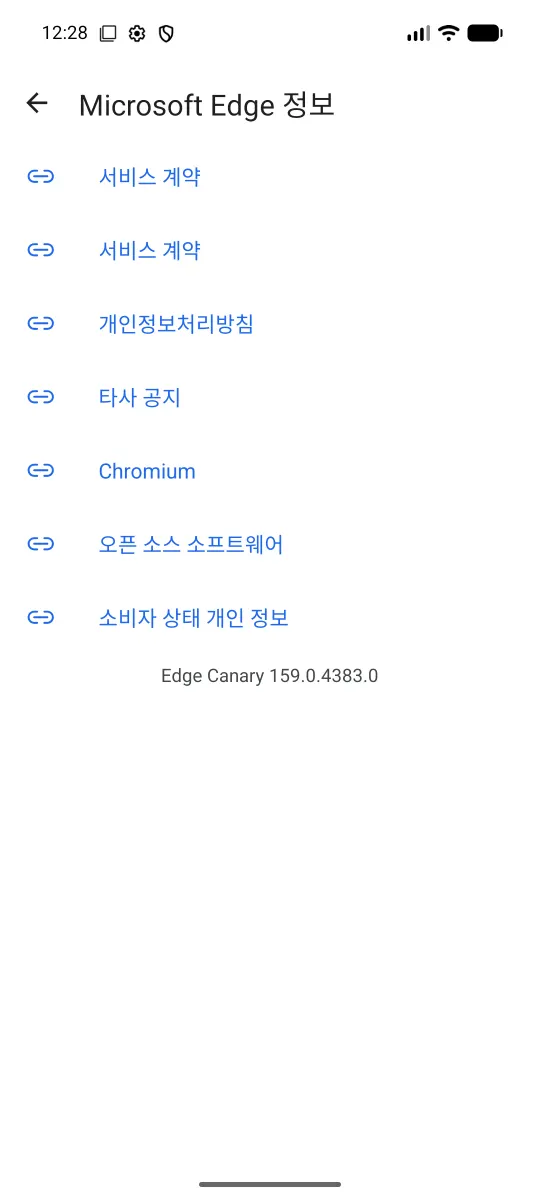
On the About screen, tap the version row (the Edge Canary number) five times in a row.
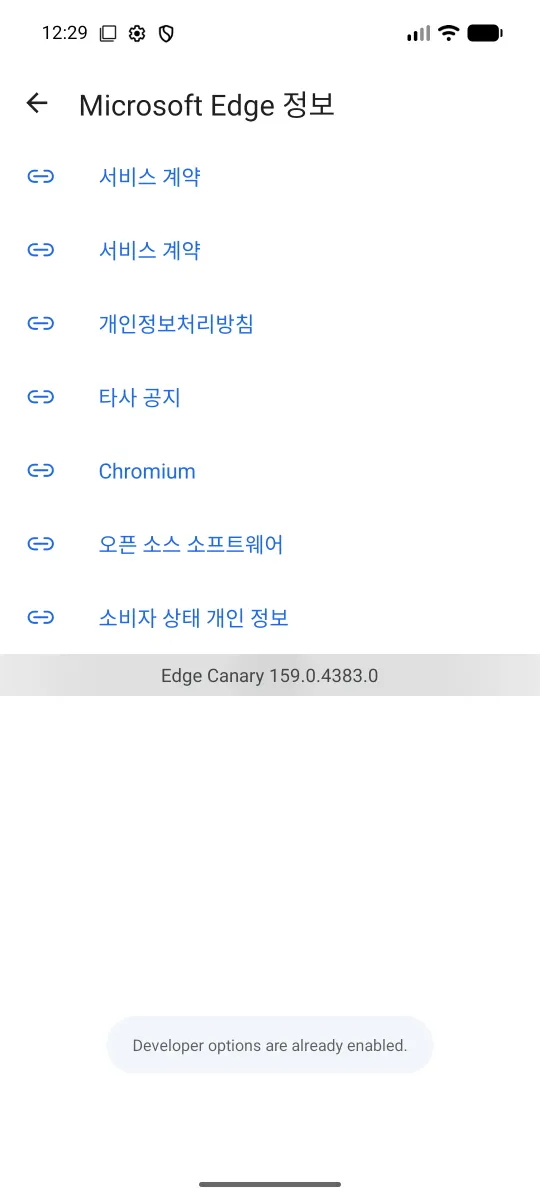
A notice tells you developer mode is on. If it was already enabled, the notice says developer options are already enabled. Continue to the next step.
Go back to Settings and you'll see Developer options near the bottom.
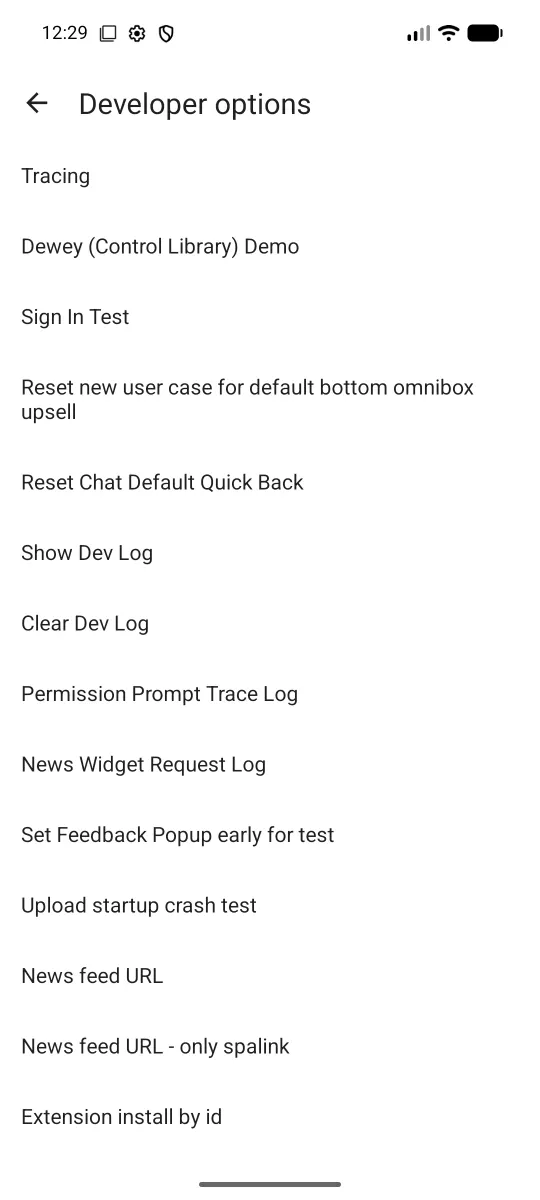
Step 3. Add Keyword Picker
Tap Extension install by id at the bottom of Developer options, enter the ID below exactly as shown, and tap OK.
ilgllfjhjjeaabicpgmljmlbobfmonme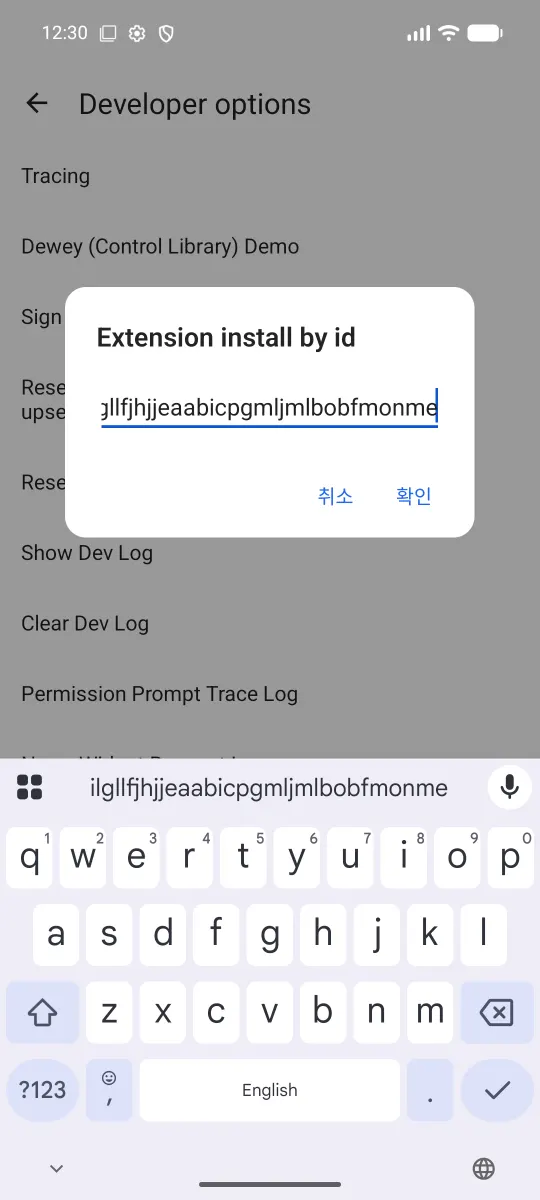
When prompted to add “Keyword Picker · Loopyti,” tap Add.
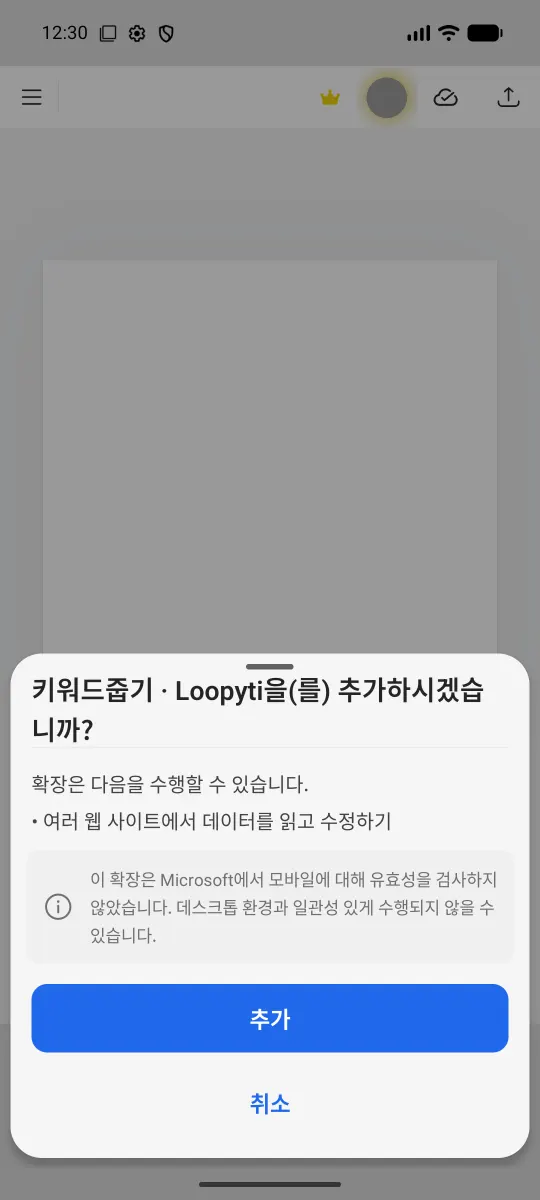
Go to menu → Extensions → Manage extensions. If Keyword Picker appears under Installed, you're all set.
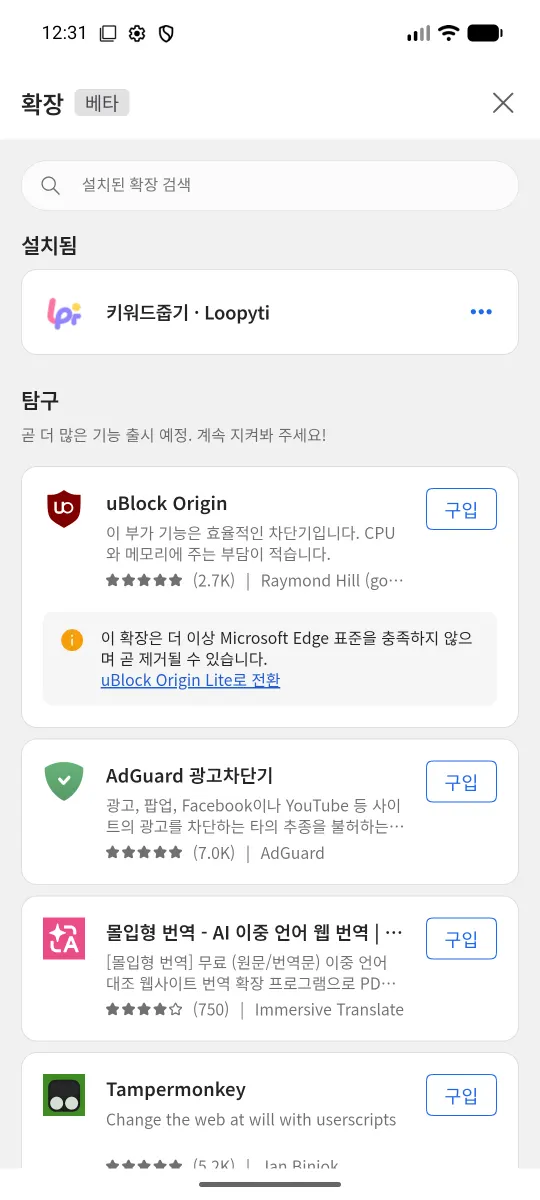
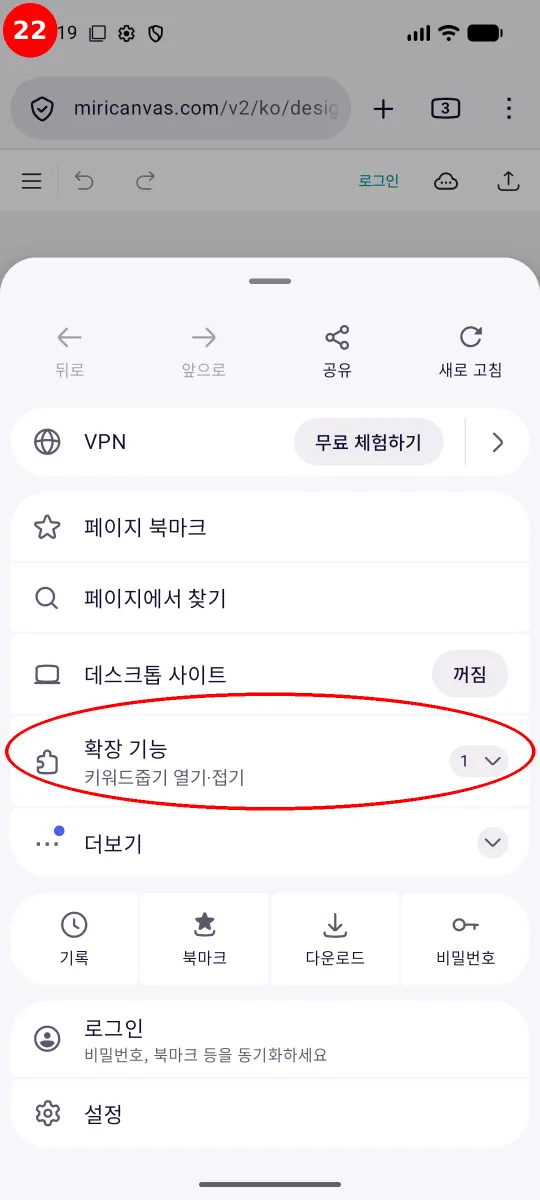
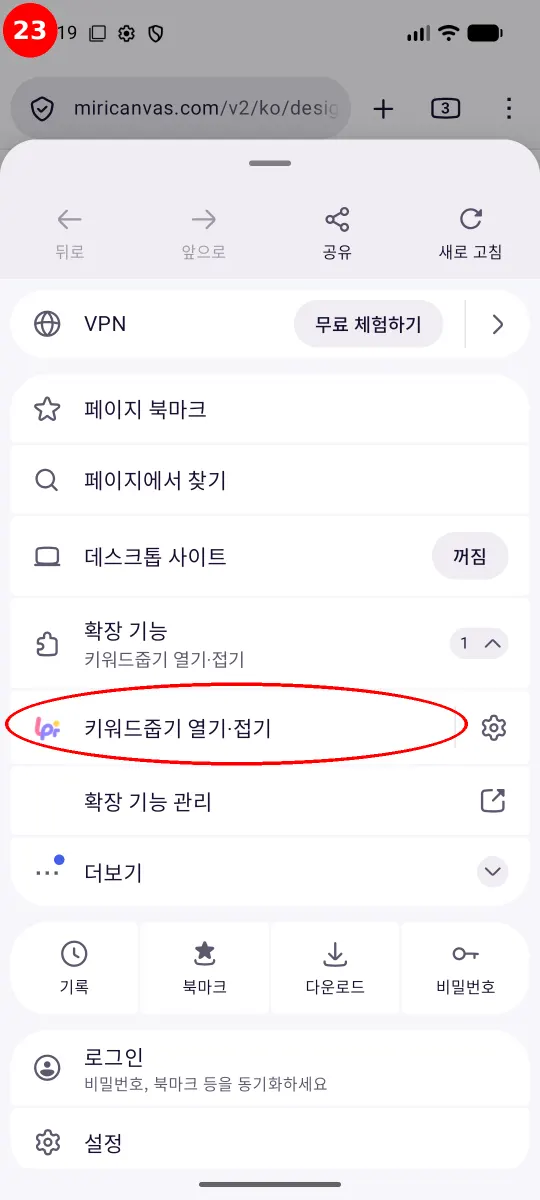
From now on, with MiriCanvas open, tap menu → Extensions and you'll see Keyword Picker.

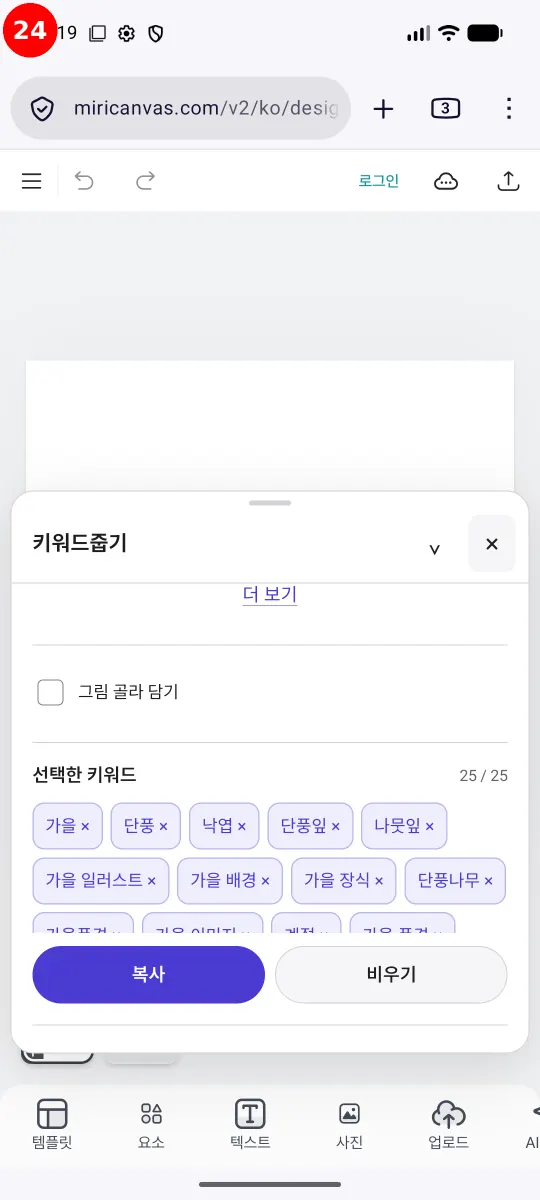
Tap Keyword Picker and its panel opens on top of MiriCanvas.
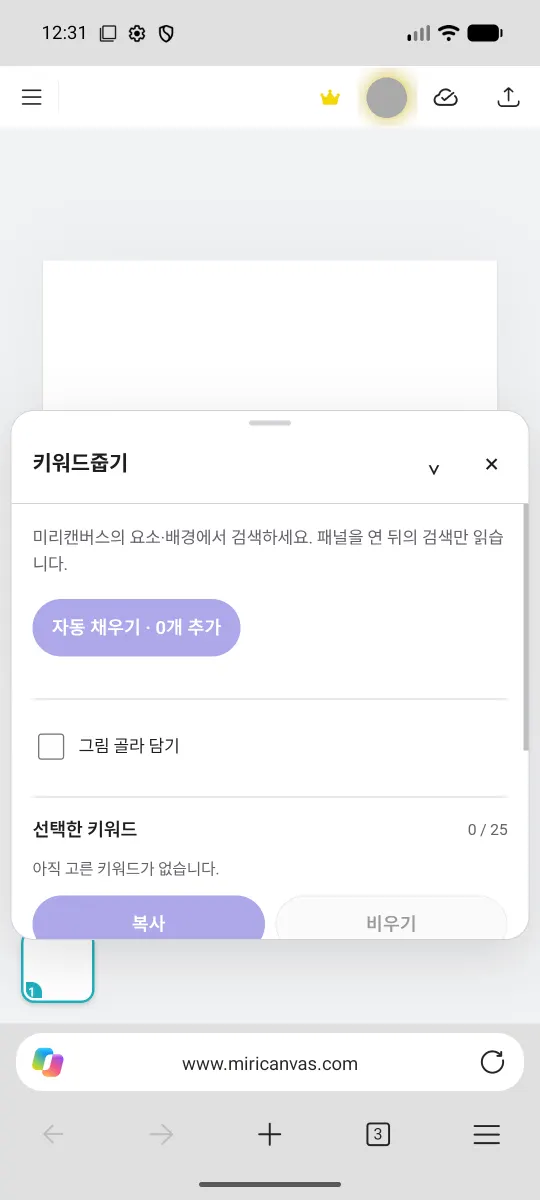
Step 4. Pick keywords in MiriCanvas
With the panel open, tap the Elements (요소) tab at the bottom of the MiriCanvas editor.
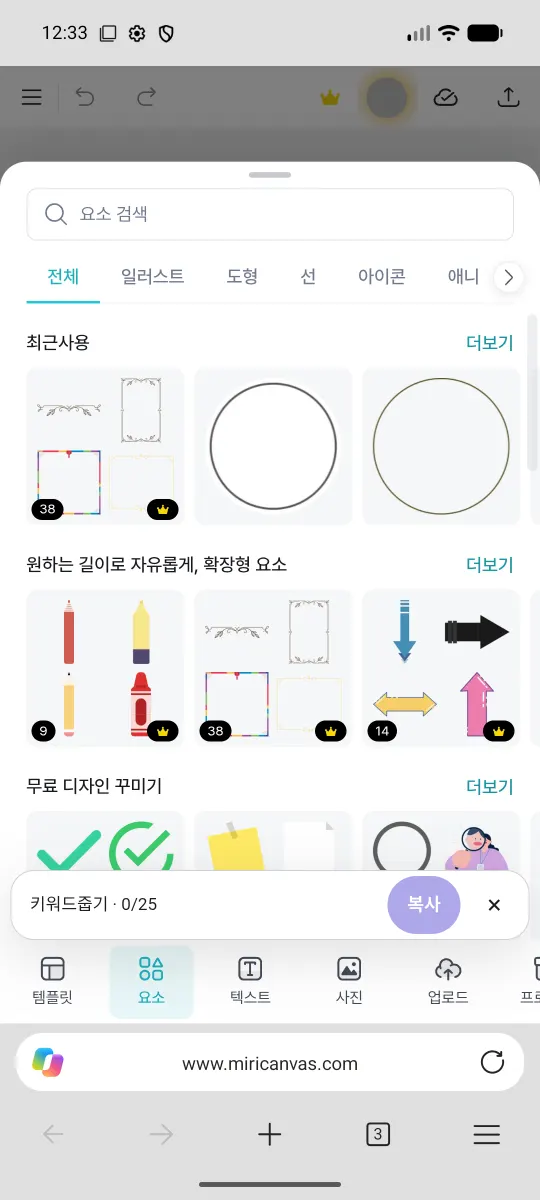
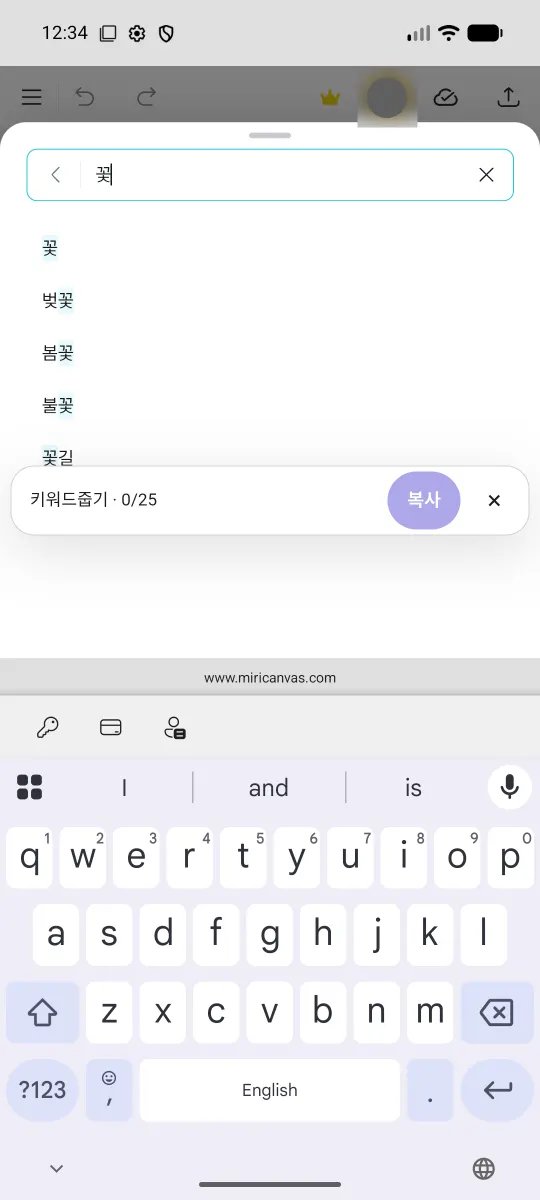
Type what you're looking for in the Elements search box. This example uses 꽃 (flower).
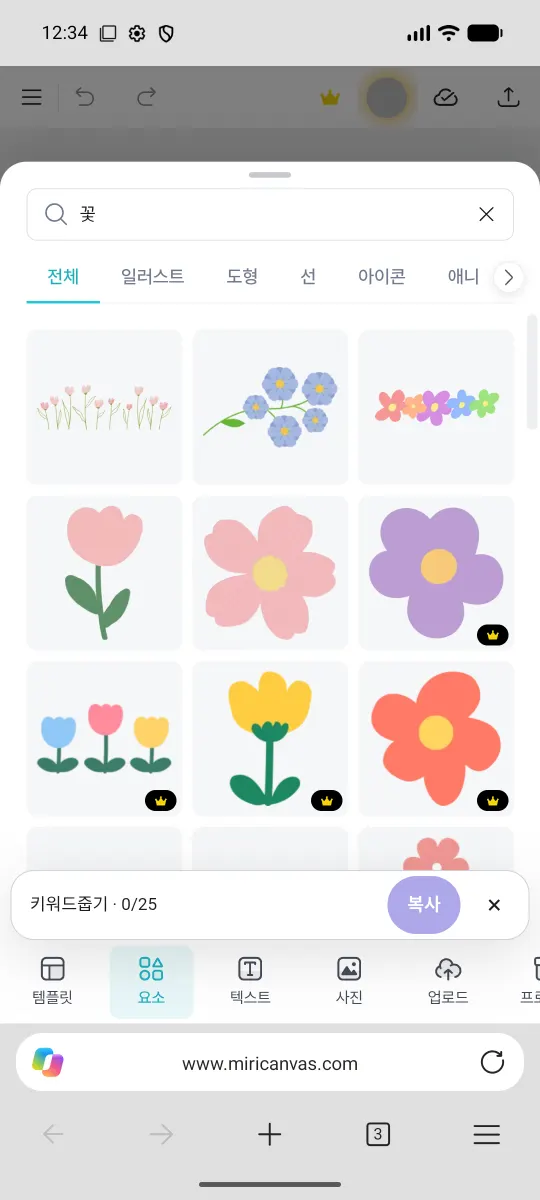
The search results appear on screen.
Now expand the Keyword Picker panel and you'll find the keywords from that search gathered there. The flower search collected 345 keywords from 60 results.
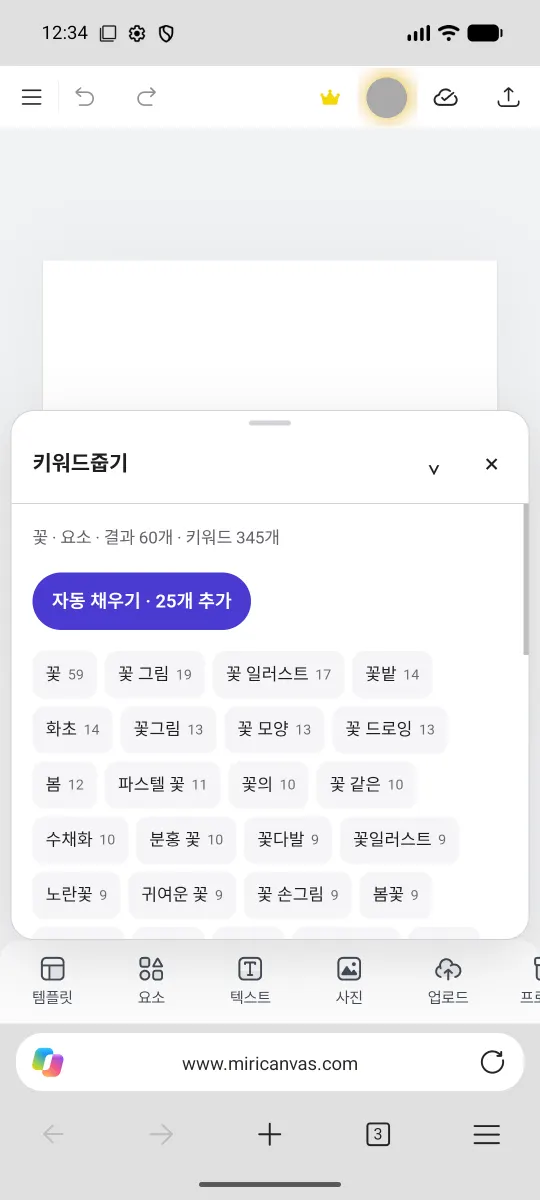
Tap Auto-fill · add 25 (자동 채우기 · 25개 추가) to pick 25 useful keywords at once.
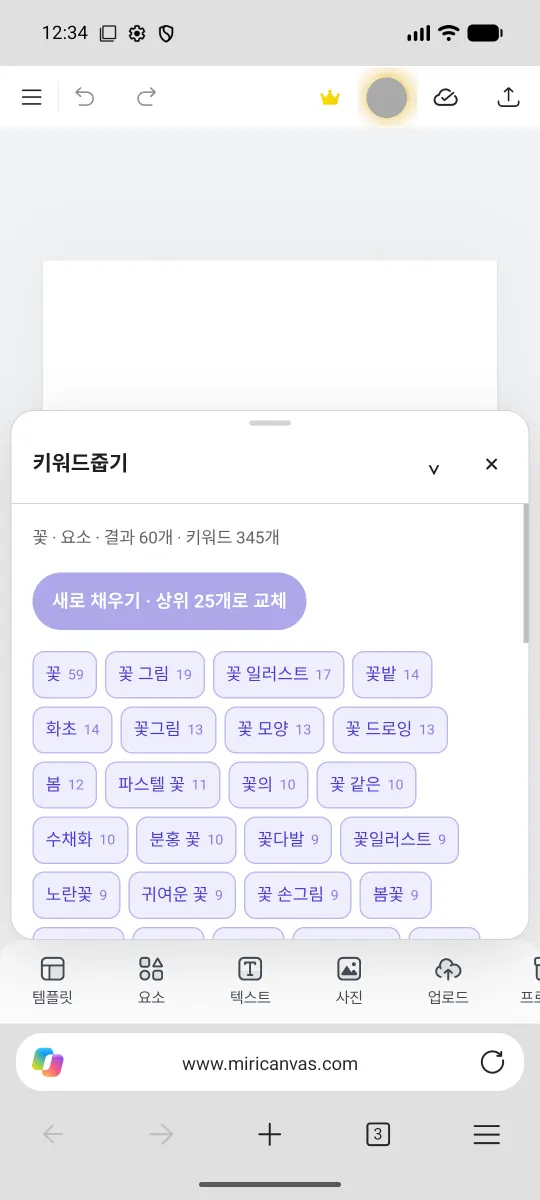
Review the 25 selected keywords, then tap Copy (복사).
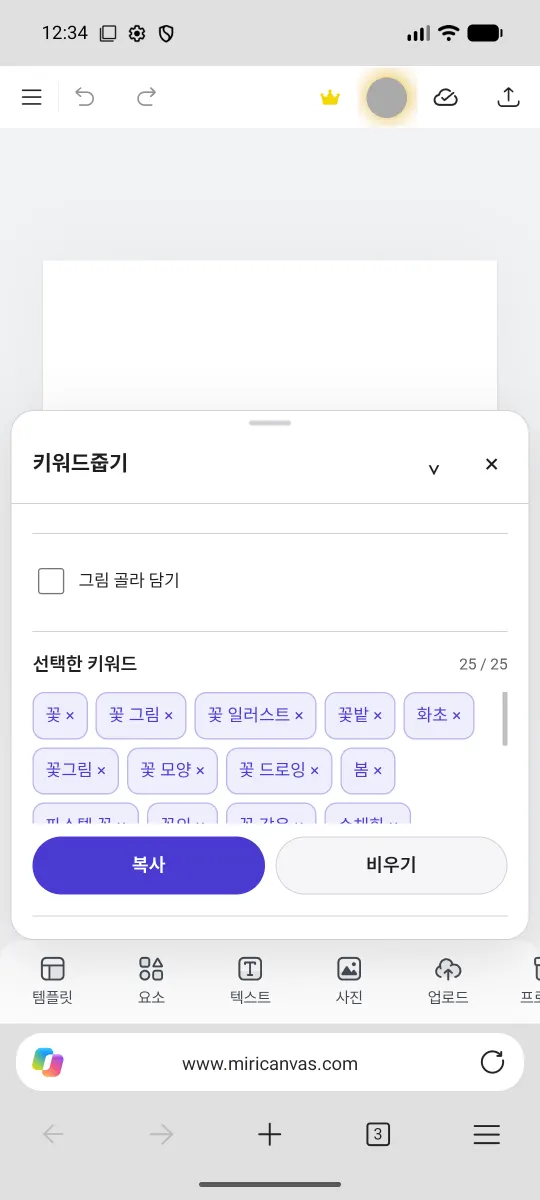
When the “Copied 25 keywords” (키워드 25개를 복사했습니다) notice appears, the keywords are ready to paste.
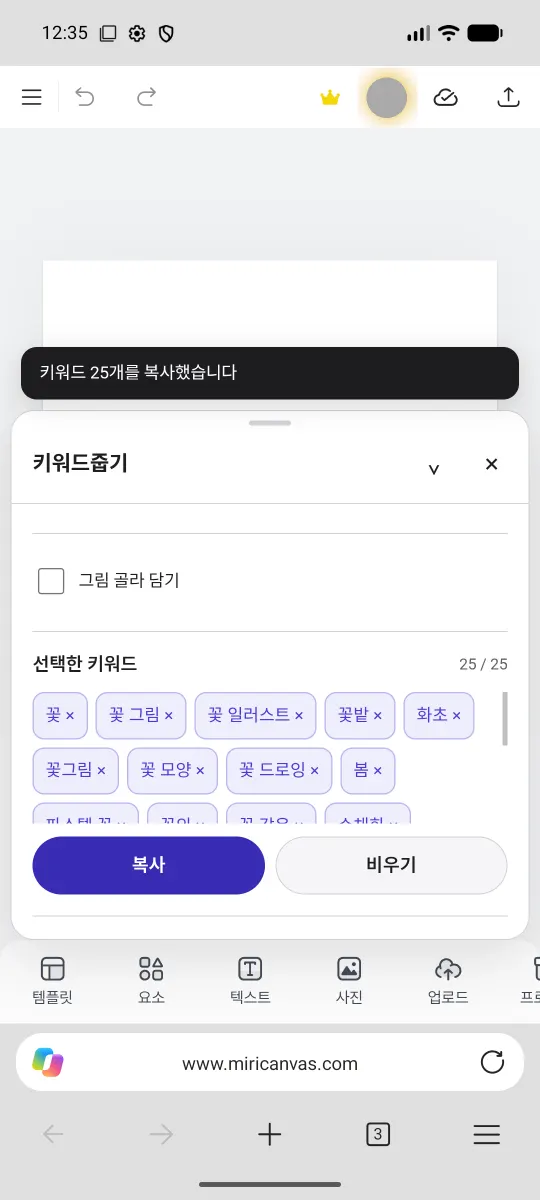
Paste them into the tag field (태그 입력 칸) in MiriCanvas. For each search, open the panel first.
On iPhone, Keyword Picker runs as a shortcut. If this is your first time, set it up with Steps 1–3 in “Using it on iPhone” below. After that, open MiriCanvas, tap Menu (≡) → Share → Keyword Picker, then search.
Using it on iPhone
On iPhone, use Keyword Picker as a shortcut. Set it up with Steps 1–3 once, then repeat only Step 4 when you use it.
The screenshots show the Korean interface. iPhone and MiriCanvas names come first in English, with the Korean label from the screenshots in parentheses.
Step 1. Get the shortcut
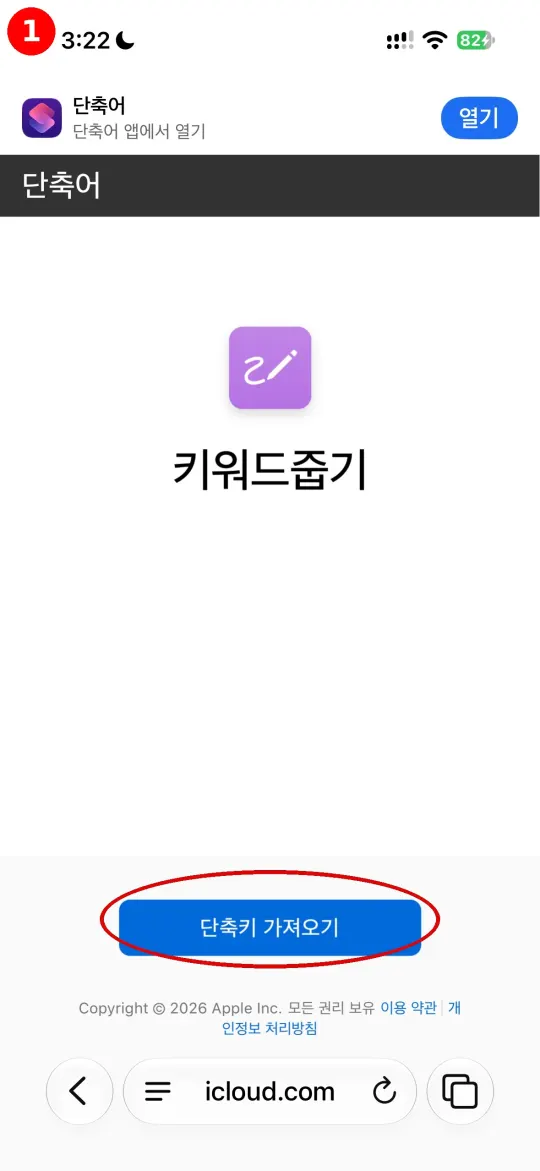
Tap the shortcut link and the screen below opens. Tap Get Shortcut (단축키 가져오기).
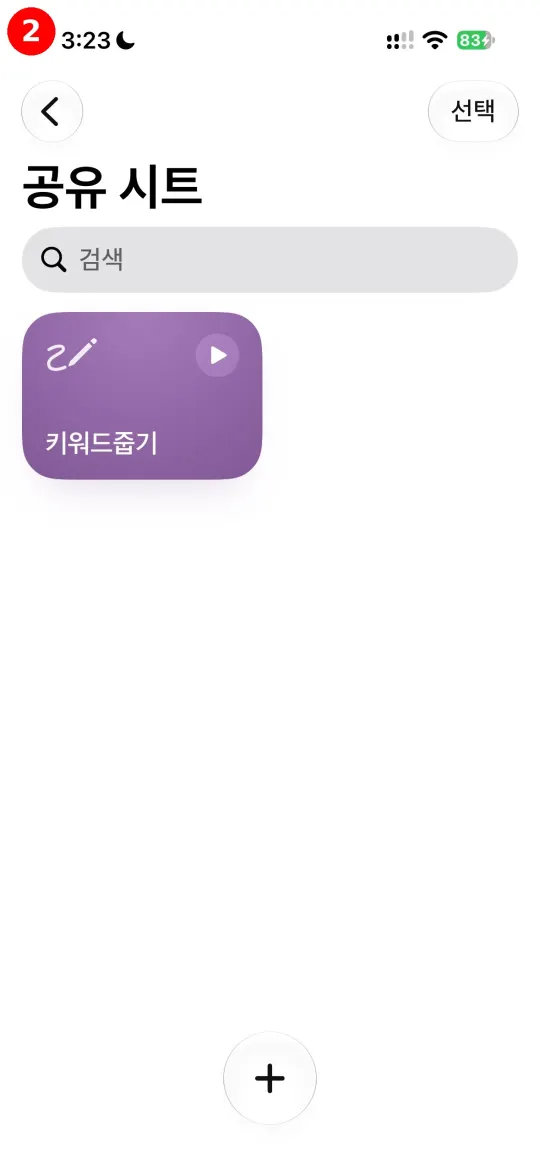
You’re done when Keyword Picker (키워드줍기) appears in the Shortcuts app’s Share Sheet (공유 시트) folder.
Step 2. Turn on Allow Running Scripts
Open the Settings (설정) app.

In Settings, search for Shortcuts (단축어). Open Shortcuts → Advanced (단축어 → 고급), then turn on Allow Running Scripts (스크립트 실행 허용).
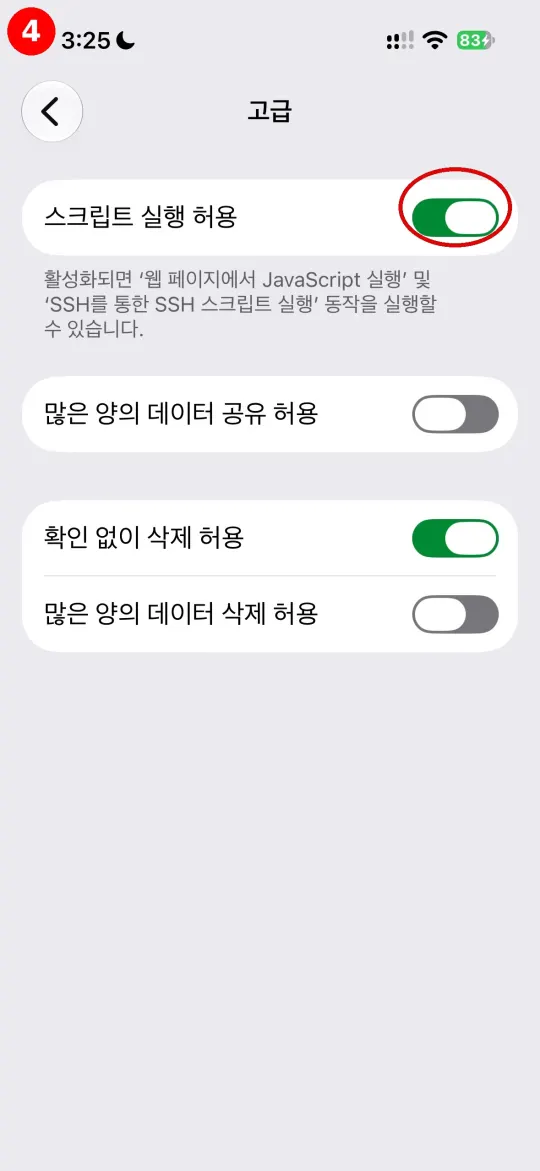
The panel won’t open unless this setting is on.
Step 3. Find Keyword Picker in the share sheet
On the MiriCanvas screen, tap Menu (≡) → Share (공유) to open the share sheet. Until you pin it, Keyword Picker (키워드줍기) appears at the bottom.
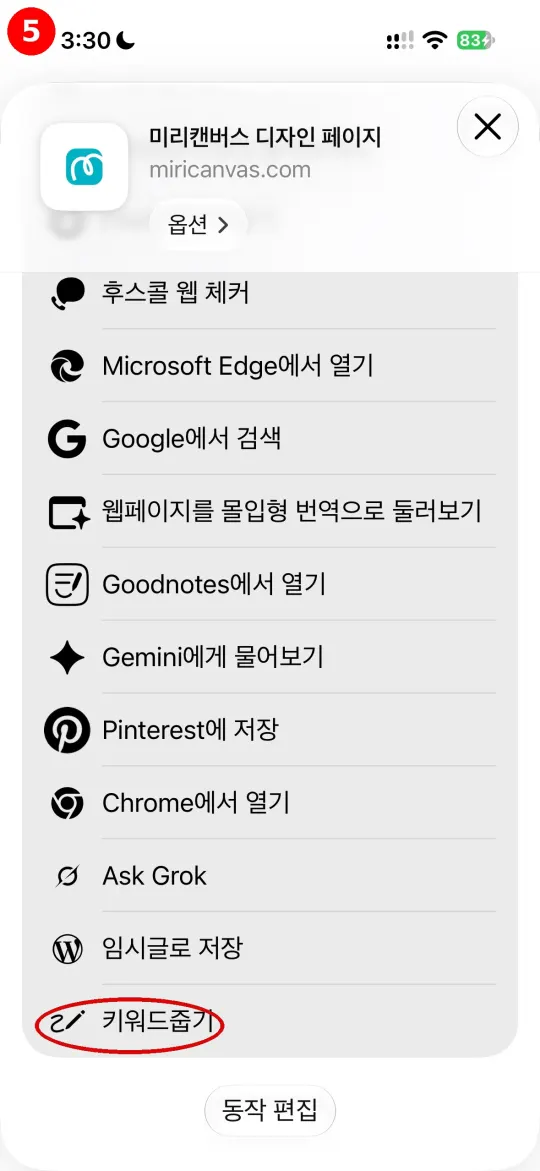
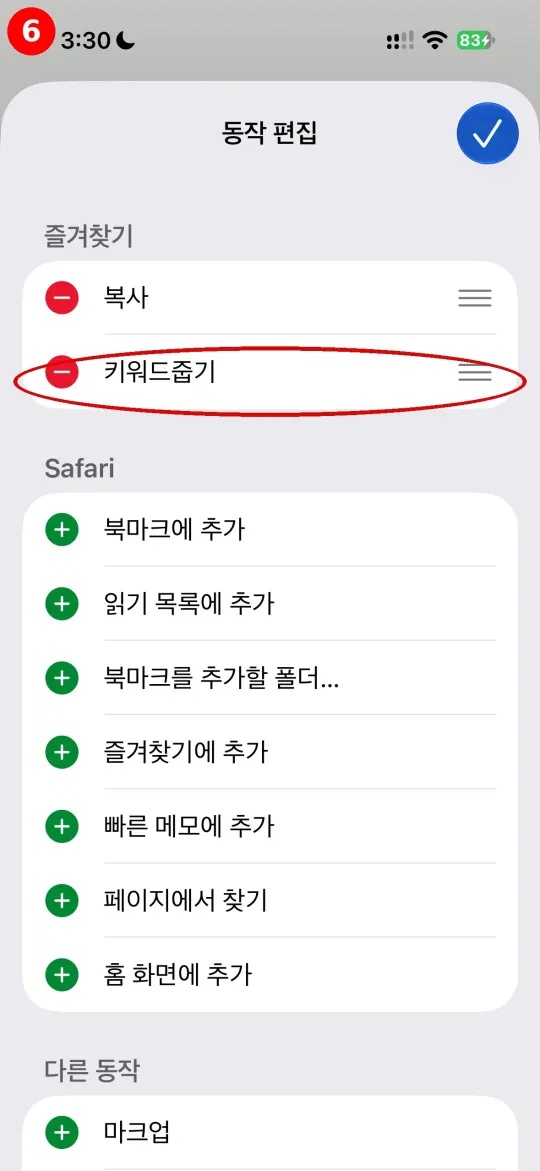
💡 Tip: In Edit Actions, tap + next to Keyword Picker to pin it near the top of the share list so you can find it quickly next time.
If scrolling to the bottom each time is a hassle, tap Edit Actions (동작 편집) at the bottom of the share sheet, then add Keyword Picker to Favorites (즐겨찾기).
Step 4. Pick keywords in MiriCanvas
Open the MiriCanvas editor.
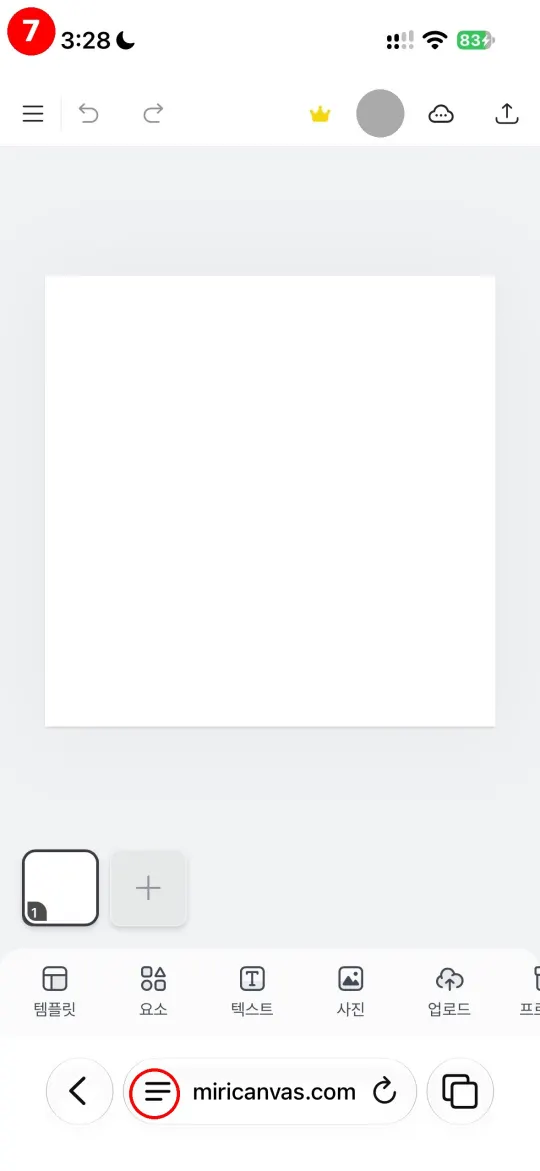
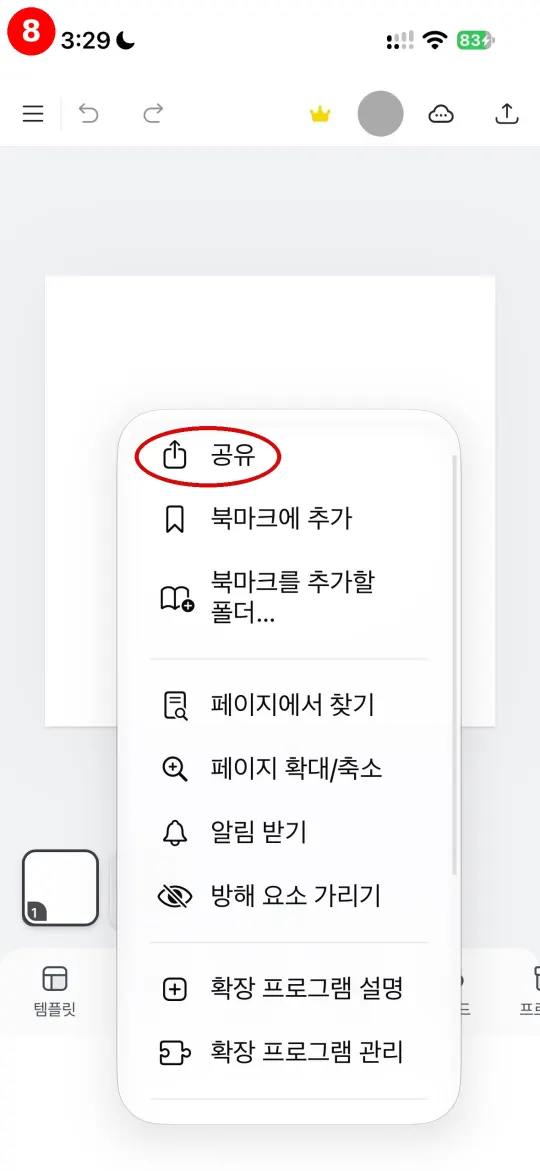
Tap the menu (≡) next to the address bar, then tap Share (공유).
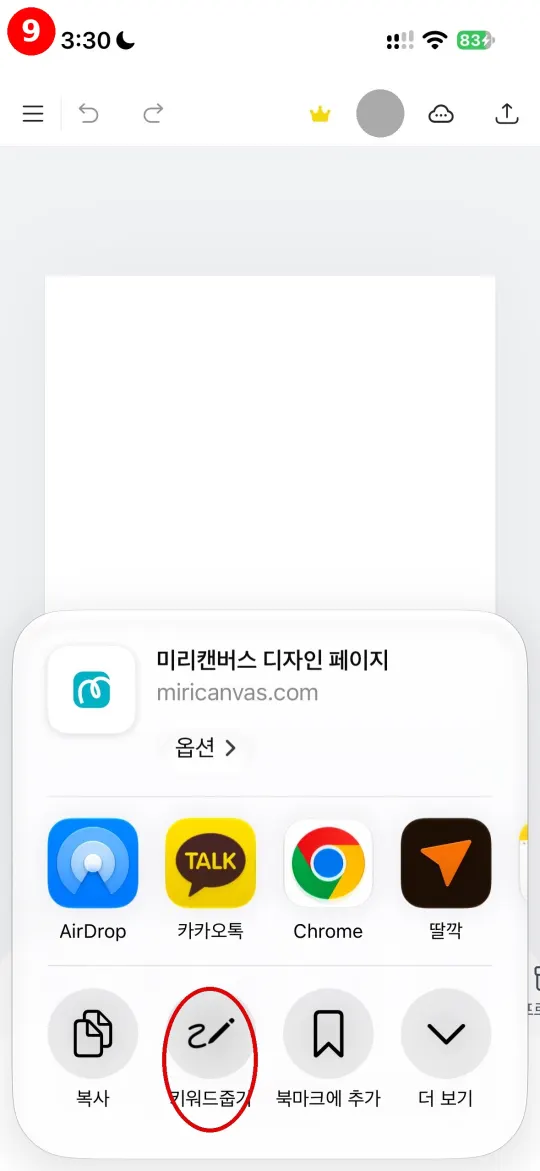
Tap Keyword Picker (키워드줍기) near the bottom of the share sheet.
The panel is open. Now search in the Elements (요소) tab.
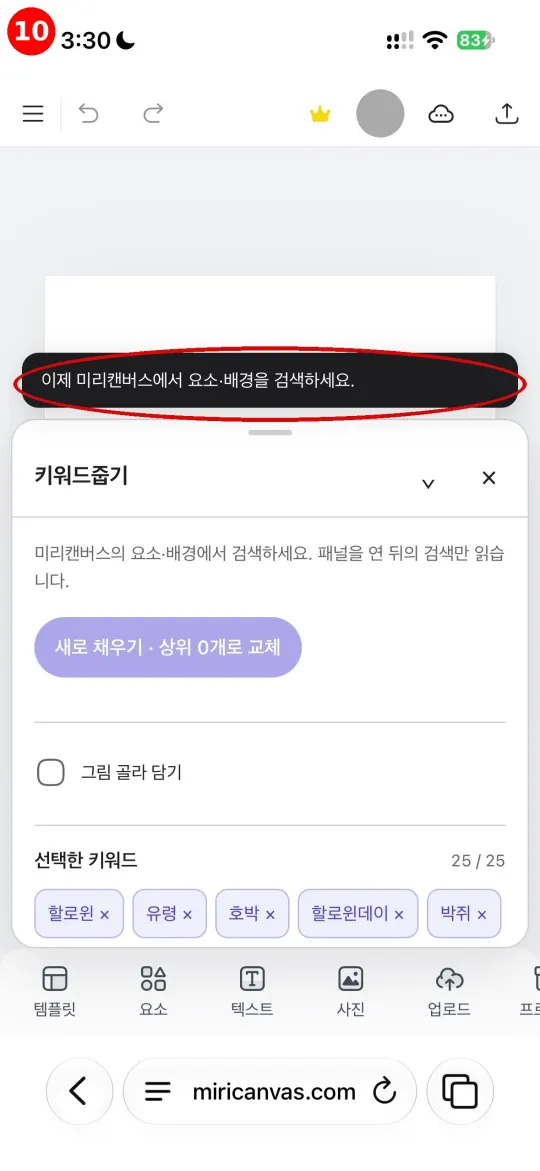
Here's an example search for 꽃 (flower).
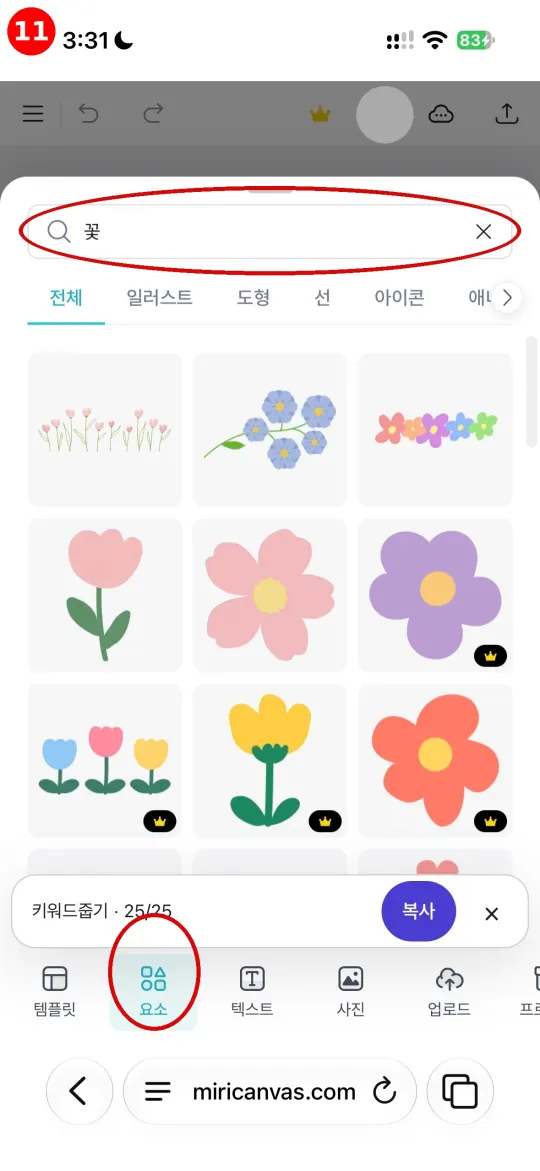
Expand the panel to see the collected keywords. The 꽃 (flower) search gathered 338 keywords from 60 results.
The numbers show how many times each keyword appeared. Pick the most frequent ones first.
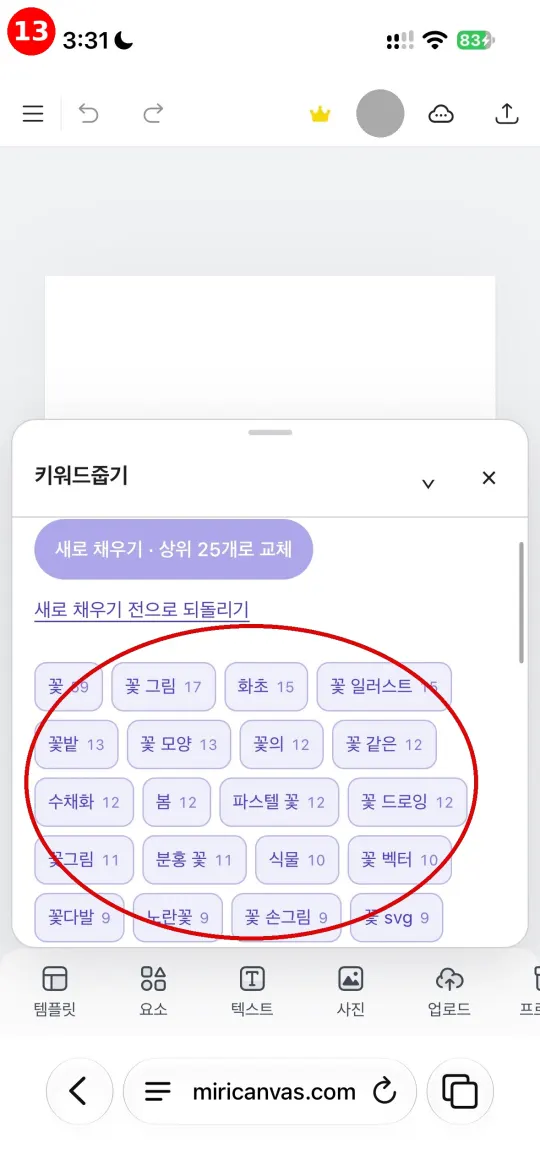
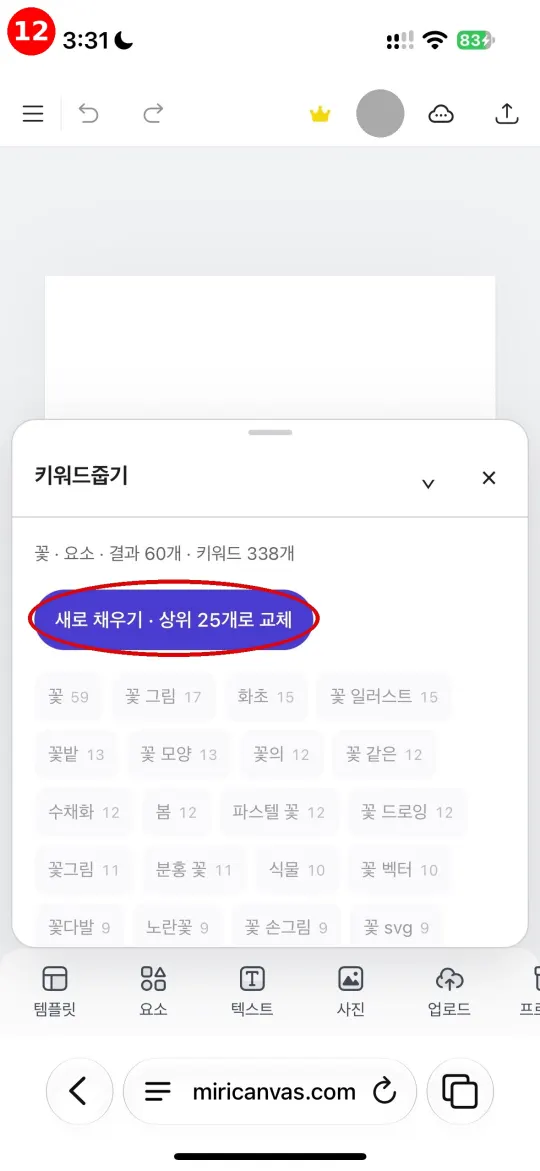
Tap Refill · use the top 25 (새로 채우기 · 상위 25개로 교체) to select the top 25 at once. Then tap Copy (복사).
When “Copied 25 keywords” (키워드 25개를 복사했습니다) appears, paste the keywords into the MiriCanvas tag field.
How to use it
01. Run it in MiriCanvas
Select Open MiriCanvas to open the site with the panel already open. On iPhone, tap Menu (≡) → Share → the Keyword Picker shortcut in MiriCanvas.
02. Search Elements or Backgrounds
Search as usual. The panel gathers keywords from results received after it opens.
03. Choose and copy
Auto-fill up to 25 keywords or choose them yourself, then copy. Change the maximum in Settings.
Choose the keywords you need
Turn on Pick images and tap search result images to narrow the candidates. You can refill and undo, save presets, and copy with commas, new lines or hashtags.
Before you start
This tool runs only inside MiriCanvas and can’t read results from searches you made before opening the panel. Site or browser changes may affect how it works. On PC, use the Chrome, Edge, or Firefox extension; on Android, use Firefox or Edge Canary; on iPhone, use the shortcut.
The panel reads keywords from search responses received by MiriCanvas. It sends no new search requests and transmits none of the captured data outside the page. Settings, selections and presets are saved in MiriCanvas browser storage; if storage is blocked, they last only in the current tab.
Keyword Picker is an unofficial tool with no affiliation to MiriCanvas (MiriD). MiriCanvas is its owner’s trademark.
Frequently asked questions
Why are no keywords showing?
Search Elements or Backgrounds after opening the panel. If nothing is detected, refresh the page, run Keyword Picker and search again.
The panel does not open on my iPhone.
Check that Allow Running Scripts is on in Settings → Shortcuts → Advanced. If Keyword Picker is missing from the Share Sheet, check that the shortcut is in the Share Sheet folder of the Shortcuts app. Run the shortcut first, then search, so the keywords are collected.
Where are selections and presets saved?
Only in browser storage for the MiriCanvas site you are using. They do not sync between devices and are removed when you clear that site’s browser data.
Does picking an image add it to my design?
With Pick images on, tapping a detected thumbnail narrows the keyword candidates instead of adding the image to your design. Turn off Pick images or hide the panel to resume normal editing.