A Panorama Uploaded as One Instagram Slide Gets Cropped — Split It Into a Seamless Carousel

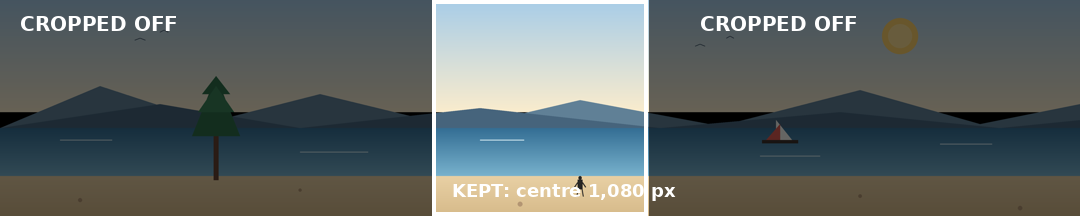
Your panorama is wider than one Instagram slide, and Instagram will not shrink it to fit — it crops the sides off and posts what's left. Split the 5,400 × 1,080 photo into five 1,080 × 1,080 square slides first, check that no tree, face, or sign sits on a cut line, and upload the numbered files in order so the scene lines up as people swipe.
Try the toolSplit a Photo for an Instagram CarouselSplit one wide image into 2–10 same-size images for an Instagram carousel. The edges line up as viewers swipe, and numbered files are bundled in a ZIP. Use it for panoramas, landscapes, or wide illustrations.loopyti.comOne warning before you start: if you already posted the panorama as a single slide, the cropped sides are gone from that post. There is nothing to recover — delete that post and re-upload the split slides instead. And one more thing the preview taught me: if something important sits on a cut line, you cannot save it and keep all five square slides — the fix means changing the slide count, the crop, or the shape. Read step 2 before you split.
How to split it in three steps
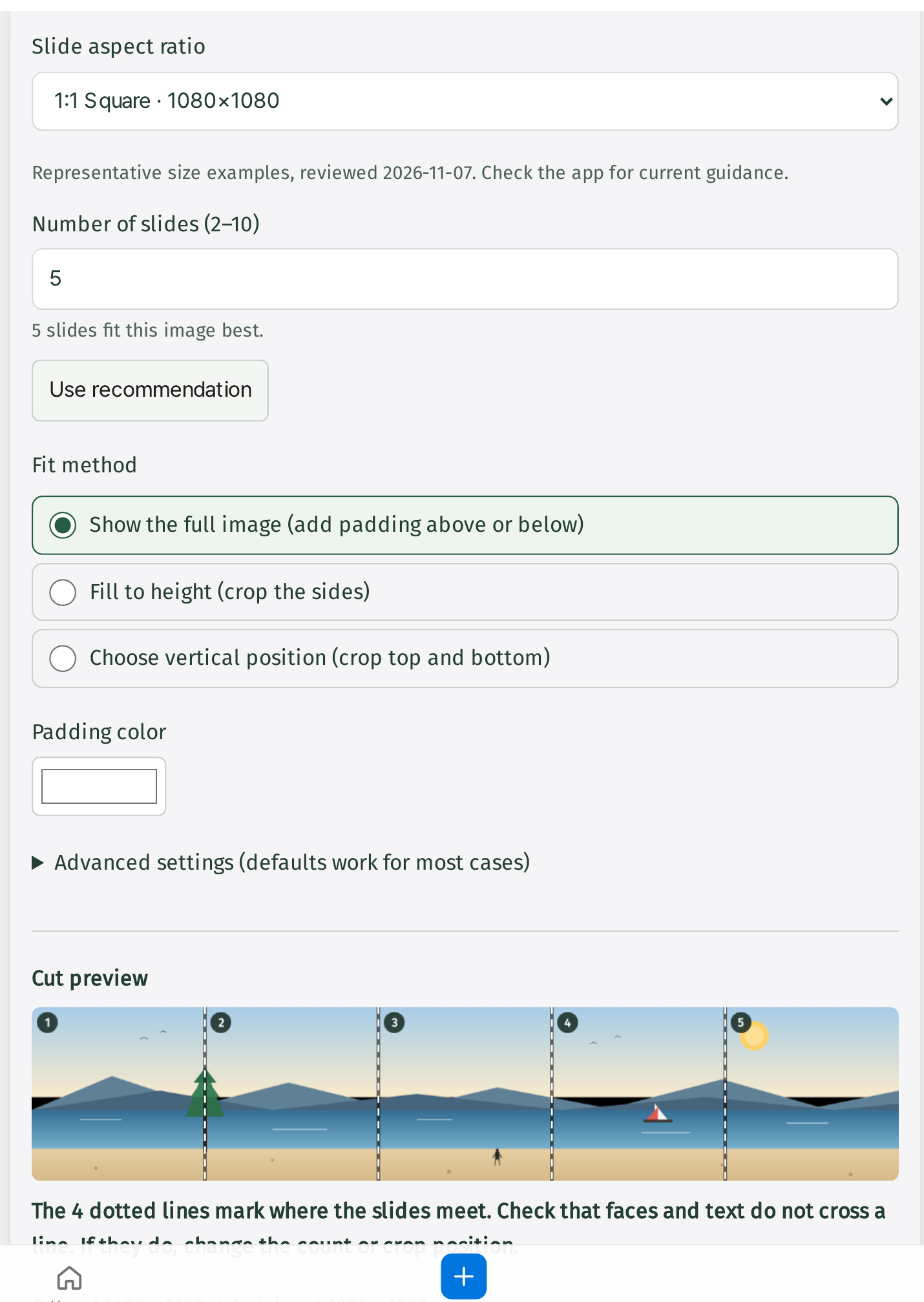
- Add the panorama and pick 5 square slides. Drop the image onto the tool, or paste a copied image with Ctrl+V. The tool reads the image and suggests a count itself — for my 5,400 × 1,080 panorama it set 5 slides on its own and said "5 slides fit this image best.", with a "Use recommendation" button next to it. Keep the square 1:1 shape (1,080 × 1,080) and the default fit, "Show the full image (add padding above or below)".
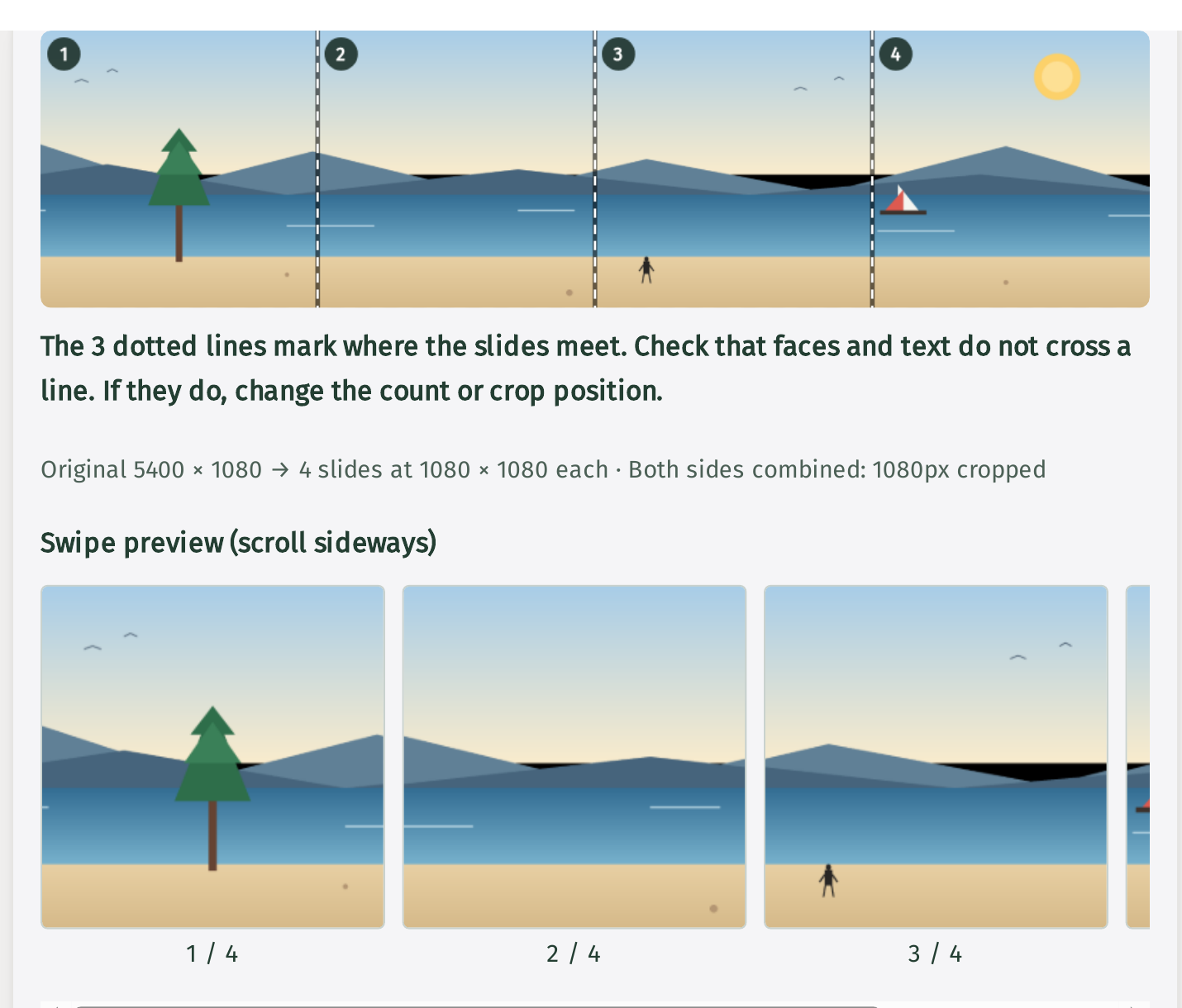
- Read the cut lines, then move any line that hits something important. The preview marks each cut with a vertical dotted line, and the tool says it plainly: "The 4 dotted lines mark where the slides meet. Check that faces and text do not cross a line. If they do, change the count or crop position." In my test the pine tree stood right on the first cut, split between slide 1 and slide 2. There is no way to drag a line, and with 5 square slides there is no control that moves it at all — the cuts stay at x=1,080 / 2,160 / 3,240 / 4,320. What worked was switching to 4 slides and "Fill to height (crop the sides)", then moving the "Horizontal crop position" slider to 50, the centre. The cutting window moved to x=540–4,860, the cuts moved to 1,620 / 2,700 / 3,780, and the pine landed whole inside slide 1. The tool's own line for that setup reads "Original 5400 × 1080 → 4 slides at 1080 × 1080 each · Both sides combined: 1080px cropped".
- Split, download the ZIP, and upload in order. "Split image" answers with "Slides are ready. Download them in step ③." and the download section reads "Split into 5 slides · 1080 × 1080 · PNG" — or 4 slides, if you changed the count. "Download all as ZIP" gives you one file, and each slide can also be downloaded on its own. Upload in the order shown by the numbers at the end of each filename (01, 02, …).
Does it actually work? I tested it
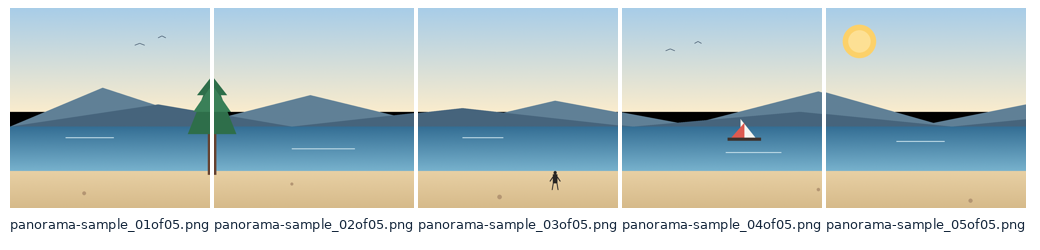
I drew a fake 5,400 × 1,080 landscape — sky, mountains, sea, and a sandy beach — and planted a pine tree exactly on the first cut line on purpose, so I could see what happens when something important crosses a cut. The trunk runs from x=1,068 to x=1,092, so the cut at x=1,080 goes straight through it, and at y=500 the canopy spans x=1,032 to x=1,128, about 48 px on either side of the line. There is also a person standing on the beach inside slide 3 and a sailboat on the sea inside slide 4, neither of them near a cut. Tested 2026-11-15.
The tool's recommendation for this image is "5 slides fit this image best." — and it is right about the count: 5,400 ÷ 1,080 is exactly 5, so five square slides fit with nothing left over. The shape list offers 1:1 Square · 1080×1080, 4:5 Portrait · 1080×1350, 3:4 Tall portrait · 1080×1440, and a custom size; I tested 1:1 and 4:5, and 3:4 I only saw listed, never ran.
The cut preview shows exactly what the tool promises: four dotted lines, numbered slides 1 to 5, and the pine standing on the first line. The swipe preview below it makes the damage concrete — slide 1 ends with half a tree at its right edge, slide 2 starts with the other half at its left edge.
I checked the output files directly, not just the preview. The ZIP (panorama-sample_carousel.zip, 7.4 MB) holds five files, each exactly 1,080 × 1,080:
- panorama-sample_01of05.png — 1,514 KB
- panorama-sample_02of05.png — 1,512 KB
- panorama-sample_03of05.png — 1,511 KB
- panorama-sample_04of05.png — 1,515 KB
- panorama-sample_05of05.png — 1,515 KB
One correction to the page's own example: the page says files come out as photo_01of05.png, but the real files take the uploaded file's name — mine came out as panorama-sample_01of05.png and so on. Same numbering, different stem. And I measured the split in the files themselves: at the trunk's height the first slide's right edge carries 12 brown trunk pixels and the second slide's left edge carries 13 — the tree really is cut in two, exactly where the preview said it would be. The person is whole in slide 3, the sailboat whole in slide 4, the sun whole in slide 5.
Then the fix. With 5 square slides there is nothing to adjust: "Fill to height" shows a "Horizontal crop position" slider, but at exactly 5:1 there is nothing to crop, so moving it from 50 to 100 changes nothing and the tree stays cut. "Show the full image" leaves the cuts fixed at 1,080 / 2,160 / 3,240 / 4,320, and "Choose vertical position" only moves things up and down, never sideways. So I changed the count to 4 and picked "Fill to height", which crops 1,080 px from the sides combined. With the crop slider at 0 (left), the window is x=0–4,320 and the cuts stay at 1,080 / 2,160 / 3,240 — the tree is still cut. With the slider at 50 (centre), the window moves to x=540–4,860, the cuts move to 1,620 / 2,700 / 3,780, and the pine sits whole inside slide 1. With the slider at 100 (right), the window is x=1,080–5,400 and the pine is almost entirely cropped out of the picture — only a sliver survives at slide 1's left edge. The centre position is the one that saves it.
Two other routes, with their prices attached. Switching to 4 slides and keeping "Show the full image" also saves the tree — the first cut moves to x=1,350 — but the slides stay 1,080 × 1,080, so the image is shrunk to 0.8× (4,320 × 864) and each slide gets 108 px of white padding above and below. The person and the sailboat end up together in slide 3, and the sun in slide 4. And if you insist on keeping 5 slides, the only way is to change the shape to 4:5 and use "Choose vertical position" at 50: the tree lands whole in slide 1, but the tool warns "The image may look blurry because it will be enlarged about 1.3×." — and 1,080 px is cropped from the sides combined.
So the honest score for my test: the five slides come out exactly 1,080 × 1,080 with the numbering the page promises, the preview shows the cut damage before anything is cut, and the tree can be saved — but not while keeping five square slides. The fix costs either a slide, some cropping, or a shape change with an enlargement warning.
Why a panorama only fits in windows
A carousel slide is a fixed square window. A 5:1 panorama is five of those windows wide, so the photo is cut wherever one window ends and the next begins. The cut positions are decided by the window size — the slide count and the aspect ratio — not by what is in the photo. That is why a tree standing on a cut gets split, and why the fix is to change the windows, not the photo: pick a different slide count or crop position and the cuts move somewhere else. There is no control that slides one cut line a few pixels sideways while everything else stays put — the lines only move when the windows change.
What about the other ways?
Cut it by hand in a photo app works, and it is the only way to place a cut exactly where you want it down to the pixel. But you have to measure out 1,080 px slices yourself, name the files in order, and start over every time a cut lands on something important.
Upload it as one slide and let Instagram crop it is the easiest option. It is also the one that throws away the sides of your photo — and once it is posted, those sides are gone from that post. The panorama stops being a panorama.
Split it into 4:5 portrait slides instead fills more of the screen vertically, so each slide looks bigger. I tested it: five slides at 1,080 × 1,350, with the image height staying 1,080 and 135 px of padding above and below each slide — and the pine still straddles the first cut, because the cuts stay at the same fifths. The 4:5 shape only saves the tree when it is combined with a crop position that shifts the window, and then the tool warns about the 1.3× enlargement.
This tool's place is the middle case: you want the panorama to read as one continuous scene, you want to see the cut lines before anything is cut, and you want the numbered files handed to you without measuring slices by hand.
What it won't do — read this first
- A face or a word that crosses a cut line will appear split. That is not a bug — it is what cutting means. Check the preview and move the line into open space before you split.
- Five square slides cannot be saved when something sits on a cut. There is no draggable cut line and no horizontal offset. With 5 slides at 1:1 the cuts are fixed at 1,080 / 2,160 / 3,240 / 4,320. To save the subject you must change the slide count, crop the sides, or change the shape — each with a trade-off spelled out above.
- A custom width only changes the output pixel size. I typed 1200 as the custom width and it stayed at 1200 through every redraw I tried — mouse-wheel scrolling, slide-count and fit changes, crop-position moves, and re-splitting — and the split came out as four 1,200 × 1,080 slides. But the cuts still fall at the same fifths of the image, so a custom width cannot rescue a subject sitting on a cut line.
- Changing the aspect ratio moves every cut. Pick 4:5 or 3:4 after you have checked the lines, and all the cut positions change with it — check them again. The 3:4 shape is listed at 1,080 × 1,440; I did not test it.
- A narrow image does not split well. If the photo is not wide enough for the slide count you picked, the result gets a lot of padding or cropping, and a small original enlarged to fill a slide can look blurry — the tool warns about the 1.3× enlargement itself when that happens. Use the tool's recommendation or lower the count.
- HEIC and animated images are not supported, and location and other EXIF metadata is removed from the output. Keep your original file separately if you want its metadata.
- Your image stays in your browser. The tool says so on the page: "All it does is put dotted lines where your photo will be split — and it does it all in your browser. Your image is not sent to any server." Limits: one image up to 30 MB, 16,384 px on its longest side, 40 million pixels; each slide up to 4,096 px per side; 2 to 10 slides. JPG, PNG, and WebP work.
The one line to remember
Split first, check the cut lines, then upload in order.
Try the toolSplit a Photo for an Instagram CarouselSplit one wide image into 2–10 same-size images for an Instagram carousel. The edges line up as viewers swipe, and numbered files are bundled in a ZIP. Use it for panoramas, landscapes, or wide illustrations.loopyti.comFAQ
Can I split a panorama into 4:5 portrait slides instead of squares? Yes — the tool offers 4:5 at 1,080 × 1,350 and 3:4 at 1,080 × 1,440, as well as custom dimensions. I tested 4:5 with five slides: the slides came out 1,080 × 1,350 with 135 px of padding above and below each one, and the pine still straddled the first cut — changing the shape alone does not move the tree off the line. Only a crop position that shifts the cutting window does that, and then the tool warns the image will be enlarged about 1.3× and may look blurry.
What if my photo is not wide enough for 5 slides? Then the slides get a lot of padding or cropping, and a small original may come out blurry when enlarged. The tool suggests a count for your image — for mine it said "5 slides fit this image best." — so use the recommendation or reduce the count. I did not test a narrow image, so that is the page's guidance, not a measured result.