

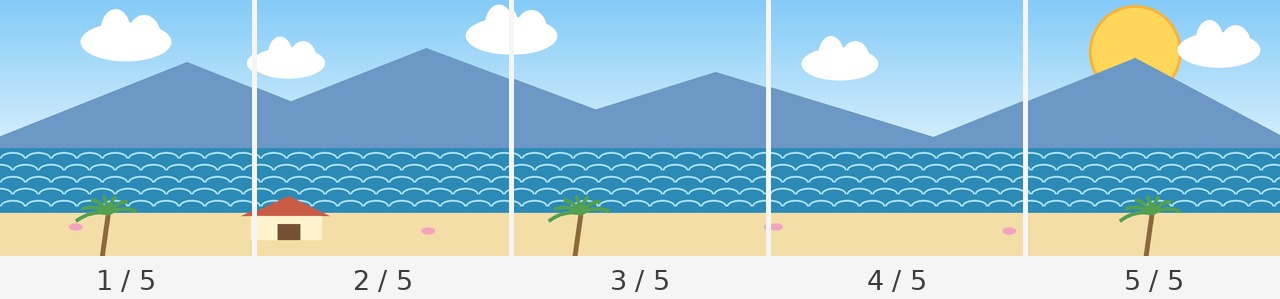
Split a wide image into matching Instagram carousel slides that line up as you swipe
Split one wide image into 2–10 same-size images for an Instagram carousel. The edges line up as viewers swipe, and numbered files are bundled in a ZIP. Use it for panoramas, landscapes, or wide illustrations.
How to use it
- Add one wide image. JPG, PNG, and WebP are supported up to 30 MB, 16,384 px on the longest side, and 40 million pixels. You can drop the image here or paste a copied image with ⌘V or Ctrl+V.
- Choose the number of slides (2–10). The tool suggests a count based on the image and shows a note such as “3 slides fit this image best.” Select Use recommendation to restore the suggested count.
- Choose the shape of each slide: square 1:1 at 1,080 × 1,080 (default), portrait 4:5 at 1,080 × 1,350, tall portrait 3:4 at 1,080 × 1,440, or enter custom dimensions. These are representative examples; check the app for current guidance.
- Choose how the image should fit: Show the full image with padding (default), Fill to height and crop the sides, or Fill and choose a vertical crop position. Set the padding color and crop position. Under Advanced settings, set the outer margin in pixels and output format (PNG by default, or JPG at quality 60–100).
- Review the split line and slide previews to see what will be cropped. Vertical dotted lines mark the cuts. If a face or text touches a line, change the slide count or crop position. Swipe the carousel preview to see how the slides connect. The preview updates when you change a setting.
- Select Split, then download the result with Download all as ZIP in “③ Download your slides.” Files are named in order, such as
photo_01of05.png. You can also download slides one at a time.
Split one panoramic image into five connected carousel slides
Each Instagram carousel slide appears as viewers swipe. If you upload a wide image as one slide, the sides may be cropped. Split it into equal-size images and upload them in order to create a continuous scene.
Choose the number of slides and the aspect ratio first. Square slides make a consistent row; 4:5 portrait slides fill more of the screen vertically. The tool fits the original to the combined slide dimensions. If the aspect ratios do not match, choose between padding, which keeps the whole image and adds blank space, and cropping, which fills each slide but trims part of the image. Use padding to preserve important details near the edges, or cropping for a full-bleed look.
Check the cut lines before splitting. A face, word, or sign that crosses a line will be divided between slides. Change the count or aspect ratio to move the cuts into an open area, such as the sky, sea, or a wall. The row of slide previews makes it easier to check the flow.
What this helps with
- Crop and size each slide by hand in a photo app → Choose the count and aspect ratio to make matching slides.
- Upload one wide image and let the app crop the sides → Split the image so the scene continues as viewers swipe.
- Lose track of the correct slide order → Download files with numbered names such as
_01of05through_05of05.
Limitations
- A face or text that crosses a slide boundary will appear split. Change the count or aspect ratio to move cuts into open space.
- If the image is not wide enough for the selected slide count, the result may have a lot of padding or cropping. Select Use recommendation or reduce the count. Small originals may be enlarged and look blurry.
- Changing the aspect ratio (1:1, 4:5, or 3:4) changes slide dimensions and all cut positions. Review the lines again after changing it.
- Padding leaves blank space above, below, or beside the image. Cropping removes the parts that do not fit. Choose padding when important details are near an edge.
- Square or portrait images have little horizontal area to split, so this tool works best with wide images.
- You can add one image up to 30 MB, 16,384 px on its longest side, and 40 million pixels. Each output slide may be up to 4,096 px per side and 16 million pixels; all slides together may be up to 80 million pixels. Choose 2–10 slides. HEIC and animated images are not supported. Image orientation is applied automatically, and location and other EXIF metadata are removed. Dimensions are representative examples; check the app for current guidance.