Blurred Isn't Hidden: I Tested Whether a Mosaic Screenshot Can Still Be Read

Don't blur the order number and post the screenshot — blur only smears the pixels, and a sharper look can still make out the shape of the text. Put a solid black box over the number before you share the screenshot — it replaces the pixels instead of smearing them, so there is nothing left to sharpen back. And if you change your mind about the style after drawing the box, that works too: pick the new style, click "Create redacted images" again, and the file changes with it.
Try the toolRedact Part of an ImagePaste or upload screenshots, then drag to cover areas with a solid block, pixelation, or blur. Apply the same area to multiple images at once.loopyti.comOne warning before you start: if you already shared the screenshot without covering the number, this tool cannot undo that — delete the original post and re-upload a covered version. And one rule the test taught me: a style change does not apply by itself. When you switch styles, the old result clears and a "Mask changed. Create the result again." warning appears — click "Create redacted images" again before you save, or you will download the previous version. The result section still shows no timestamp, so that warning clearing is the only sign the new file is ready.
How to redact it in three steps
- Add the screenshot, then pick a style. Drop the image in, paste it with Ctrl+V, or use "Choose files" (up to 50 photos, 10 MB each). Then choose the cover style — "Solid cover (black)", "Pixelation", or "Blur". There is no strength slider for mosaic or blur, so the style you pick is the whole decision — but you can change it later, as long as you create the result again after the switch.
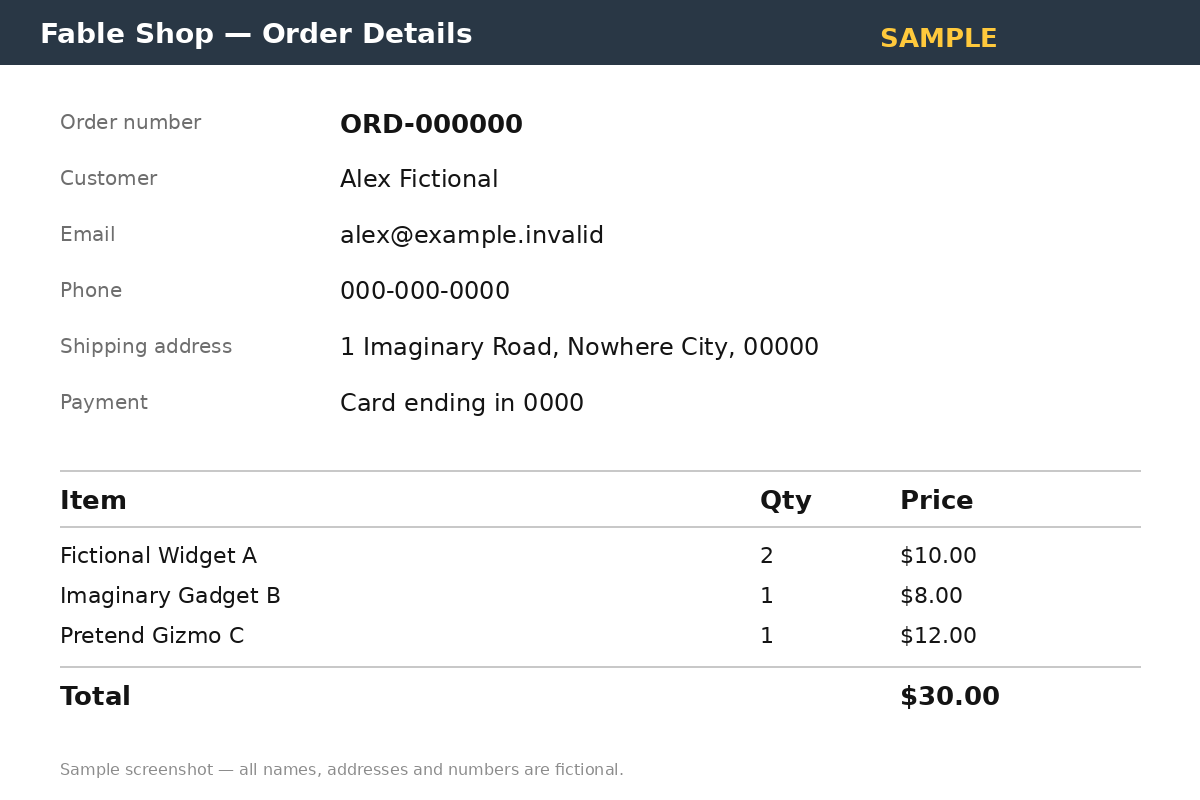
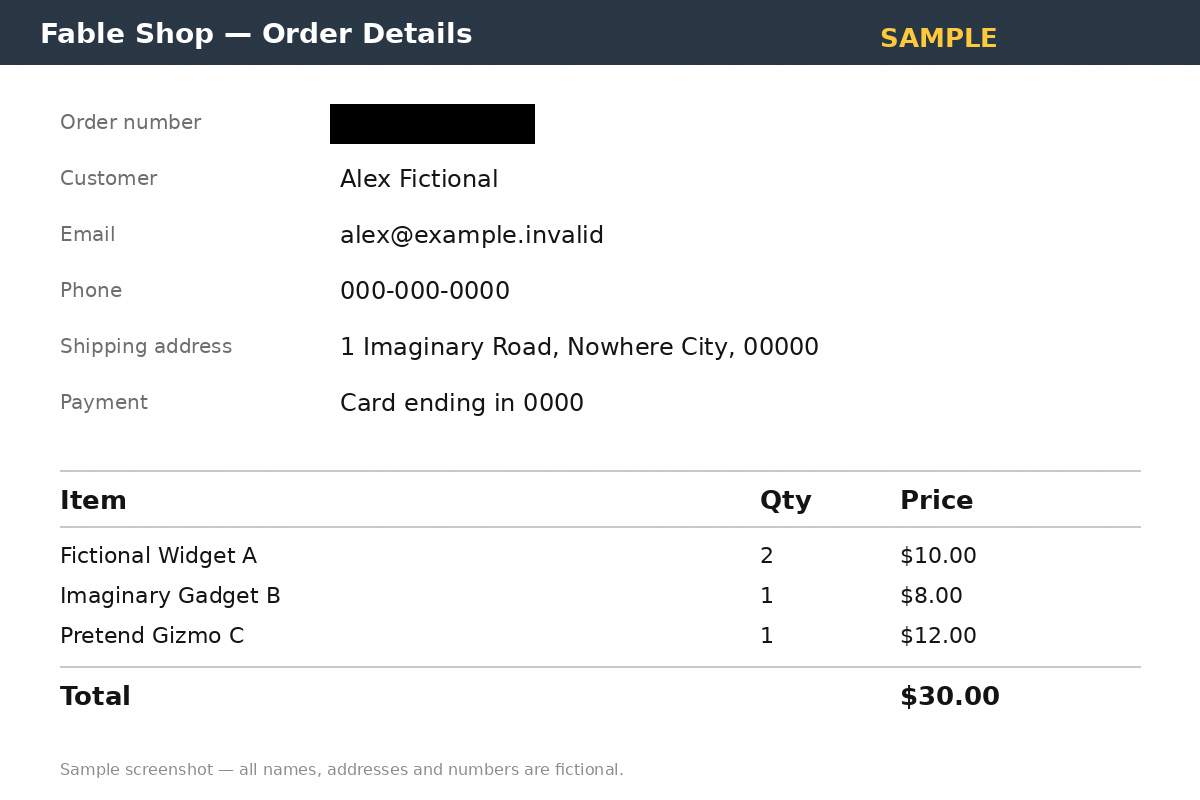
- Draw the box over the number. Drag over the area, or type the numbers in Options: I used Left 27.5%, Top 13%, Width 17%, Height 4.875%, which is the 204 × 39 px box around the order number "ORD-000000" (x=330–534, y=104–143 on my 1,200 × 800 screenshot). You cannot move or resize a mask once it is drawn — dragging inside it draws a second mask instead — so get the box right the first time, or undo it and redraw.
- Create, save, then zoom in and check. Click "Create redacted images", save with "Save image", and open the saved file and zoom in on the covered spot before you share it. The tool itself tells you to do this: "Open and zoom in on the saved file to make sure the information is actually gone." If you switched styles, check that the "Mask changed. Create the result again." warning has cleared before you save.
Does it actually work? I tested it
I drew a fake order screen — "Fable Shop", order number ORD-000000, customer Alex Fictional, all names, addresses, and numbers fictional — and covered the same order-number box three ways: mosaic, blur, and a solid black box. Then I zoomed each saved file to 400% and pushed the contrast to see what stayed readable. Tested 2026-11-16, re-tested after a fix on the same day.
First, the honest surprise: for this sample, the mosaic and the blur both held. At 400% zoom with contrast tripled, I could not read a single character of "ORD-000000" in either one. The mosaic leaves a row of dark blocks where the text was — 1,330 of the box's 7,956 pixels are darker than mid-grey — and the blur leaves two soft dark blobs — its whole box sits between brightness 171 and 230, with no pixel darker than 128. You can tell something was there. You cannot tell what it said.
Then the second test, after the tool was fixed: I drew the mask once under the solid style, then switched to Pixelation, clicked "Create redacted images" again, and downloaded. Then the same for Blur. This time the three files came back genuinely different — solid 84,123 bytes, mosaic 84,183 bytes, blur 88,711 bytes, all three with different md5 hashes — and the file names say which is which: order-sample-redacted-01-solid.png, order-sample-redacted-01-mosaic.png, order-sample-redacted-01-blur.png. I opened each one and checked the pixels: the solid file is a pure black box, the mosaic file is real mosaic blocks (7 colours in the box, 1,330 dark pixels, the same count as my first test), and the blur file is a smooth light-grey smear (58 colours, brightness 172–229, no dark pixel at all). The canvas preview follows the style too — a black bar, mosaic blocks, or a grey smear, as you pick it.
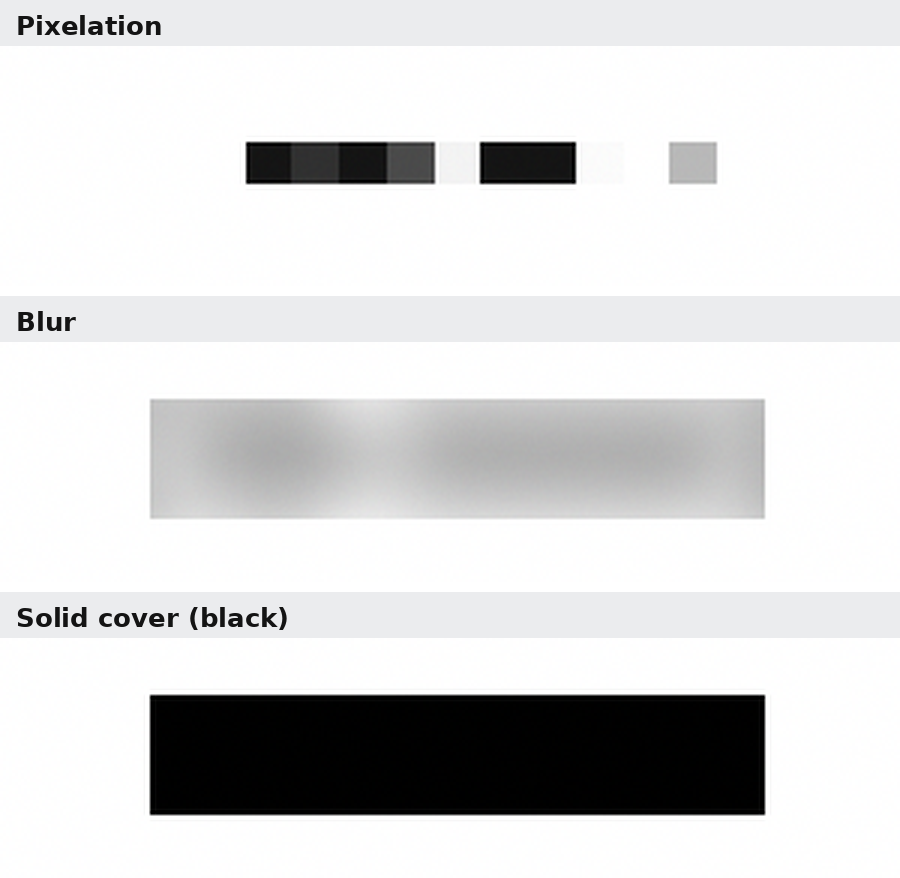
So the rule now is simple: change the style, create the result again, and the file changes with it. If you want to be sure what you are about to share, check the file name — it carries the style — and check that the "Mask changed. Create the result again." warning has cleared. One small gap remains: the result section still shows no timestamp, so the cleared warning is the only sign the new file is ready.
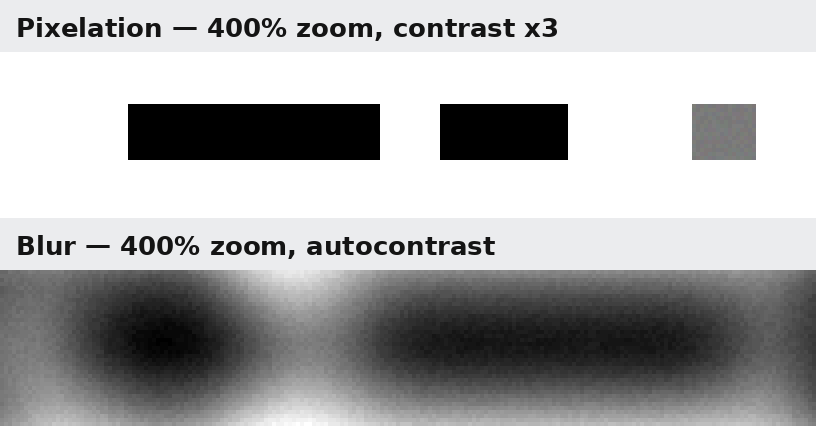
The score for my test: all three styles hid the number at 400% zoom with boosted contrast — zero of ten characters readable in mosaic or blur, and nothing at all left in the solid box. But only the solid box leaves nothing to argue about: the mosaic leaves a dark band and the blur leaves two blobs, and both are the tool's fixed defaults — there is no strength control to make them heavier or lighter, so on a larger or sharper original the same defaults might leave more. The page says it plainly: "Light pixelation or blur may be reversible; use a solid block for account or government ID numbers."
Why smearing is not the same as replacing
Blur and mosaic smear pixels — a solid block replaces them. Smeared pixels still carry a faint echo of the original shapes, which is why zooming and contrast can sometimes pull a word back out of them. Replaced pixels carry nothing at all: the original text is gone from the file, so there is no version of "sharpen it harder" that brings it back. That is why the safety question is not "how strong is the blur" but "is any of the original left" — and why the only style with a provably empty answer is the solid box. The mosaic and blur passed my test, but they passed by leaving a smear, not by leaving nothing.
What about the other ways?
Your phone editor's mosaic works, and it is the only cover many phones offer. But it is mosaic alone, usually with no strength control either — and you have to open each screenshot and draw the box by hand, one at a time.
Cropping the number out works, and it removes the pixels completely. But it also removes the context around them — the order screen stops looking like an order screen — and the cut edge advertises that something was hidden there.
Drawing a black rectangle in an image editor works, and it is the same solid-box idea. But you open 20 screenshots and draw 20 rectangles; this tool applies the same area to every image at once — I verified it with the built-in example, six images, one mask, six covered files. One catch: loading the example replaced my uploaded screenshot without warning, so keep your original file safe.
This tool's place is the middle case: several screenshots with the secret in the same spot, covered in the browser without installing anything, with three styles to choose from and switch between.
What it won't do — read this first
- A style change does nothing until you create the result again. Switch from solid to mosaic and the old result link clears with a "Mask changed. Create the result again." warning — click "Create redacted images" again before you save, or you will download the previous version. The result section still shows no timestamp, so the cleared warning is the only sign the new file is ready.
- The canvas previews the style you picked. It shows a black bar for solid, mosaic blocks for pixelation, and a grey smear for blur, as you select each one. Still, the only way to be certain what a file holds is to open the saved file and zoom in.
- The downloads carry the style in the file name. Mosaic, blur, and solid save as order-sample-redacted-01-mosaic.png, order-sample-redacted-01-blur.png, and order-sample-redacted-01-solid.png — so they will not overwrite each other in one folder. The on-page link text still reads "Save image: order-sample.png" for all three, so go by the downloaded file's name, not the link text.
- There is no strength control. Mosaic block size and blur radius are fixed defaults, so "applied lightly" is not something you can adjust — and the page warns that light pixelation or blur may be reversible. My test used a 10-character order number at 26 pt bold; a larger or sharper original could leave more behind. For account or government ID numbers, the page itself says to use the solid block.
- A drawn mask cannot be moved or resized. Dragging inside an existing mask draws a new one on top of it (I accidentally covered the customer name this way while testing). Use "Undo last mask" and redraw, or type the box numbers in Options instead of dragging. Typing Height 4.875% flags the field [invalid] but still creates the mask.
- The example replaces your upload without warning. Clicking "Try an example" swapped my uploaded screenshot out of the list. Batch cover does work — one mask applied to all six example images — but it only fits when the secret sits in the same relative spot on every image; if it moves, check each result.
- Your image stays in your browser. The tool says so on the page: "Images are processed in your browser and are not sent to a server." The exported image does not keep the source photo's metadata, including location — good for sharing, so keep your original separately if you want its metadata. And what is already shared cannot be taken back: cover before you publish.
The one line to remember
Don't blur it — cover it. And if you switch styles, create the result again before you save.
Try the toolRedact Part of an ImagePaste or upload screenshots, then drag to cover areas with a solid block, pixelation, or blur. Apply the same area to multiple images at once.loopyti.comFAQ
Can blurred text in a screenshot be read after sharpening? Sometimes — and that is why the page warns that light blur may be reversible. In my test it could not: a blurred "ORD-000000" at 400% zoom with tripled contrast and autocontrast showed two soft blobs and zero readable characters. But that is one sample at the tool's fixed blur strength, and the blur still left visible traces of where the text was. A solid box leaves no trace at all, which is why it is the safe choice for anything that must stay hidden.
Is mosaic safe for hiding an account number? Not safe enough for an account number. In my test the mosaic hid a 10-character order number — no character readable at 400% zoom with boosted contrast — but it left a dark band of blocks exactly where the text was, and there is no strength control to make it heavier. The page's own rule is the answer: use a solid block for account or government ID numbers.