Excel Filter Only Shows the First Row of a Merged Group? Unmerge and Fill Down First

Your filter isn't broken, and you don't need to unmerge everything by hand and retype the missing labels. Fix the file before you filter: run the XLSX through the Unmerge & Fill tool, pick the two merged columns, and download a copy where every row carries its own team and date. Then filter and pivot the way you normally would.
Try the toolUnmerge & Fill CellsUnmerge selected columns in one or more XLSX sheets and fill data-row blanks with the value above, creating a table that is easier to sort.loopyti.comOne caution before you start: keep the original report untouched and work on a copy. If the sheet has already been sorted or edited with the merges in place, go back to the original file rather than patching the edited one.
How to fix it in three steps
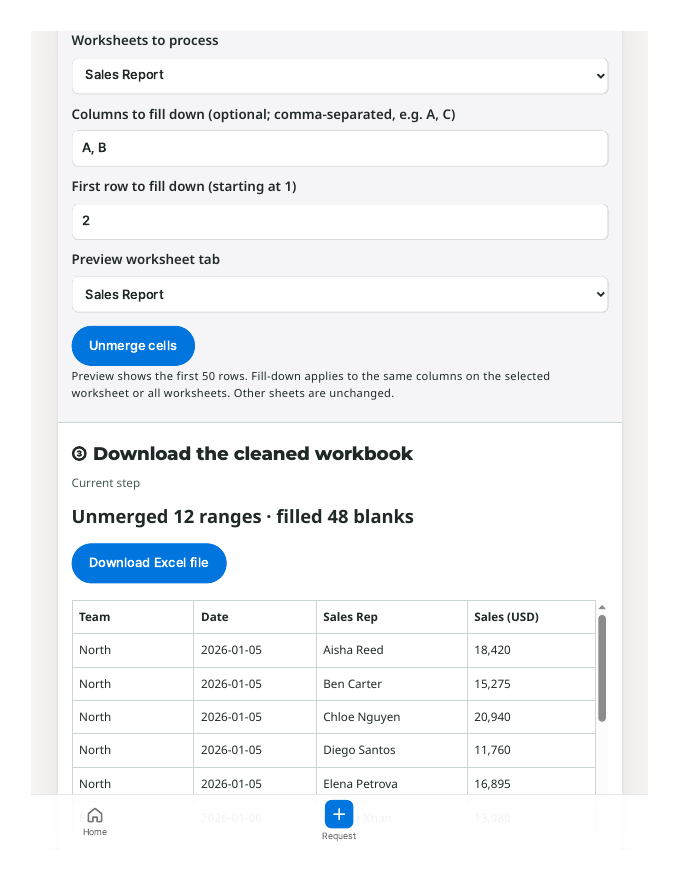
- Upload the XLSX and choose your sheet. The tool opens with "All worksheets" selected, so switch it to the sheet you actually want — in my test,
Sales Report. The starting row was already set to 2, which matched a header in row 1. - Select only the merged columns. Here is the part that's easy to get wrong: the column field defaulted to "A, C," and I had to change it to "A, B" for Team and Date. Left on the default, it would have treated the Sales Rep column as a merged column too. Leave columns like Rep and Sales alone.
- Check the preview, then download. The preview shows the labels filled in before anything is saved, so you can scan a few blocks and confirm the right values landed in the right rows.
Does it actually work? I tested it
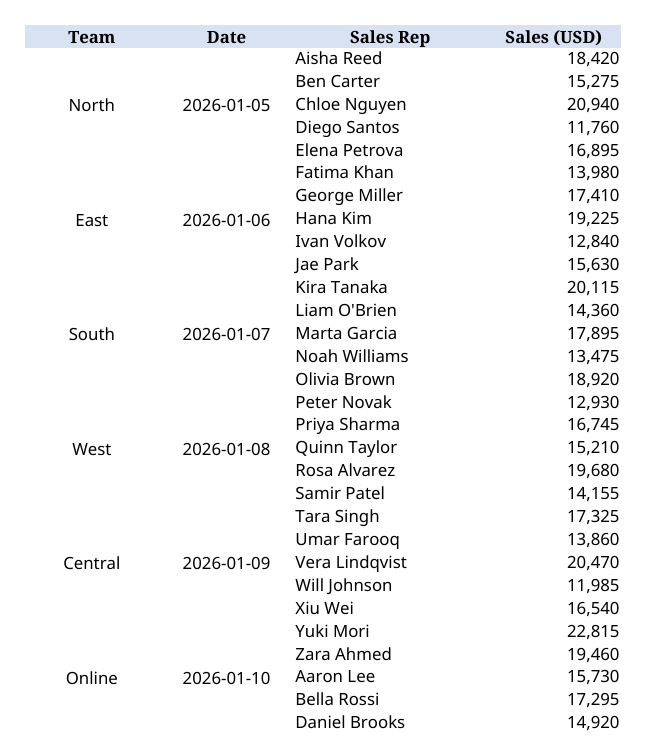
I built a small sales report on purpose: six teams, five rows each, 30 data rows, with Team and Date merged down each five-row block. Virtual sample data, tested 2026-11-11.
On paper, East had five reps and five sales figures. In the file, only the first East row actually held the word "East." The other four Team cells were blank, so a filter for East could only ever surface that one row — Fatima Khan, $13,980 — and quietly hide the rest.
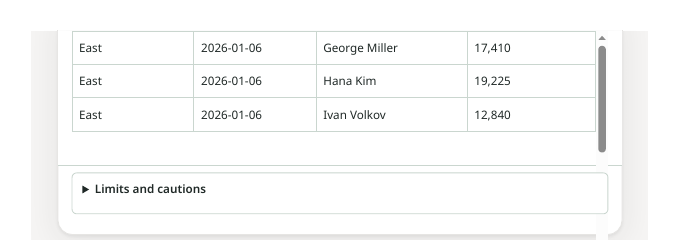
After running the file through the tool, it reported: 12 merged ranges unmerged, 48 blank cells filled. I checked the downloaded copy directly:
- All 30 rows now carry a Team and a Date value. No blanks left in either column, and no merges remaining.
- Filtering for East now returns all five rows, and their sales add up to $79,085.
- The numbers themselves didn't move. The full sheet still totals $496,260, exactly what the original added up to.
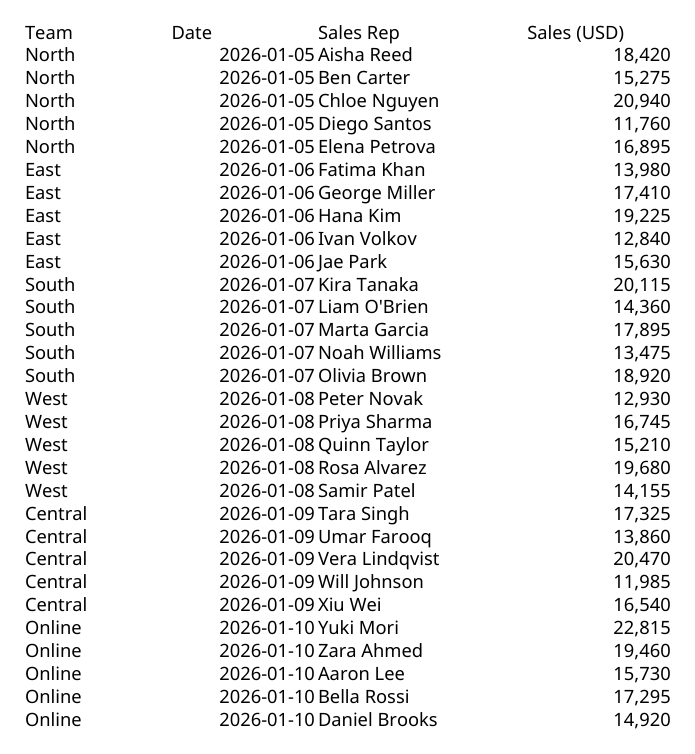
The change is structural, not cosmetic: the labels are now real values in real cells, which is what filters, sorting, and pivot tables read.
Why the rows disappear
A merged cell keeps its value in the top-left cell only. The four rows underneath look grouped on screen, but in the data they are simply empty. A filter reads a blank and hides the row. Merging is a display trick, not a way of organising data, and every row-by-row feature trips over it the same way.
What about the other ways?
The manual route — unmerge, then F5 → Go To Special → Blanks → type = and point at the cell above → Ctrl+Enter → paste everything back as values — genuinely works. It is also a six-step sequence you have to remember exactly, repeat per column, and if you skip the final paste-as-values step, live formulas are left behind that break the moment you sort.
A VBA macro makes sense if the same report lands weekly in the same shape. For a one-off file someone emailed you, it's a lot of machinery — and on a locked-down work PC, macro security may stop you before you start.
Power Query's Fill Down is the cleanest option if you already maintain a query pipeline. But it produces a new loaded table — more than you need when the job is "fix this one file I was just sent."
The tool's place is that last case: one received XLSX, no sequence to memorise, and a preview before you commit.
What it won't do — read this first
- Intentional blanks get filled too. Any empty cell under a merged label picks up the value above, even one you deliberately left empty. Skim the preview.
- Blank separator rows and formula-only rows are not filled. They act as boundaries, so a sheet that separates groups with blank rows may not fill the way you expect.
- Complex headers need separate work. Multi-row headers mixing horizontal and vertical merges are beyond a straight unmerge-and-fill.
- Formatting, macros, and charts are not guaranteed to survive. Another reason to keep the original and work on the downloaded copy.
- It's XLSX only. The tool works with Excel workbooks; don't expect it to rescue a CSV.
The one line to remember
Filter second. Unmerge and fill first, then filter — your rows were never deleted, they were just blank.
Try the toolUnmerge & Fill CellsUnmerge selected columns in one or more XLSX sheets and fill data-row blanks with the value above, creating a table that is easier to sort.loopyti.comFAQ
Can you filter merged cells without unmerging them? Not reliably in Excel. The filter reads cell values, and only the top-left cell of a merge holds one. The rows beneath are blank to Excel, whatever they look like on screen.
Why does my pivot table look wrong with merged cells? Same cause. A pivot groups by the value in each row, so a merged label counts once and the other rows fall under blank. Fill every row first and the pivot totals behave.