
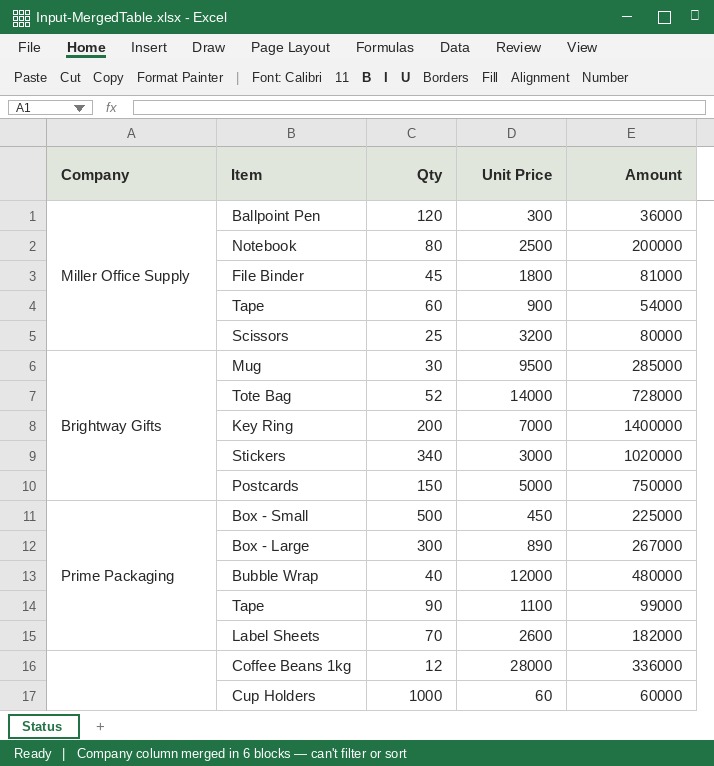
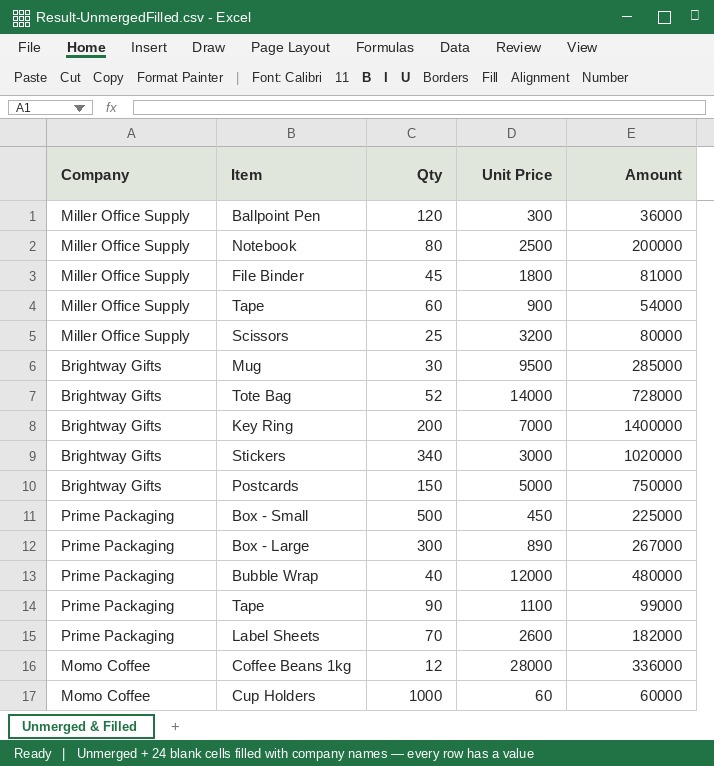
Merged cells make sorting and filtering unreliable
Unmerge selected columns in one or more XLSX sheets and fill data-row blanks with the value above, creating a table that is easier to sort.
How to use it
- Upload an XLSX workbook with merged cells.
- Choose the sheets, columns, and starting row to process. Check the preview; blank separator rows and formula-only rows are not filled.
- Download the result and compare it with the original workbook.
Fix a spreadsheet that will not sort or filter
Reports often merge department names or dates across several rows. A filter may keep only the first row and treat the remaining rows as empty; pivot tables can fail for the same reason.
This tool unmerges selected columns and fills data-row blanks from the value above. Blank separator rows and formula-only rows mark boundaries. Review the preview and compare the downloaded workbook with your source.
A visually merged layout is not always a true merged range. Filling genuinely empty cells can spread values where none were intended. Mixed horizontal and vertical header merges need separate cleanup.
What this helps with
- Unmerge cells and fill each column by hand → Choose sheets and columns, then review the preview.
- Remembering Excel’s multi-step Go To Special workflow → No special menu sequence is needed.
- Building a Power Query transformation → Convert a workbook directly in the browser.
Limitations
- Blank cells that were meant to stay empty may be filled; review the result.
- Complex multi-row headers with horizontal and vertical merges need separate cleanup.
- Cell formatting, macros, and charts are not guaranteed to be preserved; keep the original workbook.