Why Excel Breaks Your CSV: Long Numbers, Leading Zeros and Dates

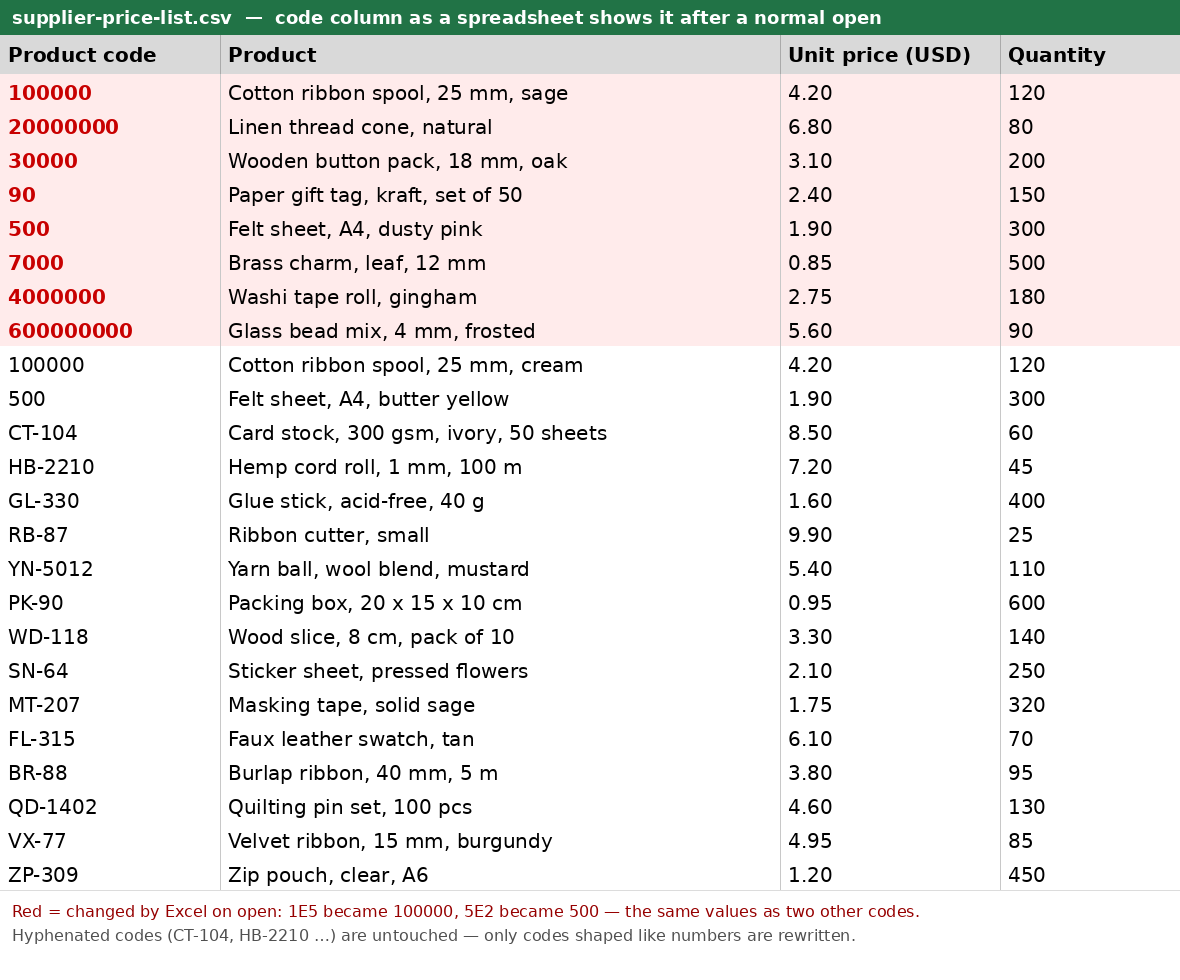
You export an order list from your shop, open the CSV in Excel, and something is off. The tracking number now reads 1.23457E+15. The postal code 01234 has become 1234. A product code like 3-4 turned into a date. Nothing warned you, and if you save the file now, those changes stay for good.
This happens to almost everyone who moves data between a web service and a spreadsheet. Here is why it happens and how to keep your values intact.
Why Excel changes your data
When Excel opens a CSV, it guesses what each value is. A CSV has no column types, so anything that looks like a number or a date gets converted.
- Long numbers. Excel stores numbers with at most 15 significant digits. A 16-digit order or card-style number loses its last digit, which becomes 0. Excel also shows long numbers in scientific notation, like 1.23E+15.
- Leading zeros. 01234 is read as the number 1234, so the zero disappears. Postal codes, phone numbers and member IDs are the usual victims.
- Date-like codes. Values such as 1-2 or 3/4 are turned into dates (January 2, March 4).
- Garbled text. If the file was saved in one encoding (for example CP949 for Korean) and read as another, the text turns into unreadable characters.
The first two are the dangerous ones. The display change is only half of the problem. Once Excel has stored the value as a number, the lost digits are gone. Changing the cell format to Text afterwards does not bring them back.
The usual workarounds and where they fall short
- Formatting the cell as Text after opening. Too late. The value was already converted when the file opened.
- Typing an apostrophe in front of each value. Works, but only one cell at a time.
- Using the import wizard and setting every column to Text. Reliable, but slow, and easy to forget for a single column.
Check the file before Excel touches it
The safer order is: check first, then open. Two free Loopyti tools do this in your browser, and your file is never uploaded to a server.
Prevent Excel Data Loss: CSV Value Check inspects a CSV or XLSX file and shows which cells are at risk: leading zeros, numbers longer than 15 digits, date-like codes and encoding problems. It labels each finding as fixable, uncertain or unrecoverable. Then it exports an XLSX that stores the risky values as text, so Excel opens them unchanged.
Stop Long Numbers Turning into E+ is the quick version for long IDs. Paste a column of tracking numbers or member IDs, see which ones are at risk, and download an XLSX where the selected columns are stored as text.
What these tools cannot do
If a file was already opened and saved in Excel, the digits that were cut off are lost. No tool can guess them back. Download the original file again from the source (your shop admin, courier site or bank) and check it before opening.
A short checklist
- Download the CSV and do not open it in Excel yet.
- Run it through the CSV value check.
- Open the value-preserving XLSX instead of the raw CSV.
- Compare a few long numbers with the source once, especially before sending invoices or shipping labels.
It takes less than a minute, and it saves you from mixed-up orders that all end in 0.
Looking for more small fixes like this? Browse all tools.