
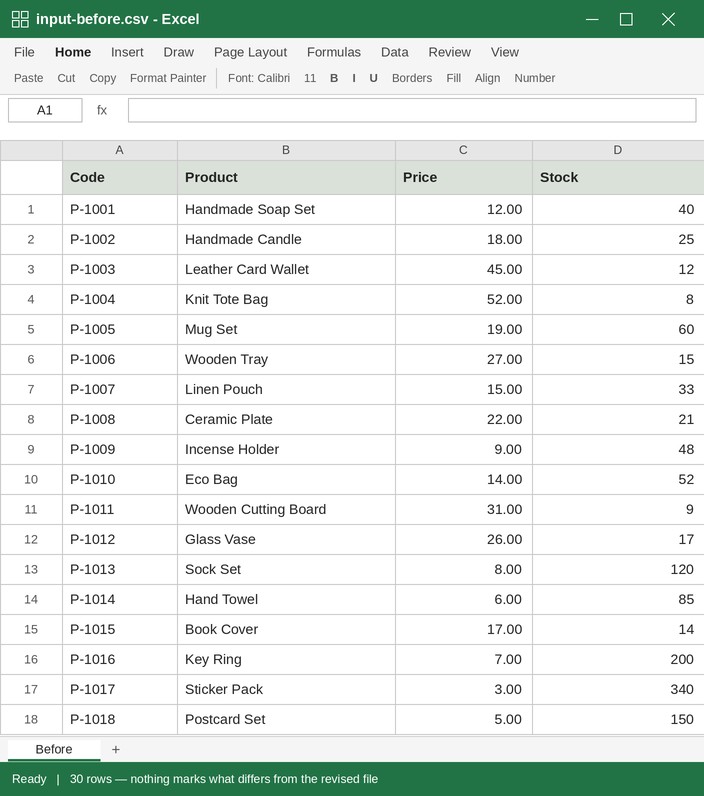
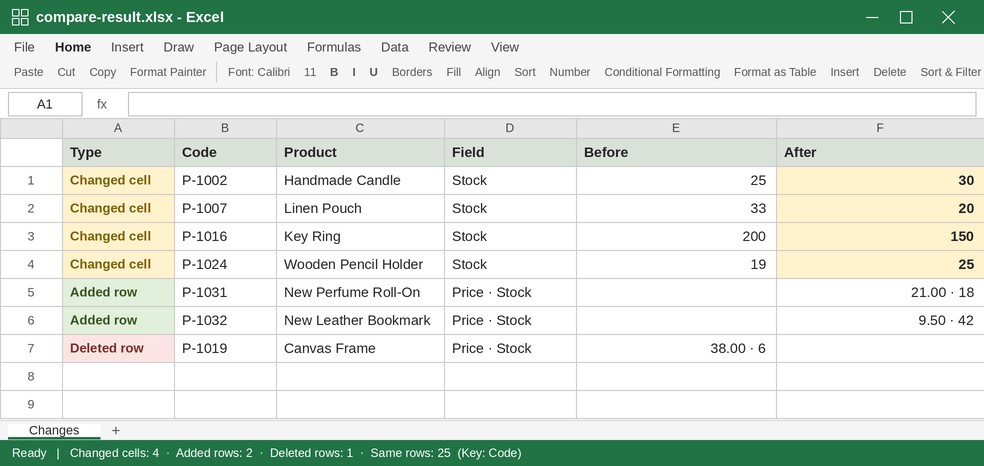
A revised spreadsheet arrived, but you cannot tell what changed
Compare two spreadsheets by key column to find edits, additions, deletions, and moved rows. Choose which changes to keep and create a final workbook.
How to use it
- Upload the original and revised workbooks.
- Choose one or more key columns with unique row values, such as an order number or product code.
- Review edits, additions, deletions, and moves. Choose how to handle each and download the final workbook and change list.
- Rows with blank or duplicate keys are listed for review.
Find only the changes between two spreadsheets
When a revised file arrives without highlighted edits, finding changes across hundreds of rows by eye is difficult. It gets harder when the row order changes.
This tool matches rows by key rather than position. It reports changed, added, deleted, and moved rows; you can combine up to two keys, such as branch and product code.
Duplicate or blank keys cannot be matched confidently and need review. Renamed columns are treated as different columns. Values such as the number 100 and text “100” may also compare differently.
What this helps with
- Opening two workbooks side by side and scanning by eye → Compare rows by key and choose changes individually.
- Finding Excel’s built-in comparison features → Upload the files and select the key columns.
- Using XLOOKUP, which may silently take the first duplicate → Review duplicate keys instead of accepting an uncertain match.
Limitations
- Blank and duplicate keys are not matched automatically. Fix the source or add another key.
- Columns with different names are treated as different columns.
- Formatting-only changes are not detected; values are compared.