
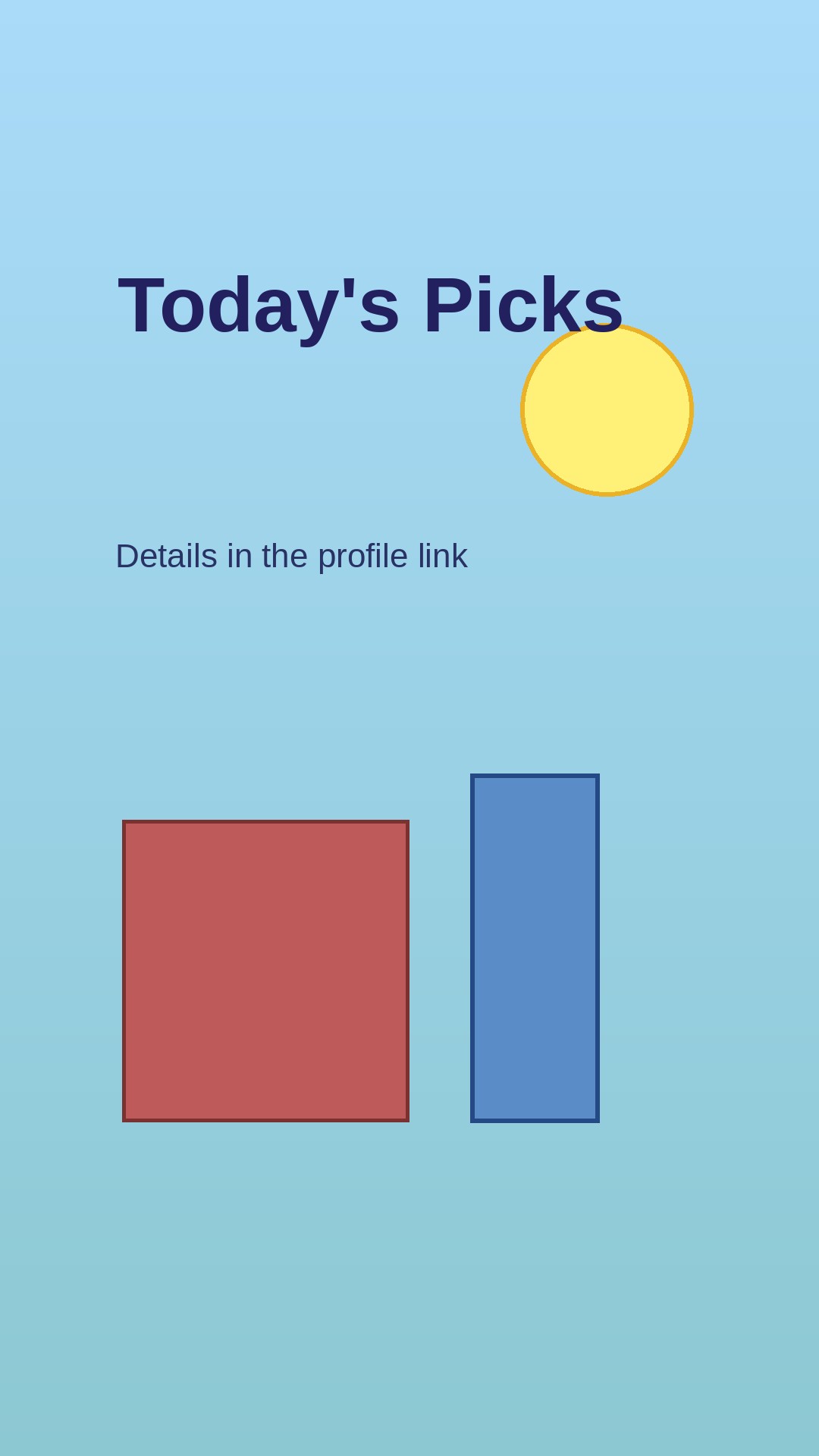
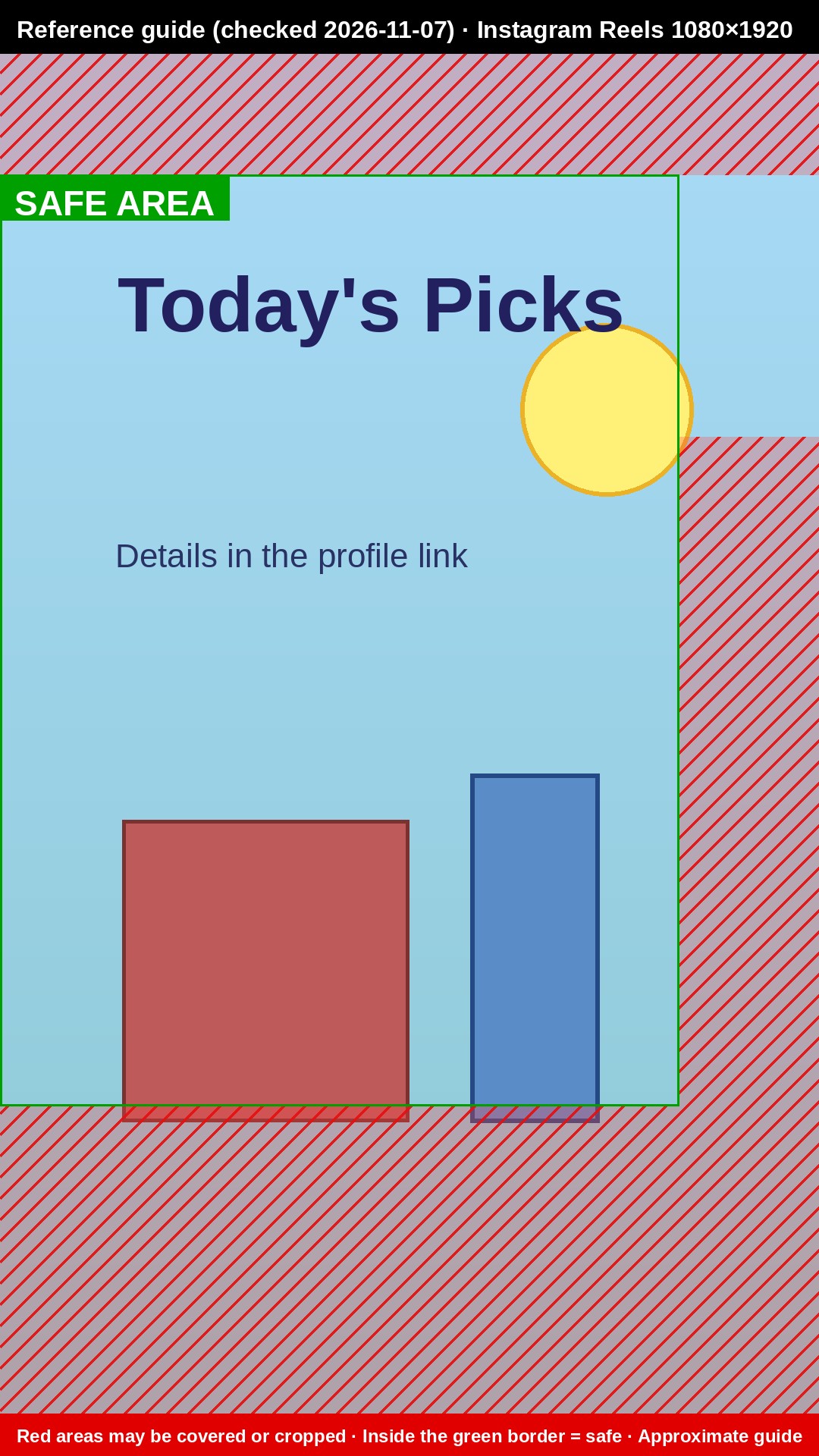
Check whether captions and buttons will cover your Reels, Shorts, or TikTok text
Add an image and choose a platform to see areas that may be covered by interface elements or cropped. Everything runs in your browser; your image is not uploaded.
How to use it
- Add the image you want to preview. One JPG, PNG, or WebP image up to 20 MB is supported. To check a video, capture the frame you plan to use and add it as an image.
- At “② Choose a platform and check text placement,” select Instagram Reels (default), YouTube Shorts, TikTok, YouTube thumbnail and mobile edges, or Instagram profile grid 3:4 crop. The image is fitted inside the reference frame without changing its aspect ratio; dark padding appears when the aspect ratios differ.
- Potentially covered areas appear in red. To check text placement, turn on Select a text area and drag a rectangle over the text in the preview, or enter its position and size as percentages under Set text area with numbers. The fields start at left 20, top 30, width 60, and height 10. Select Check text area.
- Review the result: red shading marks areas that may be covered or cropped, and a blue outline marks the selected text area. The tool tells you how many covered areas overlap the text. You can also turn on the thirds grid and center line, then select Download review PNG to save the preview.
- Move important text and faces outside the red areas in your original image, then add it again to check.
Why thumbnail text gets cropped: check the safe area
A thumbnail can look fine in an editor and appear differently in an app. YouTube may crop the edges because of the playback badge or device aspect ratio. Instagram Reels, YouTube Shorts, and TikTok place interface elements over the image, including status details at the top, captions near the bottom, and a column of buttons on the right. Text or faces near those edges may be covered or cropped.
Keep important elements near the center safe area, but remember that each platform covers a different part of the image. The reference zones in this tool were reviewed on November 7, 2026. They are approximate, not official measurements.
For a 1,080 × 1,920 Reels image, the top 0–12%, the caption area below 76%, and the right-side buttons (horizontal 83–100%, vertical 30–76%) may be covered. For Shorts, the corresponding ranges are top 0–10%, captions below 78%, and buttons at horizontal 82–100%, vertical 34–78%. For TikTok, they are top 0–12%, captions below 73%, and buttons at horizontal 82–100%, vertical 28–73%.
For a 1,280 × 720 YouTube thumbnail, check the playback badge in the lower-right corner (horizontal 80–100%, vertical 82–100%) and allow for up to 5% cropping on each side on mobile. The Instagram profile grid example crops a portrait image to 3:4; a 1,080 × 1,920 image loses the top 12.5% and bottom 12.5%.
Choose a platform to see its reference zones overlaid on your image. These estimates are approximate, so check the image in the platform app before posting.
Safe areas can change when platforms update their interfaces. Recheck templates you have used before.
What this helps with
- Find out only after posting that text is cropped → Preview areas that may be covered before you post.
- Switch between apps to check each platform → Compare platforms in one preview.
- Draw guide lines by hand in an image editor → Choose a platform to show its reference areas automatically.
Limitations
- Platform interfaces can change, so safe areas may change too. These reference values were reviewed on November 7, 2026; they are approximate, not official measurements. Check the image in the platform app before posting.
- Device aspect ratios vary, so edges may look slightly different even when content stays inside the safe area.
- This tool previews areas that may be covered. It does not move or recreate parts of your image.
- You can add one image up to 20 MB, 20 million pixels, and 16,384 px on its longest side. JPG, PNG, and WebP are supported; video and animated images are not. Select one text area by dragging or entering percentages. Text is not detected automatically. The result is a review PNG at the selected platform’s reference size, not an image ready to post. EXIF metadata is removed, and the image is not uploaded to a server.