
Combine a series of scrolling screenshots into one seamless image
Upload screenshots with overlapping sections, and this tool removes the duplicates and joins them into one long image. Use it to share a full chat, web page, or map that does not fit on one screen.
How to use it
- Capture the page from top to bottom in several screenshots, leaving some of the same content visible in each one. A larger overlap usually makes stitching more reliable.
- Add the screenshots in top-to-bottom order. You can add up to 30 images at once, each up to 30 MB. JPG, PNG, and WebP are supported.
- At “② Check the order and overlaps,” confirm the order and use Move up or Move down to fix it. The tool finds overlaps automatically, and you can adjust each seam in pixels. To remove a repeated header or footer, such as a fixed menu or input bar, enable the option under Advanced settings or enter its top and bottom heights in pixels. Select Stitch when the order looks right.
- At “③ Review and save,” choose PNG or JPG, then save the result. Screenshots with different widths are scaled to the narrowest one. If the result is over about 16,000 px tall, it is split into several images in a ZIP file. The blue lines in the preview mark the joins; check them before saving.
How to turn a long page into one image
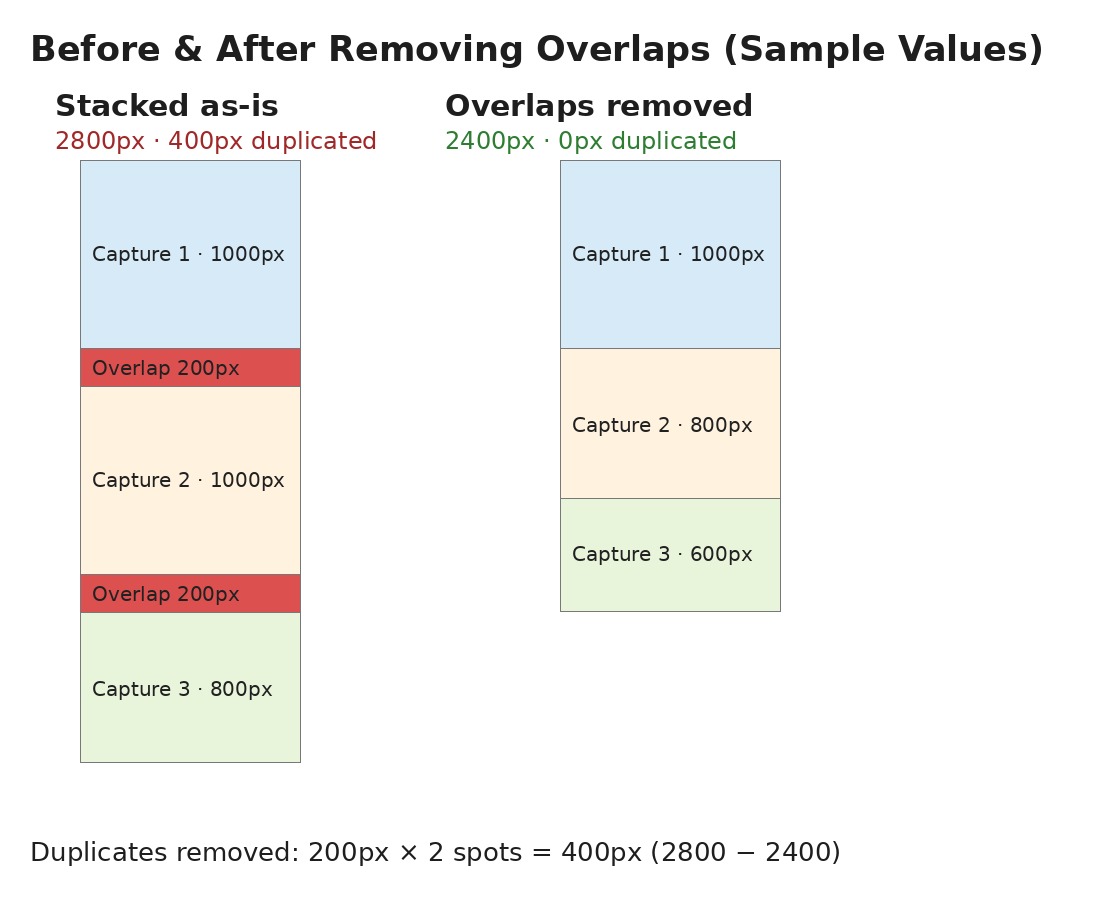
A long article or chat does not fit on one screen, so you have to capture it in sections. Simply stacking those screenshots repeats the overlapping text and images. This tool finds the shared areas, removes the duplicates, and joins the remaining sections.
Leave enough overlap when you take the screenshots. If the shared area is too small, the tool may not recognize it. As a rule of thumb, keep about a quarter of the screen visible as you scroll. Move down gradually so no content is skipped; a gap between screenshots will remain a gap in the finished image.
Check the order before stitching, and make sure none of the images is rotated or upside down. After stitching, scan the joins for repeated or cut-off content. If text repeats or is clipped, take the screenshots again with more overlap.
What this helps with
- Line up screenshots by eye in an image editor → The tool finds the overlaps and removes the repeated sections for you.
- Rely on a scrolling-capture app that may not work on every device or browser → Use screenshots you already have.
- Crop and join each screenshot by hand, which can leave uneven seams → The tool compares the overlapping images before joining them.
Limitations
- If the overlap is too small, the tool may not find it and will simply join the screenshots. Retake them with more shared content or enter the overlap height yourself in step ②.
- You can add up to 30 images at once, each up to 30 MB, 40 million pixels, and 16,384 px tall. HEIC images are not supported.
- The result may be misaligned if the overlapping sections are cropped differently or include different content. Large changes in text, images, or colors can make matching difficult.
- Repeated patterns, such as blank areas or identical chat bubbles, can confuse overlap detection. Check each join in step ②. Horizontal scrolling and screens where only the center moves, such as pages with a fixed sidebar, are not supported.
- If content is missing between screenshots, the finished image will have a gap. Scroll in smaller steps to capture the whole page.
- This tool is designed for scrolling screenshots. It is not intended to stitch landscape photos into a panorama when the overlap is unclear.
- Content that changes while you scroll, such as a live feed or animated ad, can make the joins uneven even when an overlap is found.
- All screenshots need the same orientation. Images with different widths are scaled down to the narrowest width.