
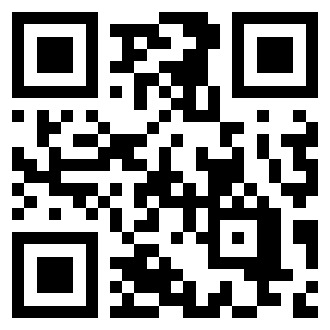
You want a clean QR code for your shop Wi-Fi or a sign, without watermarks or expiration dates
Create QR codes for links, text, Wi-Fi, contacts, text messages, or account details. No watermark, sign-up, or expiration. Save your code as a PNG or SVG, or copy the PNG to your clipboard.
How to use it
- Choose a tab for the kind of QR code you need. Enter a URL starting with http or https, any text, Wi-Fi network details, contact information, a phone number and message, or bank, account, and account-holder details.
- The default options work for most cases: error correction M, a 512 px image, a four-module quiet zone, and black code on white. Error correction can be L, M, Q, or H; image size can be 128–2,048 px; and the quiet zone can be 4–20 modules. Only dark code colors with strong contrast against white are allowed.
- Select Create QR code to preview it. Save it as a PNG or SVG, or copy the PNG to your clipboard. Clipboard support depends on your browser.
- Before printing a sign or menu, scan the code with your phone to make sure it opens or displays the right content.
Create a QR code you can keep using
Typing a shop’s Wi-Fi password or copying an account number from a sign can lead to mistakes. Put the details in a QR code so visitors can scan them with a camera. This tool creates codes for links, text, Wi-Fi, contacts, text messages, and account details.
A Wi-Fi code stores the network name, password, and security type in the standard WIFI: format. Scanning it opens a connection prompt. An account-details code stores the bank, account number, and account holder as text. It does not open a payment app; the recipient must copy the details into their own app.
Error correction controls how much damage or obstruction a code can tolerate. L is the lowest level and H is the highest. Use a higher level for a printed sign that may get handled, and a lower level for a code shown on screen. Leave at least four modules of clear space around the code so a camera can find its edges. Choose a dark code color with clear contrast against the white background.
What this helps with
- Some QR services add watermarks or make codes expire → Codes made here have no watermark, sign-up, or expiration.
- Visitors have to type the Wi-Fi password → Scanning opens a connection prompt.
- Account numbers on signs are easy to mistype → A scan displays the account details, which the visitor can copy into a payment app.
- Long URLs are inconvenient to type → Scanning opens the link.
Limitations
- The quiet zone must be at least four modules. Leave enough white space around the code on your sign.
- Very light colors are not supported. A code needs strong contrast against its white background to scan reliably.
- An account-details code contains text only; it does not connect to a payment app or start a transfer.
- Clipboard image copying depends on browser support. Save the PNG if copying is unavailable.
- A damaged code may not scan, especially at a low error-correction level. Use a higher level for signs that get handled.
- Contact codes use vCard 3.0. Some address-book apps may not support importing that format.
- Very long content may not fit. Lower error correction to L or shorten the content. Increase the image size if a dense code is hard to read.