
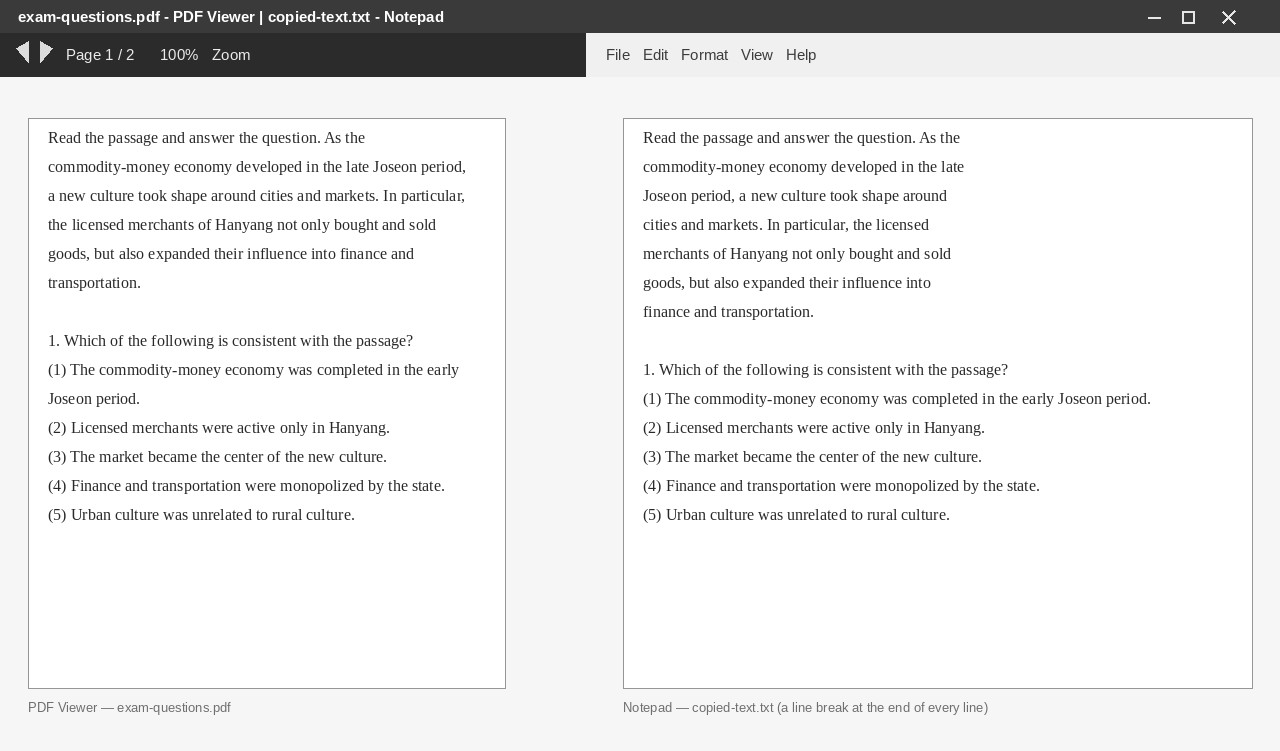
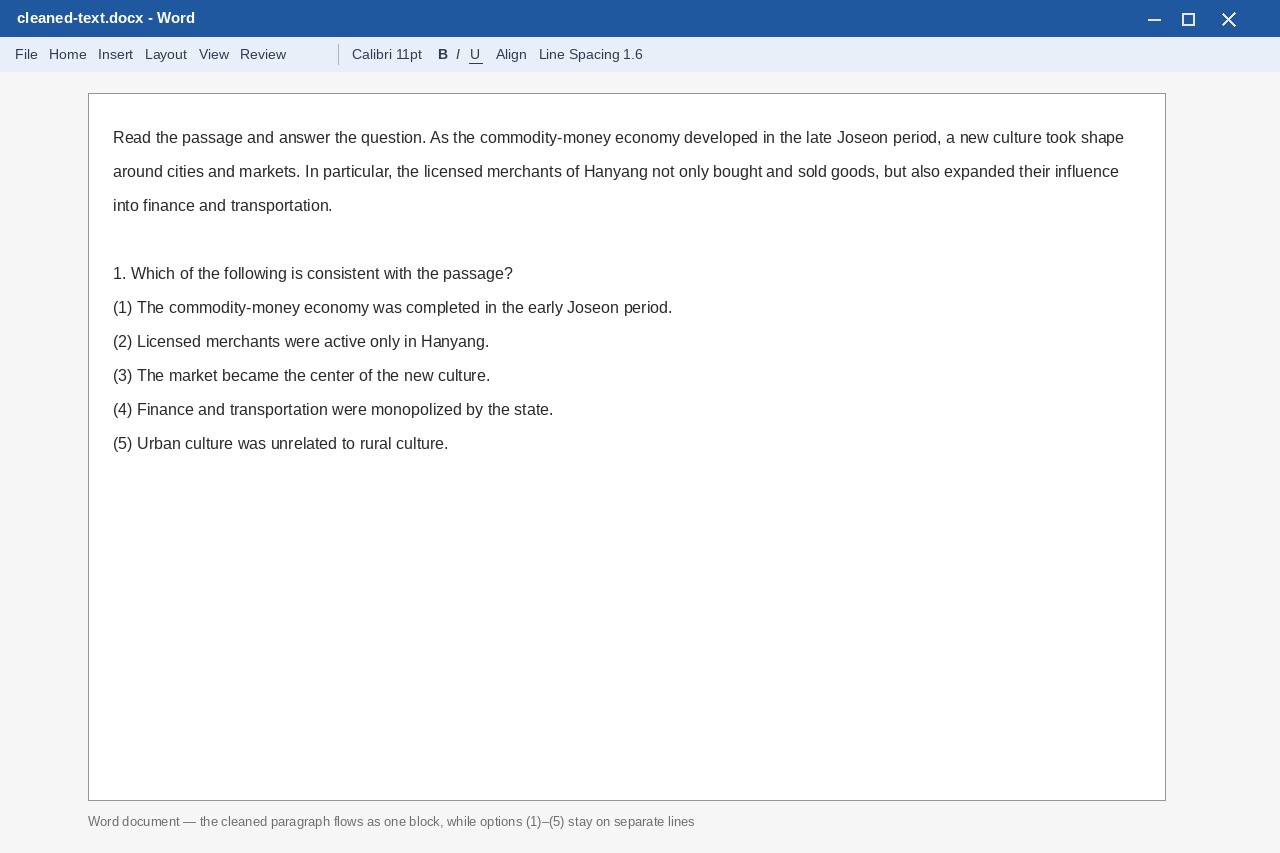
Text copied from a PDF has broken line wrapping
Paste text copied from a PDF or document. Join forced line breaks while keeping paragraph breaks, with a separate mode for multiple-choice answers.
How to use it
- Paste the copied text.
- Choose regular paragraphs or multiple-choice layout.
- Review the cleaned text, then copy it into your document editor.
Repair line breaks in text copied from a PDF
PDF and word-processing pages may contain a hard line break at the end of every displayed line. Pasting that text can split sentences. Removing every line break, however, can merge the whole document into one block.
This tool joins line endings while keeping blank-line paragraph boundaries. Be careful with bullet lists and tables, where each line may carry meaning.
For exam questions, the multiple-choice mode joins question text while keeping circled options ①–⑤ on separate lines.
Hyphenated English words split across lines may need their line-ending hyphen removed. Page numbers and headers mixed into the body may require manual cleanup.
What this helps with
- Pressing Backspace on every wrapped line → Clean pasted text while preserving paragraphs.
- Using special paragraph marks in Find and Replace → No special character codes to remember.
- Using a basic line-break remover that flattens paragraphs → Keep paragraph boundaries and answer choices.
Limitations
- Tables copied as plain text lose their cell structure; rebuild them as tables.
- Do not remove line breaks from poetry or dialogue where each line matters.
- Page numbers and headers may not always be separated automatically.