
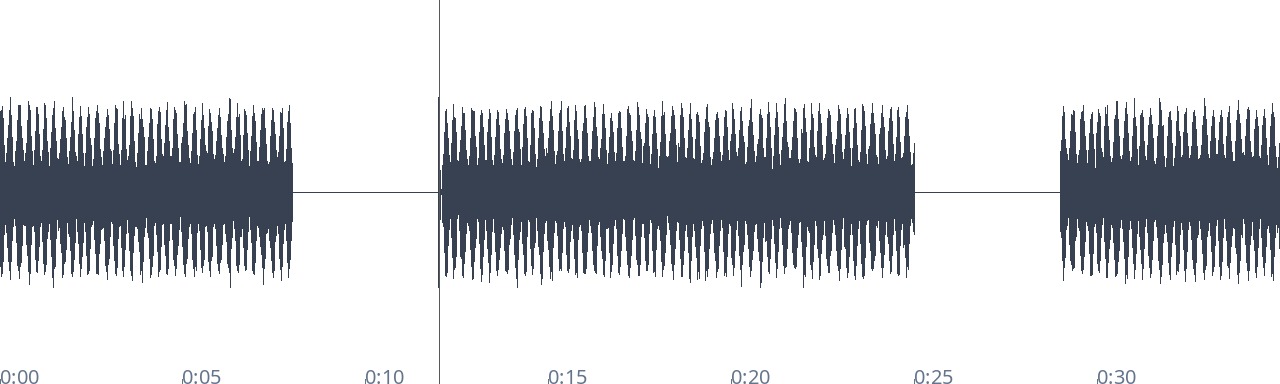
You want to find silent stretches and applause-like retake markers in a long recording before editing it.
Upload an interview or lecture recording to find silent sections and sudden loud sounds that may be applause. Review the timecodes to decide what to cut or listen to again before opening your editor.
How to use it
- Drop in an audio file or select Choose file. Select Try an example to load a sample recording and find sections right away. Browser-playable formats such as MP3, M4A, and WAV are supported. For a video, extract its audio first.
- Set the detection threshold. The default silence threshold is -40 dB and the minimum silence length is 1 second. Lower the threshold for a quiet recording; reduce the minimum length to detect shorter pauses.
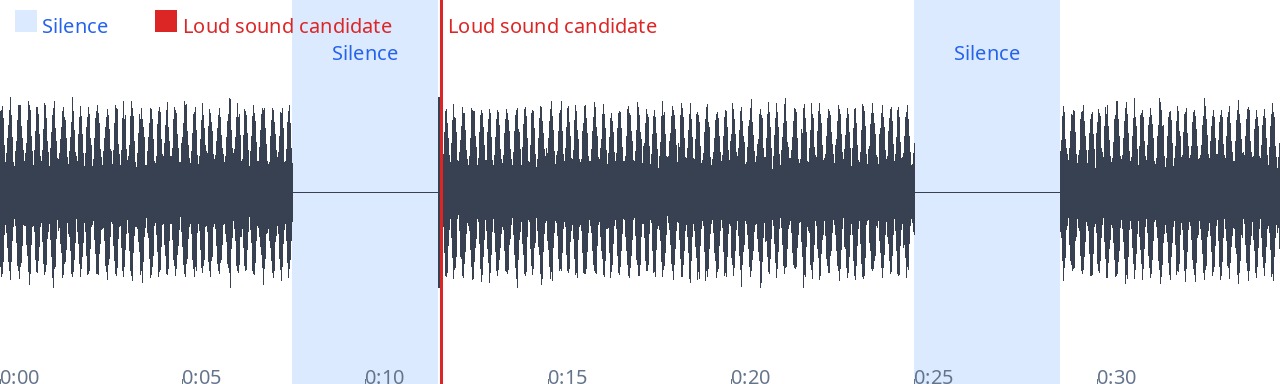
- Select Find sections. Silent sections appear in blue on the waveform; loud-sound candidates appear in orange. The summary shows counts such as “2 silent sections · 1 loud-sound candidate.” Select Play from here in the list or click the waveform to listen from that time. Select Stop playback to stop.
- Export the results as a copied list, CSV, YouTube chapters, or editing markers CSV. The section CSV contains a label, start, and end time. Editing markers contain a label, start, and duration. YouTube chapters start at the end of each silent section, must begin with 00:00, and must be at least 10 seconds apart.
Find silence and applause markers before editing a long recording
When you load a long interview or lecture straight into an editor, you may have to listen through the entire recording to find silent sections and applause marking a take for a retake. This tool helps locate them first. Upload the recording and find sections to get timecodes for silence and sudden loud sounds.
The silence threshold measures loudness. The default -40 dB is much quieter than most speech, and the default minimum length is 1 second. If quiet breathing is being marked as a pause, lower the threshold to -45 dB so only quieter sections count. To catch shorter pauses between sentences, reduce the minimum length, for example to 0.5 seconds.
Loud sounds are only candidates. The tool looks for a short section with a sudden increase in energy and many zero crossings, which can resemble applause. A door closing or a tap on a desk can have similar characteristics. Listen to each candidate in the list to confirm whether it marks an NG take, then export editing markers if needed.
What this helps with
- Listen through an hour-long recording and write down each pause → Get a timecode list of silent sections at once.
- Scan the waveform by eye to find applause → See timecodes for sudden loud-sound candidates.
- Keep NG markers in separate notes and search for them later → Export candidate sections as editing markers with a label, start time, and duration.
Limitations
- Loud-sound detection is an estimate. It combines sudden energy changes with the zero-crossing rate, so it cannot identify applause exclusively. A door closing or desk tap may also appear; listen to confirm.
- Files can be up to 500 MB and 2 hours long. Audio is decoded in your browser’s memory, so long recordings may require substantial memory.
- Only audio formats supported by your browser are accepted, such as MP3, M4A, and WAV.
- The silence threshold can range from -120 to 0 dB, and the minimum silence length must be greater than 0 seconds. Analysis uses 0.05-second intervals, so shorter pauses are not detected. A very low threshold may miss pauses with background noise; a high threshold may mark quiet speech as silence.
- YouTube chapters start when a silent section ends, begin at 00:00, and must be at least 10 seconds apart through the final chapter. You can download chapters only when at least three can be created. If the recording is too short or has too little silence, adjust the threshold or add times yourself. Loud-sound candidates are not used for chapters.