
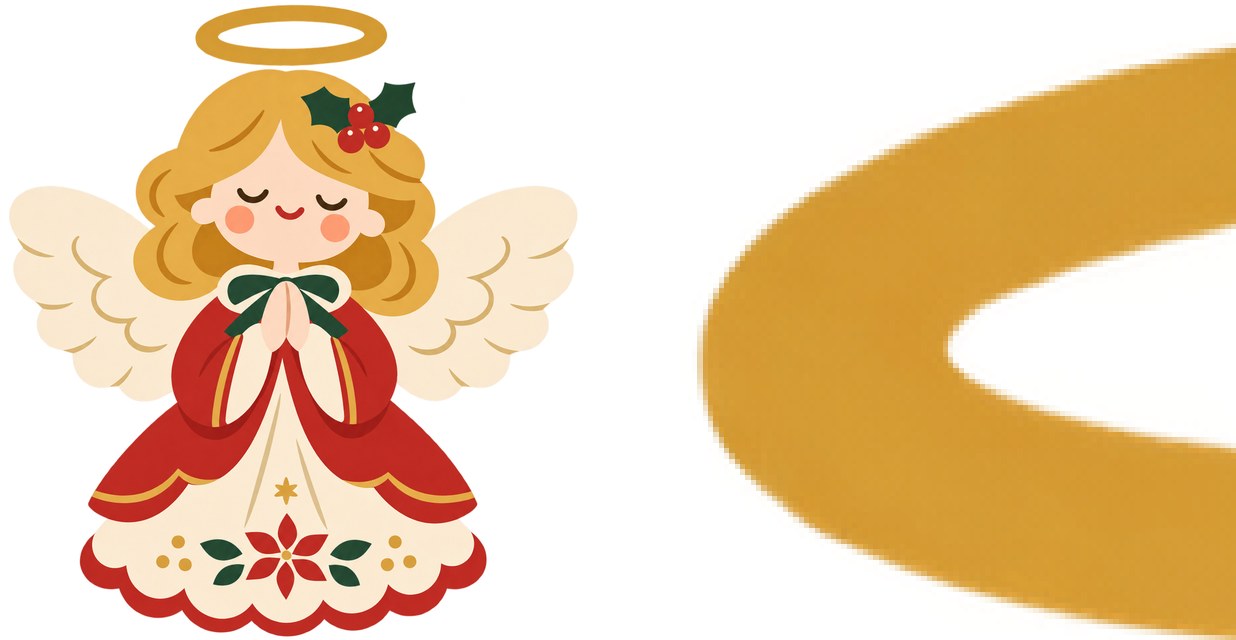
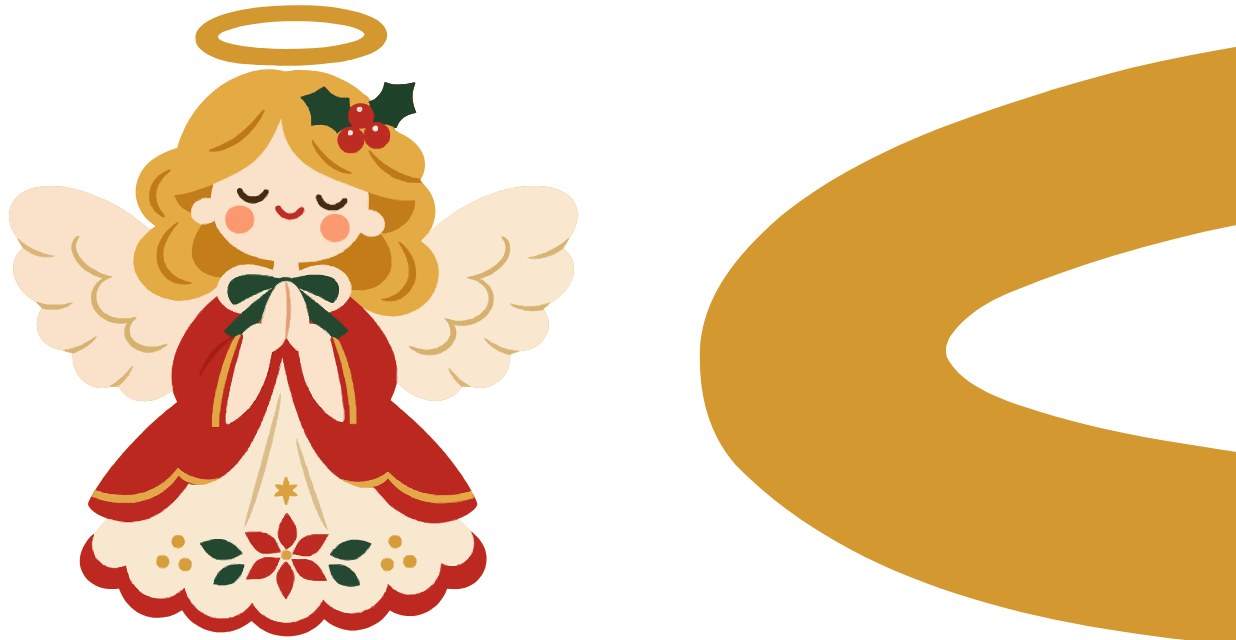
Stock sites want vector files, but tracing my artwork is hard
Add a PNG, JPG, or WebP image and the tool adjusts to your artwork automatically to produce a clean SVG vector file. Everything runs in this browser; the image is not sent to a server.
How to use it
- Add one image to convert.
- Select Convert. Progress is shown, and you can cancel a long run.
- Check the processing time, SVG size, and preview.
- Select Save SVG to download a .svg file with the original name.
What to know before turning pixel artwork into vectors
PNG and JPG images are made of pixels, so edges look stepped when you enlarge them. A vector format such as SVG stores lines and areas as shapes, so edges stay smooth at any size. That is why many stock sites ask for vector illustrations.
Artwork with clear lines and areas converts best. Textured artwork such as oil, pencil, or watercolor also works, but keeping its colors and grain makes the SVG file larger. If you are not happy with the result, choose the artwork type in Advanced settings and convert again.
A small original is enlarged, so its lines can look rough. When the longest side of the original is under 1,000 px, the tool reminds you to zoom in and check the lines.
A PNG with transparent areas keeps its transparent background. Semi-transparent edges become either fully transparent or fully opaque, so zoom in if soft shadows or edges matter.
Some stock sites require EPS files. This tool produces SVG only. If you need EPS, open the saved SVG in Illustrator or a free vector editor such as Inkscape and save it as EPS. Requirements such as EPS version, file size, and artboard size vary by site, so check them before uploading.
What this helps with
- Trying different Image Trace settings in Illustrator → The tool adjusts to your artwork automatically and converts it in one step.
- Online converters that upload your artwork → Conversion runs in this browser without uploading the image.
- A transparent PNG gaining a white box after conversion → Transparent areas stay transparent.
Limitations
- Only SVG is produced. For EPS or AI files, open the SVG in a vector editor and save it again.
- Highly textured artwork takes around 20 seconds even on a computer and produces a 10 to 30 MB SVG. Check the stock site's file-size limit.
- On a phone, textured artwork can take over a minute or stop when memory runs out. Use a computer when you can.
- Photos with continuous color changes do not become clean vectors. The tool suits artwork with clear lines and areas.
- In Safari, JPG input may produce slightly different results. PNG is recommended.
- Semi-transparent shadows and edges become either transparent or opaque.
- Files up to 30 MB and images up to 40 megapixels and 16,384 px on the longest side are supported, one image at a time.