
Bundle Expense Documents: receipts and tax invoices into a PDF or ZIP for submission
Sort mixed-up receipt photos and supporting files into a PDF or ZIP ready to submit.
Quick start
- Open the receipts and supporting files.
- Arrange page order and rotation.
- Download a PDF or ZIP for submission.
What this tool produces
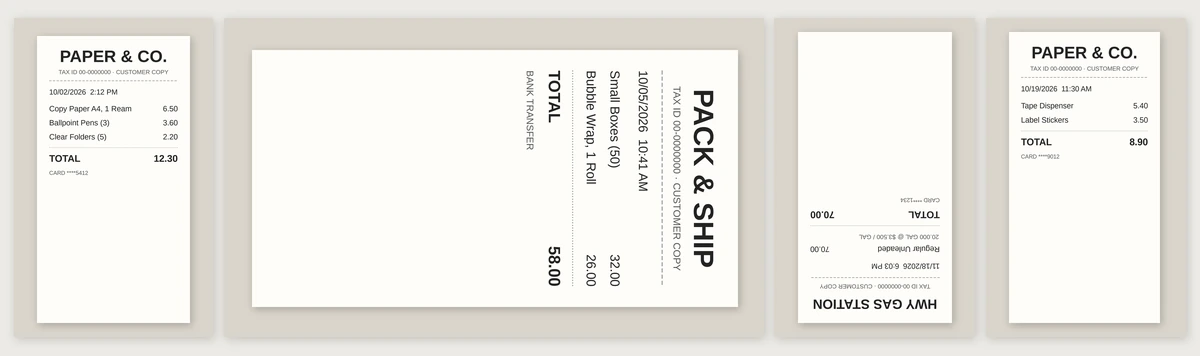
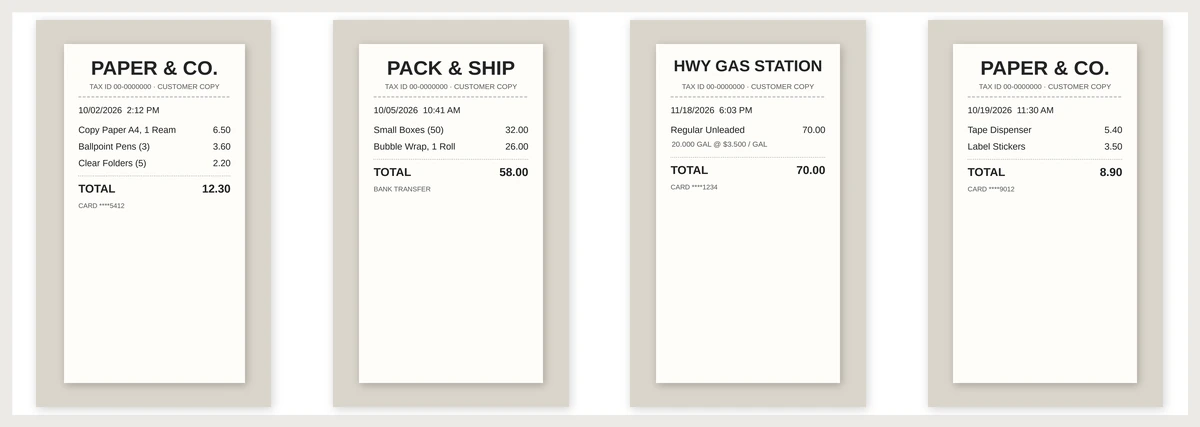
This sample shows four fictional photos of Korean receipts, including one sideways and one upside down. The tool rotated each photo upright, added a date, vendor, and amount, then exported them together as a PDF for submission.
Example: before and after
A typical month-end pile of receipts and supporting files, organized for submission.
Before · files with no naming rule
| File name | State |
|---|---|
| IMG_2041.jpg | Portrait receipt, upright |
| IMG_2042.jpg | Rotated 90°: receipt lying sideways |
| IMG_2047.jpg | Rotated 180°: upside down |
| KakaoTalk_20261031_142233105.jpg | Receipt received by messenger |
| Scan_0003.pdf | Scanner default name |
| Tax invoice (Oct).pdf | The file name doesn't identify the vendor. |
| Expense report_FINAL_really final.xlsx | Expense report |
| Receipt photo (3).png | Repeated name |
No naming rule; it also exceeds the recipient's 10 MB limit.
After · a submission packet with the expense report first
| Order | Path inside receipt-packet.zip |
|---|---|
| 01 | 2026-10/Expense report/2026-10_Expense report_unspecified_unspecified.pdf |
| 02 | 2026-10/Paper & Co/2026-10-02_Paper & Co_12.30_unspecified.pdf |
| 03 | 2026-10/Pack & Ship/2026-10-05_Pack & Ship_58.00_unspecified.pdf |
| 04 | 2026-10/Hwy Gas Station/2026-10-11_Hwy Gas Station_70.00_unspecified.pdf |
| 05 | 2026-10/Paper & Co/2026-10-19_Paper & Co_8.90_unspecified.pdf |
File name format: date_vendor_amount_account. Empty fields use “unspecified.” Files are sorted into month/vendor folders. Rotated pages are combined in the same order into receipt-packet.pdf.
All of this is made-up example data. The table exists only on this page and is not a download.
What this tool does
At month-end, you may need to rotate, sort, rename, compress, and bundle receipt photos. This tool brings receipts, tax invoice PDFs, and expense reports together in one place. Arrange the pages, rotate them, then combine the expense report and receipts into one PDF. Add dates, vendors, and amounts to apply a file-naming rule. Download a PDF or ZIP when you’re ready. This tool organizes files before submission; it does not handle bookkeeping or tax work or judge document contents.
How to use
- Open receipt photos, tax invoices and the expense report.
- Drag pages into order, rotate pages that are upside down, and leave out pages you do not need.
- Enter the date, vendor and amount in the table and apply the file name rule.
- If needed, compress the file to the recipient’s size limit.
- Download one PDF for submission, or a ZIP sorted by month and vendor.
What it does not do
- It does not extract amounts or vendors with OCR. You enter the values used for file names and sorting.
- It does not keep accounts or do tax work. Check the relevant tax and accounting rules for what counts as supporting evidence.
- Compressing pages as images to reduce the size means PDF text can no longer be selected. The target size is not guaranteed, so check readability and the actual size before submitting.
- Receipts can contain sensitive details such as account numbers and business registration numbers. Store the result files carefully.
Frequently asked questions
Can I use HEIC photos?
Yes. You can add JPG and PNG images, plus HEIC photos from an iPhone, and combine them into a PDF.
Does it read amounts or vendors automatically?
No. The tool doesn't use OCR to read amounts or vendor names. You enter the values for file names and sorting, and it uses them to create the output files.
Do receipt files stay on a server?
No. Files are processed in your browser. Download the finished result files and keep them yourself.
Can I use the result as is for a tax filing?
This tool organizes and bundles supporting files. Check the relevant tax and accounting rules for what counts as evidence and how it must be submitted.
Files and personal information
Files and anything you enter are not sent to a server. They are processed only in the browser you are using now, and closing the window clears what you entered.
Receipts can contain sensitive details such as account numbers and business registration numbers. Store the result files carefully.