
Make Answer & Grading Sheets
Enter the number of questions and the points for each one, and get an answer sheet, a grading table, and a score conversion table.
Quick start
- Make the answer sheet from the exam name, question count and choices.
- Enter answers and points, then download and check the result tables.
What this tool produces
A4 PDF saved using the tool’s print function with example data (10 questions, 100 points).

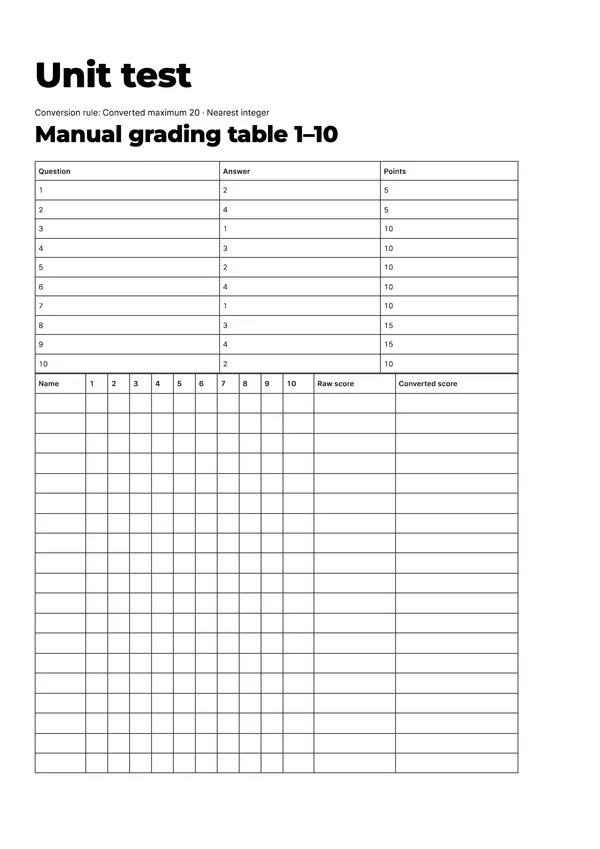
Example: before and after
An example with 10 multiple-choice questions (100 points in total) answered by 5 students.
Before · points, answer key and student answers
| Question | Points | Answer |
|---|---|---|
| 1 | 5 | 2 |
| 2 | 5 | 4 |
| 3 | 10 | 1 |
| 4 | 10 | 3 |
| 5 | 10 | 2 |
| 6 | 10 | 4 |
| 7 | 10 | 1 |
| 8 | 15 | 3 |
| 9 | 15 | 4 |
| 10 | 10 | 2 |
| Total | 100 |
| Student | 1 | 2 | 3 | 4 | 5 | 6 | 7 | 8 | 9 | 10 |
|---|---|---|---|---|---|---|---|---|---|---|
| Minjun Kim | 2 | 4 | 1 | 3 | 2 | 4 | 1 | 3 | 4 | 2 |
| Seoyeon Lee | 2 | 4 | 3 | 3 | 1 | 4 | 1 | 3 | 2 | 2 |
| Jihoon Park | 2 | 1 | 1 | 3 | 2 | 2 | 1 | 4 | 4 | 2 |
| Sua Choi | 2 | 4 | 2 | 1 | 3 | 4 | 1 | 1 | 3 | 2 |
| Haneul Jung | 2 | 4 | 1 | 3 | 4 | 3 | 1 | 3 | 4 | 3 |
After · results (10 questions, out of 100, 5 students)
| Student | Raw score | Missed questions |
|---|---|---|
| Minjun Kim | 100 | None |
| Seoyeon Lee | 65 | 3, 5, 9 |
| Jihoon Park | 70 | 2, 6, 8 |
| Sua Choi | 40 | 3, 4, 5, 8, 9 |
| Haneul Jung | 70 | 5, 6, 10 |
Raw scores add up to 345, matching the per-question total. Average 69, highest 100, lowest 40.
| Student | Raw score | Converted (out of 20) |
|---|---|---|
| Minjun Kim | 100 | 20 |
| Seoyeon Lee | 65 | 13 |
| Jihoon Park | 70 | 14 |
| Sua Choi | 40 | 8 |
| Haneul Jung | 70 | 14 |
| Question | Points | Correct | Correct rate |
|---|---|---|---|
| 1 | 5 | 5 | 100% |
| 2 | 5 | 4 | 80% |
| 3 | 10 | 3 | 60% |
| 4 | 10 | 4 | 80% |
| 5 | 10 | 2 | 40% |
| 6 | 10 | 3 | 60% |
| 7 | 10 | 5 | 100% |
| 8 | 15 | 3 | 60% |
| 9 | 15 | 3 | 60% |
| 10 | 10 | 4 | 80% |
All of this is made-up example data. The table exists only on this page and is not a download.
What this tool does
Every exam means building the answer sheet again, matching points per question to the total, and converting the marked scores. Enter the number of questions, the number of choices and the points per question to make a printable answer sheet and an answer and points table. Enter student answers to see each student’s score and the correct rate for each question. It does not read answer sheets automatically or grade written answers with AI. The teacher makes the grading decisions; the repeated tables and calculations are handled here.
How to use
- Enter the exam name, the number of questions and the number of choices to make the answer sheet.
- Enter the correct answer and points for each question. You can check the point total as you type.
- Print a table for marking by hand, or enter each student’s answers to calculate scores.
- Check raw scores, converted scores and the correct rate for each question.
- Download the result tables you need and check them before use.
What it does not do
- It does not read answer sheets automatically (OMR) or grade written answers with AI. The teacher makes the grading decisions.
- It does not replace official school grade processing. Follow your school’s rules for final grades.
- Refreshing or closing the window can clear what you entered, so download the result tables you need.
- Conversion and rounding rules are shown with the result table. Check them yourself before sharing.
Frequently asked questions
Can each question have a different point value?
Yes. Enter the points for each question separately and check the total and each question’s share.
Can I convert scores for a performance assessment?
You can convert scores to any maximum you choose and pick the rounding method.
Are student names and scores stored?
No. Everything is processed only in your browser. Refreshing or closing the window can clear what you entered, so download the result tables you need.
Does it replace official school grading?
No. It helps you make answer sheets and grading tables and calculate scores. Follow your school’s rules for final grades.
Files and personal information
Files and anything you enter are not sent to a server. They are processed only in the browser you are using now, and closing the window clears what you entered.
Conversion and rounding rules are shown with the result table. Check them yourself before sharing.