
Works well A mug photo
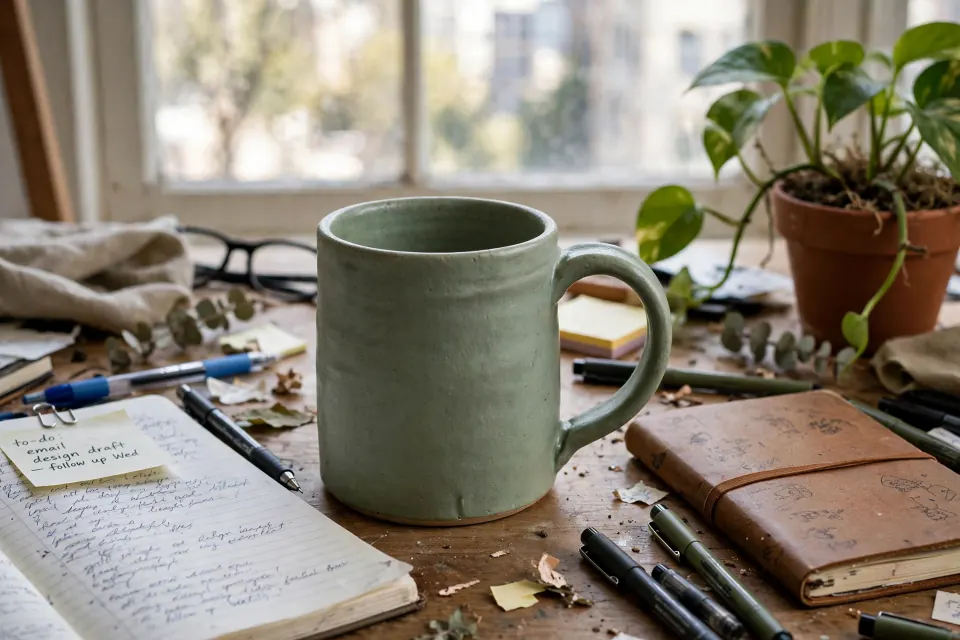
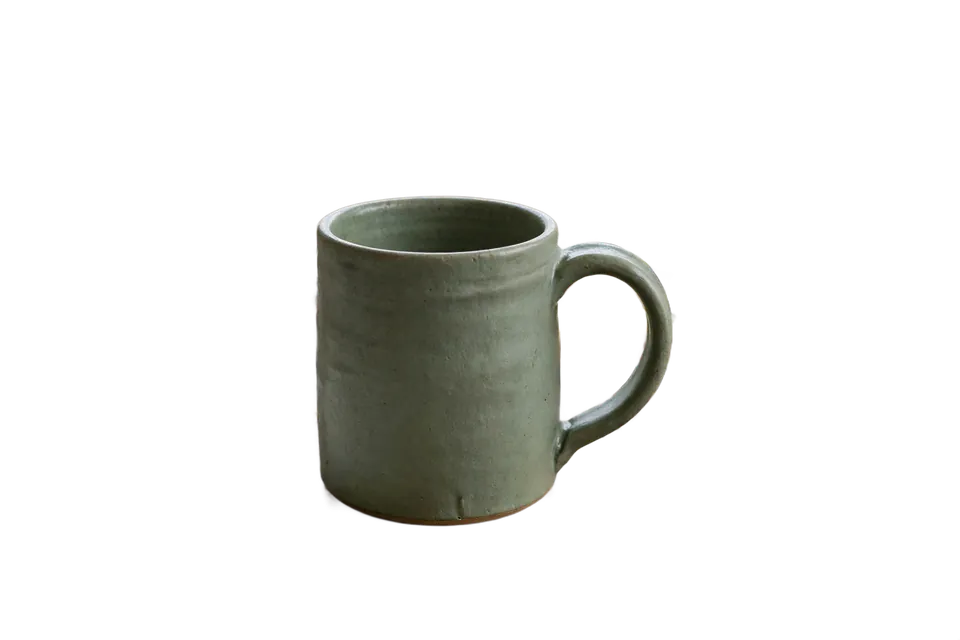
The background is removed cleanly, including the gap inside the handle. The original size (1920×1280) is unchanged.
Remove image backgrounds and
save transparent PNGs at original dimensions
Images are processed only in your browser
0 images
Add images and choose Remove Background.
You can compare originals and results.
Save individual PNGs or selected images as a ZIP
Results depend on the subject and background in photos or illustrations. Check hair, semi-transparent objects, and complex edges carefully.
Original files and image dimensions stay unchanged. Fully transparent areas stay transparent; semi-transparent areas may become more transparent.
These real product photos show results from the same model used by this tool. One case works well, and one does not. The checkerboard shows transparent areas.
The background is removed cleanly, including the gap inside the handle. The original size (1920×1280) is unchanged.

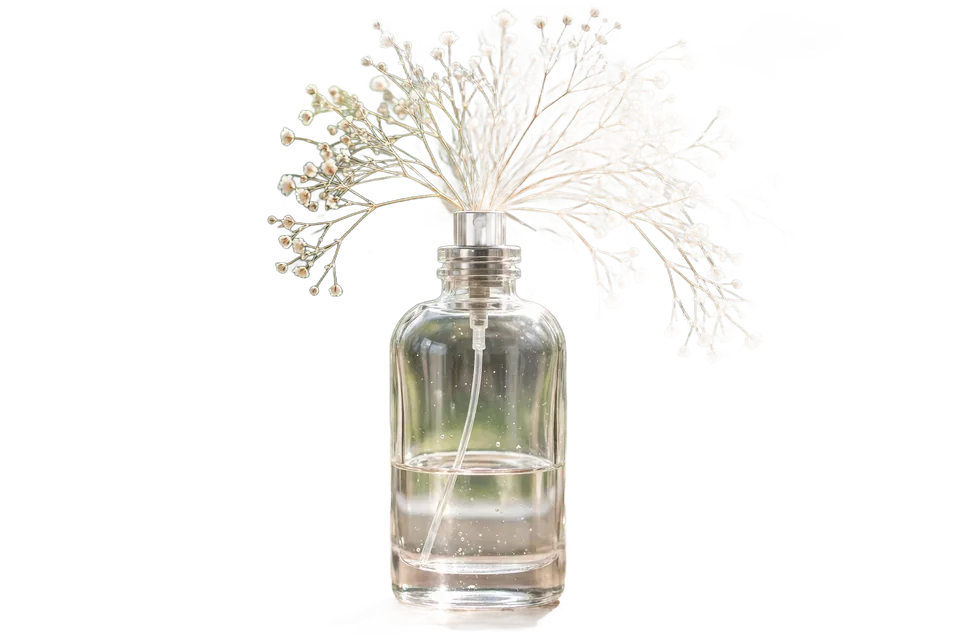
Thin or semi-transparent edges can look uneven. The bottle remains, but most of the thin stems on the right are missing, and faint semi-transparent traces remain. Thin stems and see-through materials such as glass are hard to separate from the background. Reshoot it against a plain backdrop with fewer transparent details, or touch up the result in another editor.
How we made these images: We ran the isnet-w8 model locally with the same processing as the live tool. The results are not pixel-for-pixel identical to the live tool.
Use it when you need a transparent PNG of a subject for product images, profiles or composites.
A product photo with a background → a PNG with the subject retained and the background made transparent. Compare the original and result to check the edges.
Hair, translucent objects and complex edges can produce uneven results. Semi-transparent areas may become more transparent, so check before saving.
Image files are processed in your browser. Use the save buttons to download the results to your device. Attachments submitted with problem reports are handled separately on the server.
The first run downloads a model of about 47 MB. Setup and processing time vary by device.
Results are saved as PNG files supporting transparency. Selected results can be downloaded as a ZIP.
The selected image is analyzed by the model in a browser worker. Network requests may be needed to prepare the model files.