The Customer Changed Their Order in Chat — Turn Two Order Sheets Into a Task List

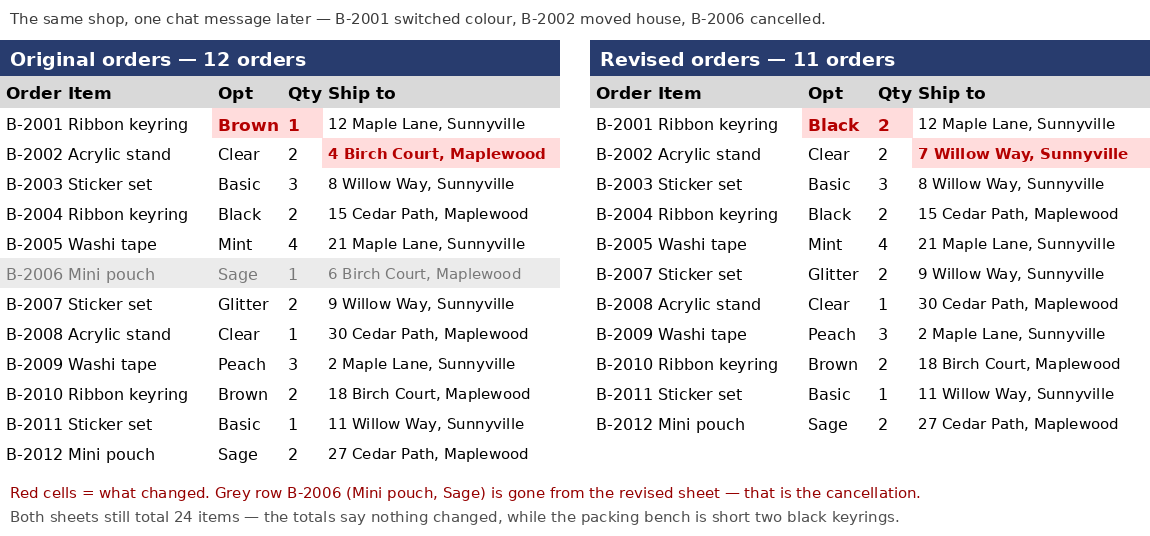
Don't reread both sheets line by line to find the one change — it hides among eleven lines that didn't change, and that is exactly where the packing mistake happens. Put the original orders and the revised orders side by side in the comparer instead: you get back a task list of what to add, what to remove, and which address changed, not a wall of highlighted cells.
Try the toolCompare Order Changes by TaskEnter the original and revised order tables to see changes grouped by the work you need to do.loopyti.comOne caution before you start: if you already packed and shipped the old version, there is nothing left to compare. This is a before-you-pack check, so run it while the parcel is still on the table.
 A glance at the mapping is still worth it before you run — with the wrong mapping, the comparison is wrong.
- Add the component table — pasted, not uploaded. There is no file upload for it, only a text box: "Paste columns in this order: product/option, component, quantity per product." Three columns, product and option combined in the first one ("Ribbon keyring / Brown"). The box says you can paste CSV text as-is — and that works, as long as it is three columns: I pasted a three-column comma-separated table and it ran clean. My first try used a four-column file, with item and option in separate columns, and the tool rejected every one of its 16 rows. Paste from a spreadsheet (tab-separated) or a three-column CSV — either works, as long as product and option are combined in the first column.
- Read the result, then copy it into your packing notes. The changes come back as summary cards — Work to add, Work to remove, Unchanged, Needs review, Address changes — with the rows grouped underneath. There is no results file to download, so use "Copy results as text" (the button answers with a "Copied." toast) and paste it where the packer will see it.
Does it actually work? I tested it
I built a fake order book for a small goods shop. A customer messaged three changes in chat: the ribbon keyring switches from brown, one piece, to black, two pieces; one order moves house; and one pouch order is cancelled outright. The original sheet holds 12 orders and 24 items in total. The revised sheet holds 11 orders — the cancelled one is simply gone — and still 24 items in total. Tested 2026-11-13, and re-tested the same day after the tool was fixed (the first version of this post described the old behaviour — see below).
Here is the change, worked out by hand before I ran the tool, so the tool's answer has something to be checked against:
- Ribbon keyring / Brown: 3 down to 2 — remove 1
- Ribbon keyring / Black: 2 up to 4 — add 2
- Mini pouch / Sage: 3 down to 2 — remove 1
- Everything else — acrylic stands, sticker sets, washi tape — exactly the same
- Address change: order B-2002 moves from 4 Birch Court, Maplewood to 7 Willow Way, Sunnyville
- Cancelled order: B-2006, one sage mini pouch, missing from the revised sheet entirely
That flat total is the trap. Both sheets add up to 24 items — I counted that by hand, because the tool never shows a total — so a quick glance at the totals says nothing changed, while the packing bench is actually short two black keyrings and holding one brown keyring and one pouch nobody wants any more.
, plus eight "No component table" entries, one per product. No component quantities appeared at all.
 text as is. Use this column order: product/option, component, quantity per product" — and a three-column CSV pasted as-is runs clean, no review flags at all. A four-column file still fails the same way, and the error still only says to check the component or its quantity. So combine the first two columns before you paste — from a spreadsheet, or by rewriting the file to three columns.
Why matching by name beats comparing rows
The tool matches by item and option name, not by row number — so a change in row 1 still finds its match even when the rows around it move. The same product scattered across several orders gets added together first, and only the difference is left standing. Addresses work the other way round: they are matched by order number, so the old and new address for the same order sit side by side. That split is the whole point — quantities are a packing question, addresses are a labelling question, and mixing them into one highlighted grid answers neither.
What about the other ways?
Comparing the two sheets by eye works at 12 orders. But the three changed lines sit inside nine unchanged ones, and the totals match, so the eye reports "nothing changed" and moves on. At 50 or 100 orders, eyeballing stops being a method at all.
Conditional formatting or a lookup formula in a spreadsheet will flag the cells that differ. What it will not do is tell you what to pack: the difference is marked, and the arithmetic — how many more black ribbons to cut, how many brown ones to put back — is still yours to do, plus another layer of formulas if you want component quantities.
Forwarding the chat message to the packing bench is not a task list either. "Black instead of brown, two of them" leaves the packer to open the sheets and work out who, how many, and what comes out. The message is the input; the task list is the output.
The comparer's place is the middle case: an order that changed after it was written down, where the packing bench needs to know what to do differently, not which cells lit up.
What it won't do — read this first
- It does not guess at similar product names. "Pink" and "Pink color" are treated as two different items, with no automatic review flag. Keep the wording identical in both sheets before you compare.
- Auto-detection now maps the columns right for this layout. Product on Column 2, Option on Column 3, Quantity on Column 4, and "Combine two columns as the comparison key" was already checked. (Before the fix it came back wrong and I had to set it by hand.) A glance at the mapping before you run is still cheap insurance — with the wrong mapping, the comparison is wrong.
- The component box wants three columns, product and option combined in the first. A four-column file (item and option separate) fails into Needs review — all 16 of my rows, plus 8 "No component table" entries — even pasted as CSV, though the box says CSV works as-is. Paste from a spreadsheet, or rewrite the file to three columns first.
- Quantities must be whole numbers. Check the values you enter — a decimal quantity is not something it can work with.
- Addresses that differ only in spacing, full-width or half-width characters, or letter case count as the same. Any other spelling difference shows up as an address change, so check near-identical addresses against the order number rather than trusting the match alone.
- It shows no totals and names no cancellation. Both my sheets total 24 items and the cancelled order B-2006 never appears by name — those are my own counts, not the tool's. And "Unchanged" changes meaning with the component table: without it, the card counts unchanged products (5); with it, unchanged components (5). The label alone doesn't tell you which.
- Inputs over 10 MB or 50,000 rows are rejected. A small shop's order book is nowhere near that, but a year of exports in one file would be.
- There is no results file to download. "Copy results as text" is the way out — paste it into production notes or a group chat.
- Files are processed in your browser and never sent to a server. That said, a real order sheet holds customer names, addresses, and phone numbers, so blur those before you screenshot anything to share. Every name and address in this post's sample is made up.
The one line to remember
Don't compare rows — compare what to pack.
Try the toolCompare Order Changes by TaskEnter the original and revised order tables to see changes grouped by the work you need to do.loopyti.comFAQ
Do I need a component table? No. Without one, the result shows product and option changes — in my first run, Black +2, Brown −1, Sage −1. With one, pasted in three columns (from a spreadsheet, or as a three-column CSV), it shows the component quantities to prepare: the black keyring change became two more black ribbons, one more metal ring, one more jump ring.
Can I download the results as a file? No. View the changes grouped by task on screen, then choose "Copy results as text" to paste them into production notes or a group chat.